XRay protocol settings
Overview
This guide covers the XRay protocol settings in AmneziaVPN 5.1.0.6. In addition to Port and Server Name (SNI), you can change the transport, connection security and other data transfer settings. XRay must have been installed on the server using AmneziaVPN 5.0.1.5 or later.
You may need to adjust these settings if your XRay connection does not work on a particular network. If the connection works, leave the protocol settings as they are.
To open the XRay settings, click the name of any connection in AmneziaVPN, then click the ⚙️ (gear icon) to the right of the connection to your server. Select XRay from the list of installed protocols and open XRay server settings.
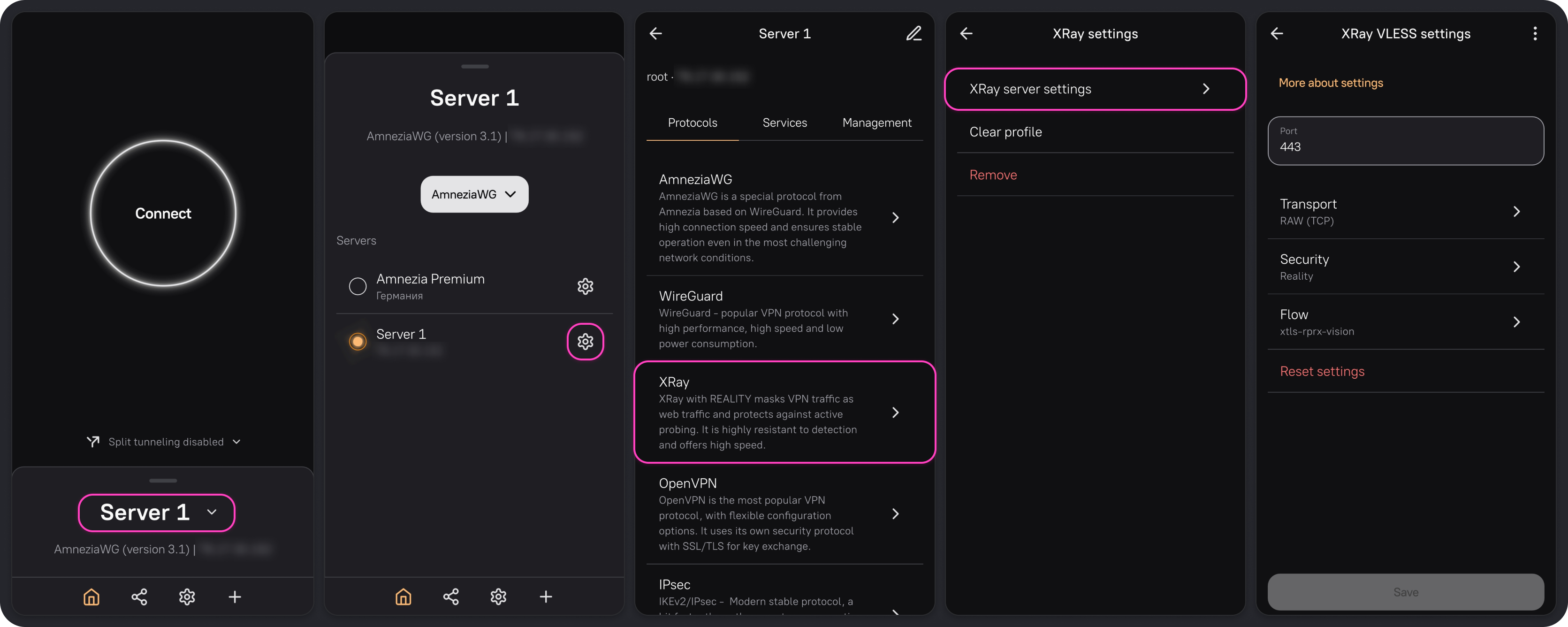
XRay settings
The settings below follow the order in which they appear in AmneziaVPN as you configure the protocol.
Transport determines how VPN traffic is carried, Security determines how the connection is protected and Flow controls additional processing of VPN traffic. The transport and security options you select determine which settings and Flow values are available.
Read the message AmneziaVPN displays when you save your XRay settings. If it warns that previously issued connection keys will stop working, you will need to issue new keys for all users. The 🔑 symbol below marks settings or groups of settings that invalidate existing XRay connection keys when you change and save them.
Port 🔑
The port devices use to connect to the server through XRay. The default is 443, but you can change it to another port from 1 to 65,535, such as 8443, if needed.
Leave a working port unchanged unless you need to use a different one. If you change it, make sure the new port is available.
XRay installed through AmneziaVPN uses the selected port for both TCP and UDP. If another VPN protocol, such as AmneziaWG, WireGuard or OpenVPN, or a Telegram proxy service already uses that port on the server, you cannot select it for XRay.
Transport 🔑
The transport determines how VPN traffic travels between the app and the VPN server. AmneziaVPN offers three XRay transports: RAW (TCP), XHTTP and mKCP.
RAW (TCP)
RAW carries VPN traffic over a TCP connection and has no additional settings.
XHTTP
Like RAW, XHTTP carries VPN traffic over TCP, but it packages the data in HTTP requests and responses. The server processes each HTTP request, extracts the VPN data and forwards it.
Selecting XHTTP makes the following settings available: Mode, HTTP Profile, header switches, Session & Sequence, Traffic Shaping and Padding and multiplexing.
Mode 🔑
The mode determines how XHTTP sends data between your device and the server:
- Auto — XRay selects a mode based on Security: Packet-up for TLS or None, and Stream-one for Reality.
- Packet-up — Your device sends data in batches across multiple HTTP requests. XHTTP adds an automatically generated session ID so the server can identify requests that belong to the same connection. Each batch also has a sequence number, which lets the server put the data back in order. Data from the server is streamed in a separate HTTP response.
- Stream-up — Data is streamed in both directions, with separate HTTP requests for sending and receiving. As in Packet-up, a session ID links requests that belong to the same connection.
- Stream-one — Data is sent and received within a single HTTP request and its response. No session ID is added to link requests. This is the default mode when you select the XHTTP transport.
Use Session & Sequence, described below, to choose where session IDs and batch sequence numbers are sent. Use Traffic Shaping to adjust batch sizes and the intervals between uploads.
HTTP Profile
These settings control the HTTP requests that carry VPN traffic:
-
Host 🔑 — The domain name included in the HTTP request. XRay on the server checks whether it matches the name in its configuration. Host does not have to match Server Name (SNI), although AmneziaVPN sets both to
www.googletagmanager.comby default. They are used at different stages: SNI when establishing the secure connection, and Host in HTTP requests sent over that connection. -
Path 🔑 — The path where XRay on your server accepts HTTP requests containing VPN data.
A path is the part of a URL after the domain name. In
https://example.com/vpn, for example, the path is/vpn. You do not need to create a page or folder at that path, either on your server or on the website specified in Host. The path is set in the XRay configuration itself. You can leave this field blank to use the default root path,/, as inhttps://example.com/. -
UplinkHTTPMethod — The HTTP method your device uses to send VPN data to the server: POST, PUT or PATCH. All three serve the same purpose in XHTTP: sending VPN data. They do not correspond to different VPN modes. Choose PUT or PATCH only if you use an intermediary HTTP service configured to handle requests using one of those methods. An intermediary HTTP service could be a proxy you have configured separately between the app and your server. If you do not use one, leave POST selected.
Disable gRPC Header 🔑
Removes the Content-Type: application/grpc header from Stream-up and Stream-one requests. This header identifies the data as gRPC, a method of communication between programs. This switch is not used in Packet-up.
Disable SSE Header 🔑
Removes the Content-Type: text/event-stream header from the server's response. Websites use this header when sending new data without reloading the page. In XHTTP, this switch removes the header but does not stop VPN data transfer.
Session & Sequence 🔑
Packet-up uses all the settings in this section. Stream-up uses only SessionPlacement and SessionKey. Stream-one uses none of them. If Mode is set to Auto, the applicable settings depend on the mode XRay selects for your Security setting, as described above.
-
SessionPlacement — Where the session ID is sent in the HTTP request:
- Path — Appends the session ID to the path set in HTTP Profile → Path. For example, with a base path of
/vpnand a sample session ID ofabc123, the request path starts with/vpn/abc123. - Header — In an HTTP header, a field that carries information about the request.
- Cookie — In a cookie, a name-value pair sent with the HTTP request.
- Query — In a URL query parameter after
?, such as?x_session=abc123. - None — Uses the default placement. This has the same effect as Path: the session ID is appended to the request path. It does not disable the session ID.
- Path — Appends the session ID to the path set in HTTP Profile → Path. For example, with a base path of
-
SessionKey — The name of the field that carries the session ID. Used only when SessionPlacement is set to Header, Cookie or Query. In the header
X-Session: abc123, for example,X-Sessionis the field name andabc123is the automatically generated session ID. Enter only the field name in SessionKey, not the ID itself.You can leave this field blank. The default is
X-Sessionfor Header andx_sessionfor Cookie and Query. You do not need to fill in SessionKey when SessionPlacement is set to Path or None. -
SeqPlacement — Where the Packet-up batch sequence number is sent in the HTTP request. One session ID identifies the connection, while each batch has its own number so the server can put the data back in order. The placement options work the same way as those for SessionPlacement.
-
SeqKey — The name of the field that carries the batch sequence number. Used only when SeqPlacement is set to Header, Cookie or Query. As with SessionKey, enter only the field name, not the sequence number.
You can leave this field blank. The default is
X-Seqfor Header andx_seqfor Cookie and Query. You do not need to fill in SeqKey when SeqPlacement is set to Path or None. -
UplinkDataPlacement (Where the uploaded data is carried in the request) — Where VPN data is sent in the HTTP request:
- Body — In the HTTP request body, the part that carries the data being sent.
- Auto — The server accepts data from the request body, headers or cookies. With this setting, your device sends data in the request body; it does not automatically choose among the three methods.
- Header — In HTTP headers.
- Cookie — In cookies.
Header and Cookie apply only when Packet-up is selected explicitly. If Mode is set to Auto, leave Body selected, even if the app offers other options.
-
UplinkDataKey — The base name of the HTTP headers or cookies that carry VPN data. XHTTP appends numbers to identify chunks of data within a single HTTP request. For example, with Header selected,
X-DatabecomesX-Data-0,X-Data-1and so on.You can leave this field blank. The default is
X-Datafor Header and Auto, andx_datafor Cookie. With Auto, the server uses this name to receive data from headers or cookies. You do not need to fill in UplinkDataKey when UplinkDataPlacement is set to Body.
Traffic Shaping
These settings control HTTP request sizes and frequency, as well as the server's data queue. If Mode is set to Auto, the applicable settings depend on the mode XRay selects for your Security setting, as described above.
The Min and Max fields set the lower and upper bounds of the range XRay chooses a value from. To use a fixed value, enter the same number in both fields. You do not need to fill in every field manually. A blank field or 0 does not always mean a setting is disabled; the meaning depends on the setting.
- UplinkChunkSize — The size of each chunk of data sent in an HTTP header or cookie, in bytes. Used only in Packet-up when UplinkDataPlacement is set to Header or Cookie. A smaller size splits the data into more chunks within a single HTTP request. This lets you make individual headers or cookies smaller, for example, to meet an intermediary HTTP service's size limit. This is not the network packet size and is not equivalent to mtu. If the field is blank or set to
0, XRay uses its default range:3000–4000bytes for Header and2048–3072bytes for Cookie. - scMaxBufferedPosts — The number of data batches the server can queue for a single Packet-up connection while putting them back in order. If the second batch arrives before the first, for example, the server queues it while waiting for the missing batch. A higher limit allows more batches to be queued but may increase memory use. If the queue overflows, the connection closes. Increase this limit only if that is what causes your disconnections. A blank field or
0keeps XRay's default limit of30. - scMaxEachPostBytes 🔑 — The size range for a single Packet-up data batch, in bytes. Your device chooses an upload size limit from this range, and the server accepts batches no larger than Max. Requests can contain less data than this limit. A lower limit may require more HTTP requests to send the same amount of data. Adjust this setting if you need to change batch sizes, for example, to meet an intermediary HTTP service's size limit. For a custom range, set both bounds to at least
1. To use the default limit of1000000bytes, leave both fields blank or enter0–0. - scStreamUpServerSecs — The range of intervals, in seconds, between padding messages sent by the server in Stream-up. These messages help keep the HTTP response open when no user data is being sent. A shorter interval sends padding more often and adds more overhead; a longer interval sends it less often. You may need to adjust this setting if an intermediary HTTP service closes connections after long periods without data. It does not limit the overall duration of your VPN connection and is not used in Packet-up or Stream-one.
- scMinPostsIntervalMs — The range of minimum intervals between Packet-up uploads, in milliseconds. Longer intervals reduce the frequency of HTTP requests but may slow uploads to the server. Shorter intervals allow more frequent uploads but do not guarantee higher speeds. This controls request frequency, not overall network latency. It is not used in Stream-up or Stream-one.
If you clear scStreamUpServerSecs or scMinPostsIntervalMs, the app fills the fields with its initial values the next time you open the settings: 1–100 seconds and 100–800 milliseconds, respectively. This does not verify the values actually in use. If these settings are missing from the XRay configuration, different defaults apply: 20–80 seconds and 30–30 milliseconds. To avoid this ambiguity, enter both bounds of the range explicitly.
Padding and multiplexing
This group contains separate xPadding and XMux screens.
xPadding 🔑
These settings control padding in HTTP requests and responses. XHTTP adds a string of the selected size that contains none of your data. This changes the appearance and size of the HTTP exchange but does not replace encryption.
- xPaddingBytes — The range of padding sizes, in bytes. Set the lower and upper bounds in the Min and Max fields on its separate screen, as described under Traffic Shaping. For a custom range, set both bounds to at least
1. To use the default range of100–1000bytes, leave both fields blank or enter0–0. Larger values add more overhead; they do not increase speed or the amount of user data carried. - xPaddingObfsMode — Enables your custom padding settings. When this switch is off, the fields remain visible but cannot be edited. Your custom values, including xPaddingBytes, are not applied. XRay uses its default padding instead. Padding itself is not disabled.
- xPaddingKey — The name of the cookie or URL parameter that carries padding. This is not a secret key. Used for Cookie, Query and Query in header.
- xPaddingHeader — The name of the HTTP header that carries padding. Used for Header and Query in header. You do not need this field for other placement options.
- xPaddingPlacement — Where padding is placed:
- Cookie — In a cookie named by xPaddingKey.
- Header — Directly in the header named by xPaddingHeader.
- Query — In a URL parameter named by xPaddingKey.
- Query in header — In a URL parameter inside a header. Both names are used: xPaddingHeader for the header and xPaddingKey for the URL parameter.
- xPaddingMethod — How the padding string is generated. Repeat-x repeats the character
X, while Tokenish creates a string of random letters and digits that resembles a token. Both are forms of padding, not authentication methods.
If you leave xPaddingKey and xPaddingHeader blank, AmneziaVPN fills in the defaults: x_padding and X-Padding, respectively. XRay uses the same default names. Padding settings must be compatible on your device and the server.
For xPaddingBytes and scMaxEachPostBytes, do not set Min to zero while Max is nonzero. This range may cause a configuration error or prevent the connection from working. Set both bounds to at least 1, or use 0–0 for XRay's defaults.
XMux
XMux lets multiple connections share an HTTP connection instead of opening a new one each time. Requests from different apps on your device, for example, can share one connection to the VPS. This is called multiplexing; it does not refer to the number of users on the server. Mode determines how data is sent and received, while XMux controls how connections share the underlying transport connections.
The xmux switch controls whether the values you enter in this section are applied. When it is off, the fields remain visible but cannot be edited. XRay uses its defaults; XMux itself is not disabled. These settings determine how your device uses connections to the server.
- maxConcurrency — The number of connections that can be carried simultaneously over a single transport connection. Once the limit is reached, new connections use another transport connection.
- maxConnections — The number of transport connections to open in parallel. Until the limit is reached, a separate transport connection is opened for each new connection; after that, existing transport connections are reused. You cannot set nonzero limits for both maxConnections and maxConcurrency. Choose one of these two approaches.
- cMaxReuseTimes — How many connections can use the same transport connection over its lifetime. Once the limit is reached, no new connections are added to it.
- hMaxRequestTimes — The total number of HTTP requests that can pass through a connection. Unlike maxConcurrency, this counts requests over the connection's lifetime, not connections active at the same time.
- hMaxReusableSecs — How long a connection can accept new HTTP requests, in seconds. After that, new requests use another connection. Existing requests are not interrupted simply because this time has elapsed.
- hKeepAlivePeriod — The interval, in seconds, between messages that check an idle HTTP/2 connection. This setting is not used with HTTP/1.1. A negative value, such as
-1, disables these messages. A blank field or0keeps XRay's default interval of45seconds.
For the first five settings, enter a range using Min and Max, as in Traffic Shaping. For hKeepAlivePeriod, enter a single number. When all XMux settings are blank or zero, XRay uses its default set: maxConnections is 3, hMaxRequestTimes is 600–900 and hMaxReusableSecs is 1800–3000 seconds. No limits are set for maxConcurrency or cMaxReuseTimes.
If you set even one value to a nonzero number, XRay no longer applies this full set of defaults. For example, if you set only maxConcurrency, leaving hMaxRequestTimes and hMaxReusableSecs blank does not retain the limits of 600–900 requests and 1800–3000 seconds. Choose your XMux settings as a complete set rather than changing one value and assuming the other default limits will remain in effect.
mKCP
mKCP carries data over UDP. It may reduce latency on an unstable network but usually uses more data than TCP.
mKCP settings
- TTI — The interval between mKCP packet transmissions, in milliseconds. Valid values range from
10to100. A lower value allows data and acknowledgments to be sent more often, which may reduce transmission delays but increases protocol overhead and the core's workload. It does not guarantee higher speeds: sending packets too often puts an additional load on your device and VPS. - uplinkCapacity — The upload capacity mKCP uses for its calculations, in MB/s, or megabytes per second, not megabits. To convert from Mbps, use approximately
8Mbps per1MB/s. For example,40Mbps is about5MB/s. XRay uses this value to calculate how many packets it can send without waiting for an acknowledgment. If you set it manually, use your available upload bandwidth rather than your desired VPN speed. A value that is too low may limit data transfer; a higher value cannot increase the physical capacity of your connection. - downlinkCapacity — The download capacity mKCP uses for its calculations. Like uplinkCapacity, it is measured in MB/s, but it applies to the receiving side: how many packets it is ready to accept before sending an acknowledgment. For manual configuration, use your available download bandwidth. Actual throughput depends on both the sender and the receiver. Increasing just one value does not guarantee higher speeds.
- mtu — The maximum size of an mKCP packet, in bytes. Valid values range from
576to1460; the default is1350. If your network drops large UDP packets, lowering mtu may help stabilize data transfer. Smaller packets, however, require more packets and more overhead to carry the same amount of data. Adjust mtu gradually and test the connection after each change. No single value works for every network. - cwndMultiplier — The send window multiplier. It affects how many sent packets can be waiting for acknowledgment at once. The minimum is
1. A higher value allows more unacknowledged packets but does not guarantee higher speeds. - maxSendingWindow — The maximum amount of sent but unacknowledged data, in bytes. This is not a limit on total traffic per session. The value must be at least as large as mtu. If you leave the field blank, XRay uses
2097152bytes, or2MiB.
With mKCP selected, Reality is unavailable under Security, and Flow displays Empty.
Security 🔑
Determines how the connection is protected for the selected Transport. For example, with XHTTP, the transport carries data in HTTP requests, while Security determines how that exchange is protected. The options are None, TLS and Reality. Reality is not available with mKCP.
None
Adds no TLS or Reality protection to the transport connection. The ALPN, Fingerprint and Server Name (SNI) fields are hidden. VLESS itself does not encrypt data in the configuration used by AmneziaVPN, so do not select None for a regular connection over the internet.
This option can be used in a setup where another service provides protection, such as an HTTPS proxy in front of XRay. Selecting None does not create or configure that service.
TLS
Encrypts traffic between your device and the server using TLS, the security mechanism used in HTTPS, among other applications.
AmneziaVPN automatically creates and configures a TLS certificate. You do not need to obtain or upload one yourself.
-
ALPN 🔑 — A list of protocols from which your device and the server select a mutually supported option when establishing the TLS connection:
- h2 — HTTP/2.
- http/1.1 — HTTP/1.1.
- h2,http/1.1 — Both options.
With XHTTP + TLS, this affects which HTTP version is used. With RAW (TCP) or mKCP, including HTTP in ALPN does not turn the transport into XHTTP.
-
Fingerprint — A profile for the first message your device sends when establishing a TLS connection, called Client Hello. Different programs start TLS connections differently. XRay imitates the initial TLS message of the selected browser or platform. The available profiles are hellochrome_120, chrome, firefox, safari, ios, android, edge, 360, qq and random.
hellochrome_120 is a Chrome 120 profile and the default in AmneziaVPN 5.1.0.6. chrome is a different profile: in this version of the app, it corresponds to Chrome 133. This does not select a browser on your device. You can use any of these profiles regardless of which browser you use.
With XHTTP + TLS and the android or 360 profile, select only http/1.1 in ALPN. These profiles do not support HTTP/2. If Flow is set to either XTLS Vision option, do not use android or 360. Vision requires TLS 1.3, which these profiles do not support.
random selects a random profile. This setting does not install a browser or imitate everything it does. With mKCP + TLS, the Fingerprint field is hidden because the connection uses the core's standard TLS implementation. Changing Fingerprint does not change previously issued keys. See Settings on other devices for how to share the new value with other users.
-
Server Name (SNI) 🔑 — The domain name of your own or a third-party website, sent by your device in the initial TLS message, Client Hello. Traffic filtering systems can see this name. Enter only the domain, without
https://, a path or a port number. The website itself is not involved in the connection, so it does not need to support TLS 1.3 or HTTP/2. If your current SNI works, leave it unchanged unless necessary.TLS does not route your VPN traffic through the SNI website or replace your server's IP address with the website's address. An HTTPS probe, such as one from your internet provider's traffic filtering system, is not forwarded to that website either. With RAW (TCP) or XHTTP, XRay on your server responds to the probe with its own TLS certificate. The probe does not receive pages from the SNI website. mKCP receives data over UDP, so a standard HTTPS probe over TCP does not apply. This does not mean the server cannot be detected or probed in other ways.
Reality
Encrypts traffic between your device and the server using modified TLS and disguises the VPN server as a real HTTPS website.
Selecting Reality makes Fingerprint and Server Name (SNI) available. Reality works with RAW (TCP) and XHTTP, but not mKCP.
-
Fingerprint — A profile for the first message your device sends when establishing a TLS connection, called Client Hello. Different programs start TLS connections differently. XRay imitates the initial TLS message of the selected browser or platform. For Reality, we recommend firefox or safari. You can also use chrome, but it is frequently blocked in Russia.
android and 360 are not suitable for Reality because they do not support the required TLS 1.3. If your server runs XRay 26.10.31, the version installed by AmneziaVPN 5.1.0.6, do not select hellochrome_120, ios, edge or qq either. They do not support the key exchange method required by this version of Reality. Avoid random as well, since it may select an incompatible profile.
-
Server Name (SNI) 🔑 — The domain name of your own or a third-party website, sent by your device in the initial TLS message, Client Hello. Traffic filtering systems can see this name. Enter only the domain, without
https://, a path or a port number. This website is used for camouflage, so it must be reachable from the VPS and support TLS 1.3 and HTTP/2. Being able to open it in your browser is not enough. If your current SNI works, leave it unchanged unless necessary.In XRay itself, the SNI name and the camouflage website's address are separate settings. AmneziaVPN changes them together when you edit this field.
Reality does not route your VPN traffic through the SNI website or replace your server's IP address with the website's address. If a traffic filtering system probes your server with a standard HTTPS connection, XRay forwards that connection to the SNI website. That website responds with its own TLS certificate, rather than XRay on your VPS.
Flow
Controls additional processing of VPN traffic. The available values depend on Transport and Security. You can use XTLS Vision with RAW (TCP) and TLS or Reality. With XHTTP or mKCP, the app displays Empty. Vision is not used when Security is set to None.
The app offers three values:
- Empty — Does not use an additional XTLS Flow mode.
- xtls-rprx-vision — Uses XTLS Vision to process nested TLS traffic, such as HTTPS browsing over the VPN, to reduce recognizable patterns in that traffic. This option blocks UDP traffic to port
443. - xtls-rprx-vision-udp443 — Uses XTLS Vision and allows UDP traffic to port
443, which QUIC uses. This option is intended for apps that require QUIC. Select it only if you have specific instructions to do so.
Enabling or disabling XTLS Vision 🔑 means switching between Empty and either Vision option. Switching between xtls-rprx-vision and xtls-rprx-vision-udp443 does not require new connection keys.
Changing settings
Before applying settings you found online, check which XRay version, transport and security option they are intended for, and whether they require any separately configured services. Settings that work for someone else may not work for your server and network. You cannot always transfer a complete set of settings from Xray-core or 3x-ui to AmneziaVPN.
Do not mix settings from different sets. They may work separately but be incompatible when combined.
Before making changes, create a configuration based on your current settings so you can restore them later. If you are connected through the XRay server whose settings you are changing, disconnect first. Changes that affect XRay on the server will interrupt users' active connections. Let them know in advance.
When you finish editing, return to XRay VLESS settings, click Save, read the app's message and click Continue to confirm. If the app warns that existing keys will stop working, share the connection again once setup is complete and replace the keys on users' devices.
Connect with the new settings, open a few websites and check for disconnections. Test the VPN on the network where you had the problem first. If possible, also compare Wi-Fi and cellular connections. If websites load more slowly or the connection drops, restore your saved configuration. The same settings may produce different results with another internet provider.
Settings on other devices
Some settings, such as Fingerprint, affect only the connection on your device. New AmneziaVPN connection keys created on this device include the updated value. Previously issued keys continue to work with the old value. To share the new value with a user, create a new connection key on this device and send it to them.
The changed Fingerprint is not stored on the server as a shared value for all connections. As a result, when you add the same server on another device:
- Using the server's IP address and login credentials — The app reads the XRay configuration from the server but does not receive the Fingerprint you changed on the first device.
- Using a full access key created after saving the changes — The Fingerprint is transferred with the connection settings and included in new connection keys created on the second device.
A full access key contains the settings as they were when it was created. Later changes on one device are not automatically sent to the other.
XRay configurations
Use XRay Configurations to save, export and import protocol settings. To open this section, click "⋮" (three dots) in the top right corner of the main XRay VLESS settings screen.
Configurations are stored locally on your device, not on the VPN server.
The following commands are available:
- Create configuration based on current settings — Saves the current protocol settings in AmneziaVPN. You can later restore and apply the saved settings or export them to a file. Each click creates a new configuration without overwriting previous ones. The name is based on the selected transport and security options. Use the date and time to distinguish configurations with the same name.
- Export settings — Saves a configuration to a
.jsonfile. It exports the configuration whose menu you opened, or the first one in the list if you have not opened a menu. This command does not automatically save the current field values. - Import settings — Adds a configuration from a
.jsonfile previously saved using Export settings or Export configuration in AmneziaVPN.
To export the values currently shown in the fields, first click Create configuration based on current settings, then choose Export configuration from that configuration's menu. You can do this before applying the settings to the server. Editing fields or clicking Save does not update previously created configurations.
Each configuration's ⋮ menu offers:
- Apply configuration — Replaces all current protocol settings with the values saved in that configuration. You still need to click Save to make the protocol use those settings. If Save is inactive, the settings in the configuration already match the current values.
- Export configuration — Saves the configuration to a
.jsonfile. - Delete configuration — Removes the configuration from the list.
Resetting XRay settings
Reset settings on the main XRay VLESS settings screen resets all protocol settings, including the port, to the defaults used when XRay is first installed through your current version of AmneziaVPN. Before saving, make sure port 443 is available for both TCP and UDP.
After a reset, AmneziaVPN 5.1.0.6 selects Reality with Fingerprint: hellochrome_120 by default. The default Fingerprint is incorrect: hellochrome_120 is incompatible with XRay 26.10.31 on the server. Change Fingerprint to firefox or safari before saving.
Once you have checked the settings, click Save to apply them.
You may also need to issue new connection keys if the old ones will stop working. The app will warn you before saving.
If the connection does not work
If your XRay connection stops working after you apply new settings, restore the last working configuration or reset the protocol settings as described above.
If the problem persists, check whether you can connect to the server over SSH. If the server is reachable, try connecting through AmneziaWG. If it is not installed yet, follow the guide to setting up a VPN on your own server.
