Finding a Signature for AmneziaWG
This guide will help you through the process of manually finding and extracting a network protocol signature to use with AmneziaWG — the value of the I1 parameter.
You will need the Wireshark app, which can be downloaded from the official website.
Preparation
-
Install and launch Wireshark.
-
In the Wireshark main window, select the network interface currently handling your internet traffic.
-
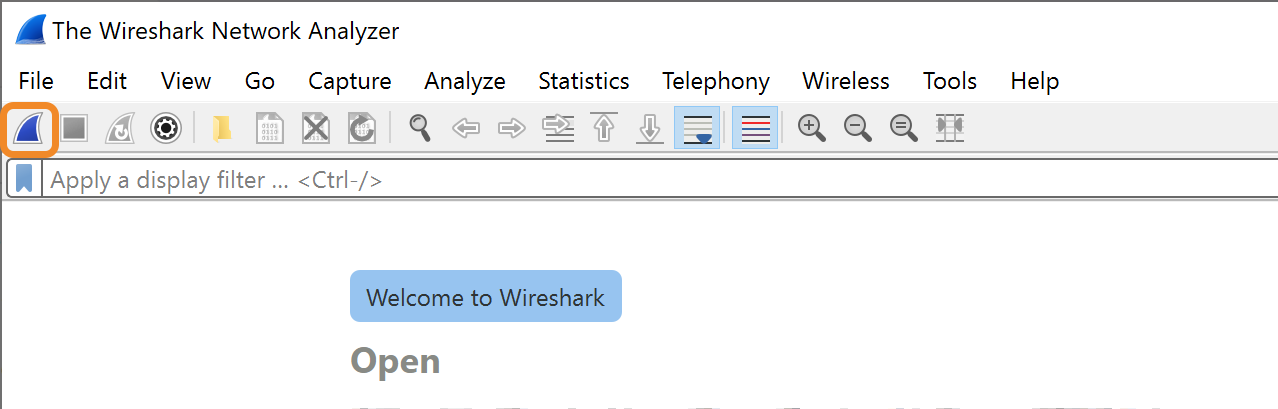
Click Start capturing packets to begin capturing network traffic.
Finding a Protocol Signature Using QUIC as an Example
-
After starting packet capture, enter the name of the desired protocol, for example
quic, in the Wireshark filter field.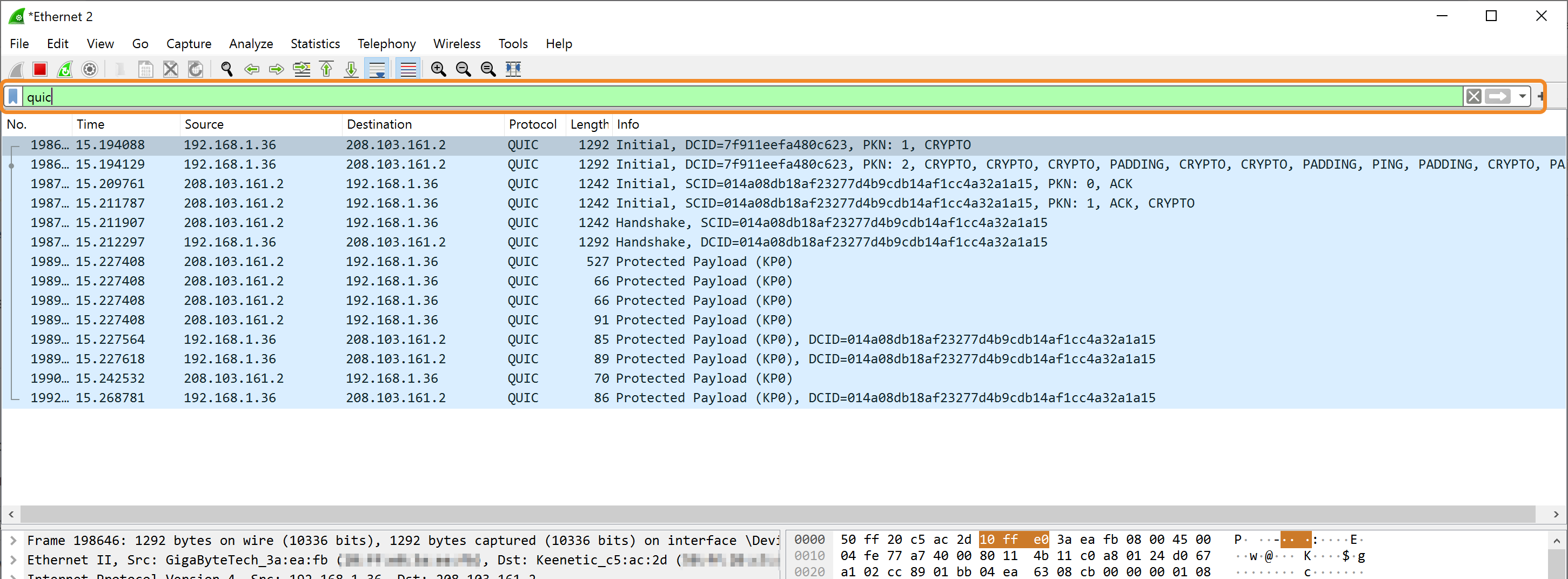
If you have not selected a specific protocol yet and want to explore available UDP protocols, enter
udpin the filter field. -
From the list of captured packets, select the packet you want to use for obfuscation.
Select a packet typically sent at the beginning of a session, such as an initial handshake packet. The
I1packet is sent before the AmneziaWG handshake, so its signature should imitate the beginning of the selected protocol's data exchange. -
Right-click the selected packet and choose Copy → …as a Hex Stream.
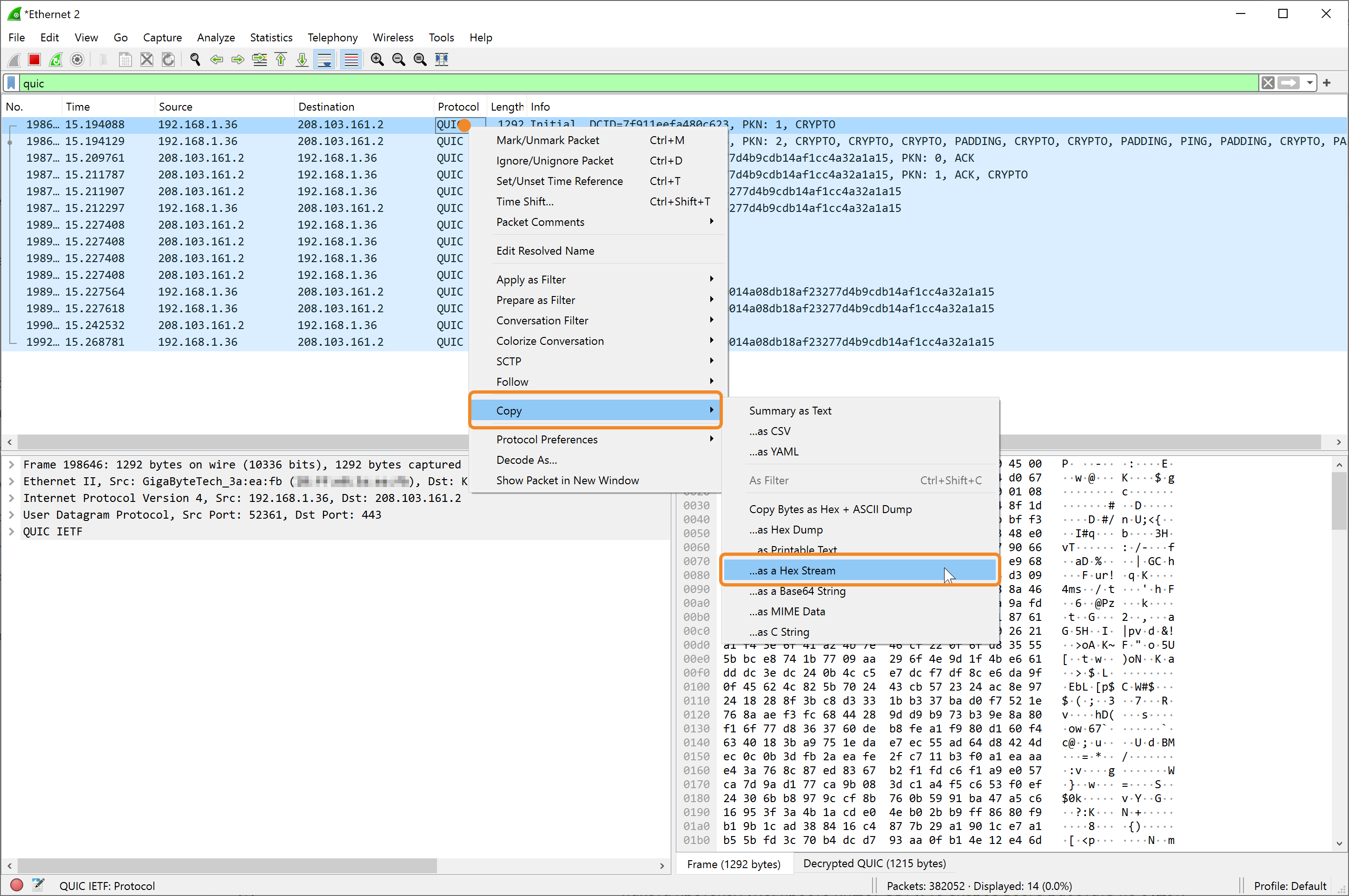
You will get a hex string like this:
d10000000108c10f0131a077e7f01087...
How to Prepare a Hex String for Use in AmneziaVPN
After copying the hex string from Wireshark, format it as an I1 value:
- Add the prefix
<b, including the space, before the string. - Add the prefix
0ximmediately before the hex string. - End the string with the closing character
>.
The original hex string d10000000108c10f0131a077e7f01087... should therefore look like this: <b 0xd10000000108c10f0131a077e7f01087...>.
<b ...> defines a static sequence of bytes that imitates the selected protocol.
0x indicates that the following characters represent hexadecimal data.
How to Configure AmneziaVPN
Enter the formatted string in the I1 parameter in the AmneziaWG 3.1 server settings. New connection keys and configuration files will be generated with this signature.
When you change I1 in the server settings, AmneziaVPN reinstalls the protocol container. You will then need to recreate the users and issue new connection keys or configuration files.
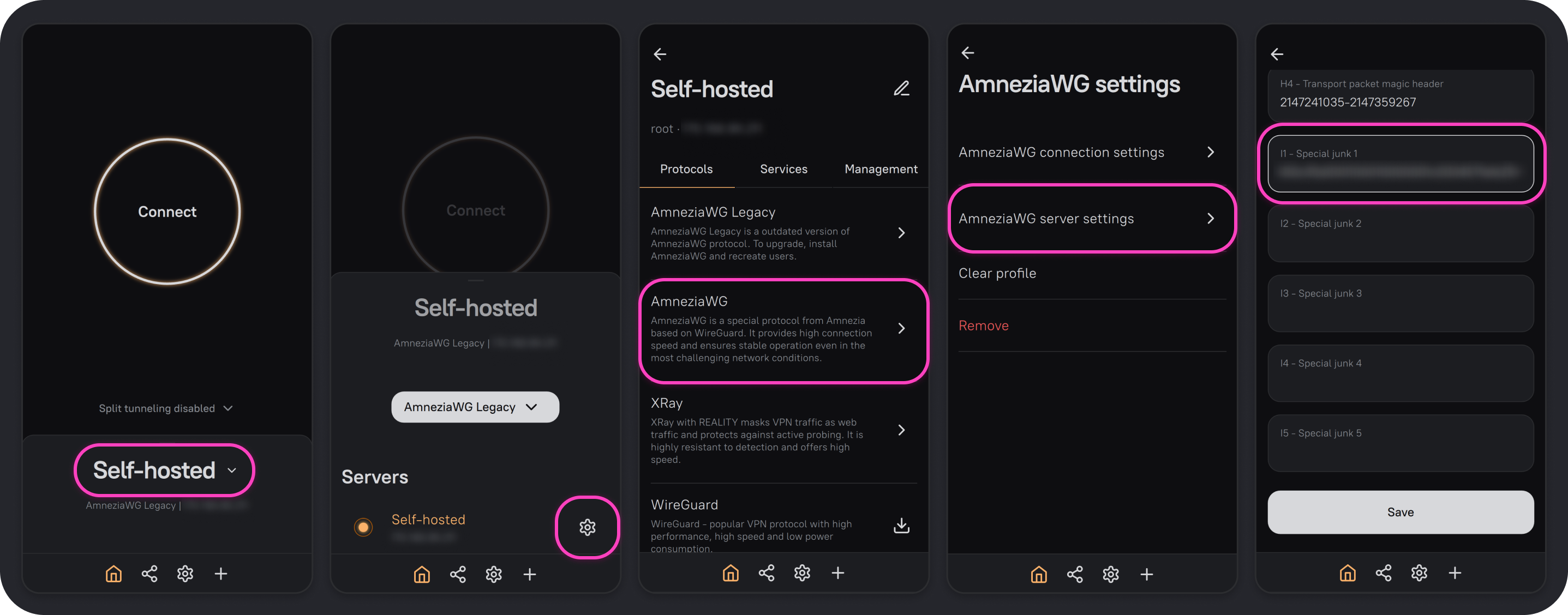
- Open the AmneziaVPN app and click any connection name.
- Click ⚙️ (gear icon) to the right of your server connection.
- From the list of installed protocols, select AmneziaWG, then open AmneziaWG server settings.
- Find I1 - Special junk 1, paste the formatted string in the form
<b 0xHEX>, and click Save.
Any device for which a VPN configuration is created will now connect to the VPN server using the specified obfuscation signature.