How to Use the AmneziaWG App
This guide explains how to connect to Amnezia Premium or to your Self-hosted server through the AmneziaWG app. Choose the option you need, then follow the steps for your operating system.
Connect to Amnezia Premium
Windows
Install the AmneziaWG app
- Download the AmneziaWG app installer for your Windows version. Use the list below.
To check your Windows version and system type, open Start → Settings → System → About. On the About page, find the section with device information. It may be called Device Info or Device specifications. Check the system type: 64-bit or 32-bit operating system. For a 64-bit system, choose an installer with x64; for a 32-bit system, choose an installer with x86 (x32). In the section with Windows information, check your Windows version, for example Windows 8 or Windows 10.
- AmneziaWG for Windows 7/8 x32
- AmneziaWG for Windows 7/8 x64
- AmneziaWG for Windows 7/8 ARM64
- AmneziaWG for Windows 10 x32
- AmneziaWG for Windows 10/11 x64
- AmneziaWG for Windows 10/11 ARM64
- AmneziaWG for Windows Server amd64
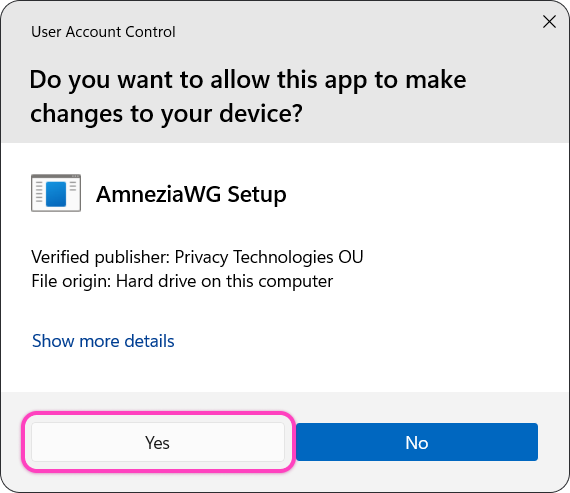
- Open the downloaded installer. If Windows asks for permission to make changes to your device, click Yes. The AmneziaWG installation will start.
- After installation, open the AmneziaWG app. If it opens automatically, go to the next step.
Configuration file for AmneziaWG
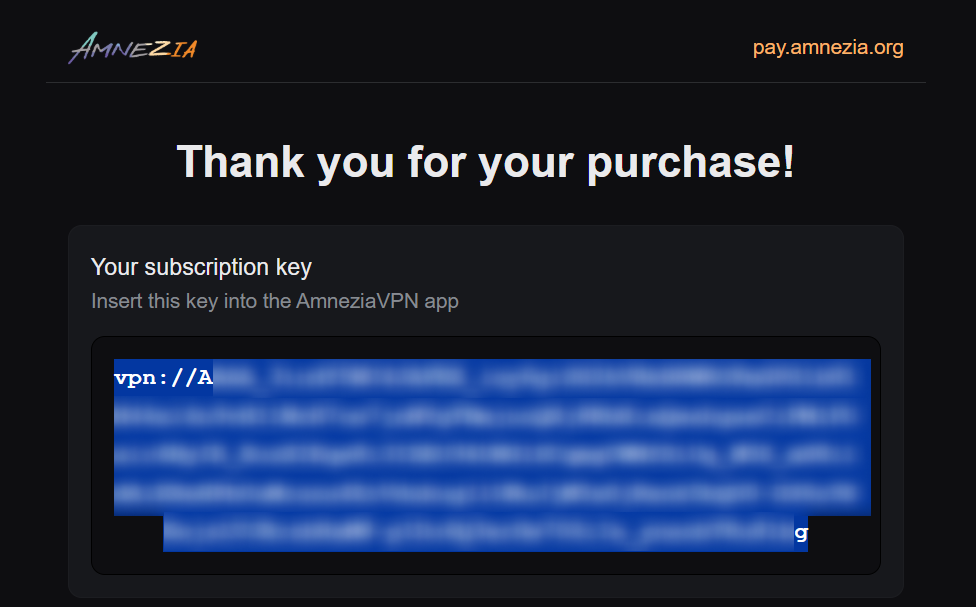
- Open the email that was sent to the address you used to buy Amnezia Premium. Select the full
vpn://subscription key from the email and copy it.
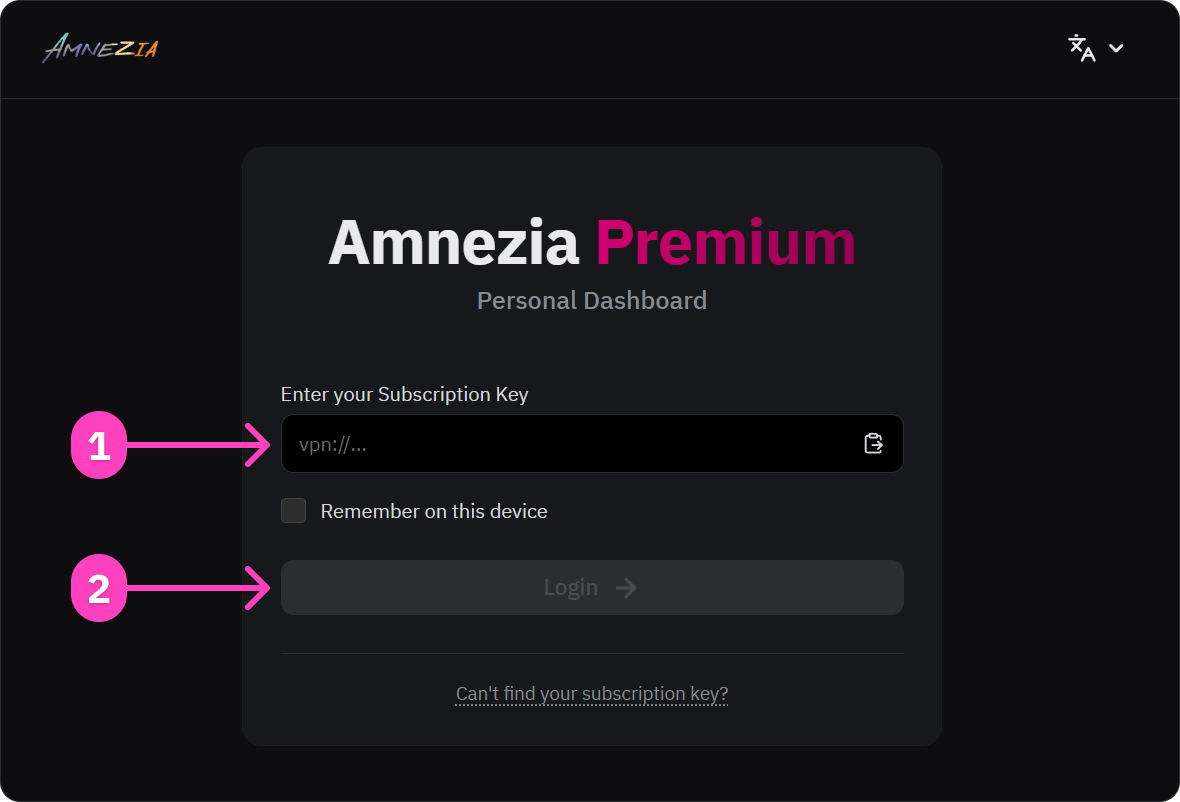
- Open the Personal Dashboard (mirror). Paste the full key into the input field and click Login.
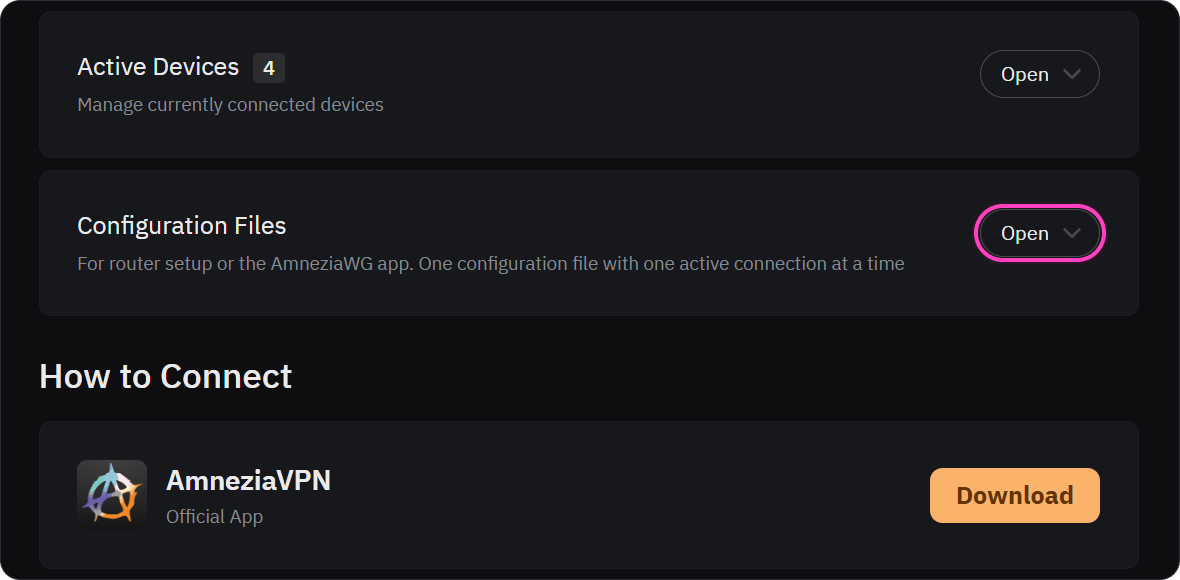
- In the Personal Dashboard, find Configuration Files and open this section.
Before downloading the configuration file, turn off other VPN apps and the VPN connection in AmneziaVPN.
- In the list, choose the location you need and click the download icon on the right. In this example, the location is [P2P] Switzerland.
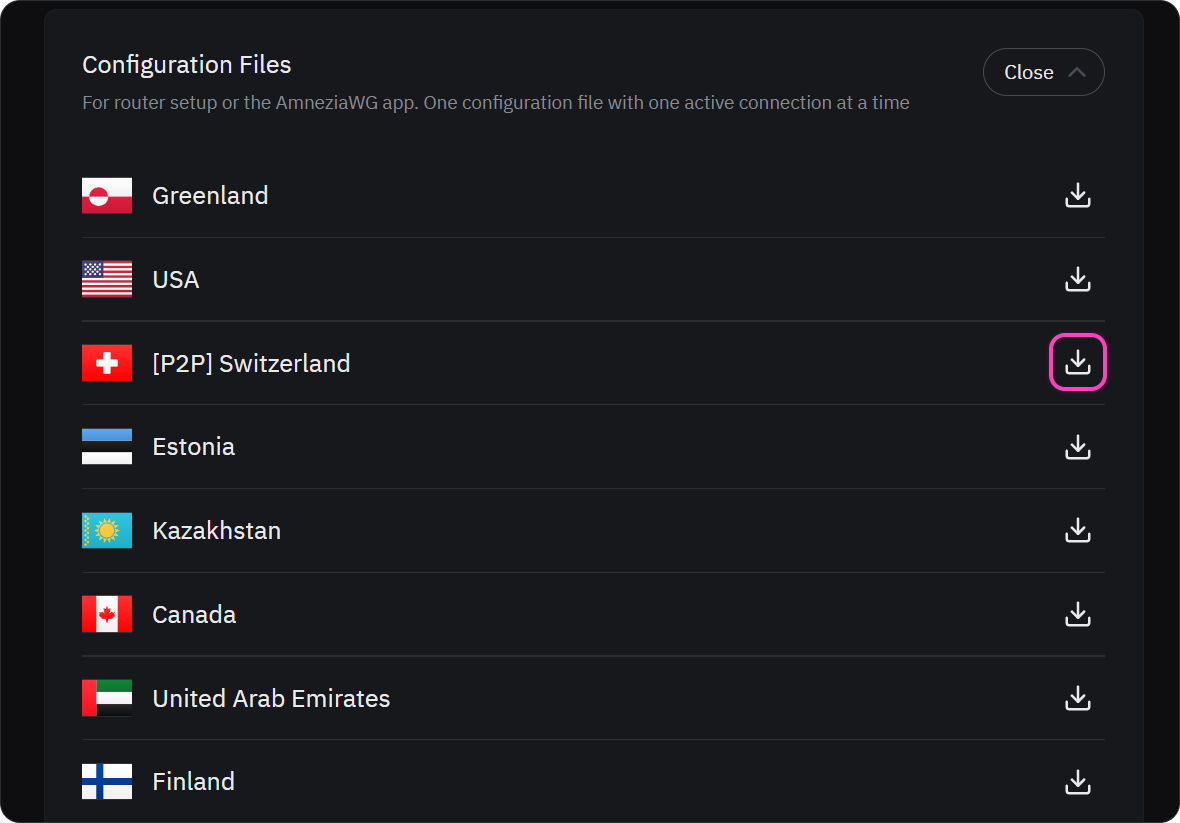
For each Amnezia Premium location, you can generate only one configuration file. Use a different location on each device. If you add the same configuration file to multiple devices, the connection will stop working on all of them.
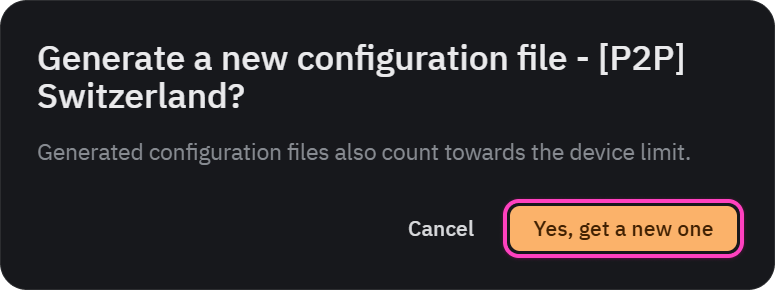
- In the window that opens, click Yes, get a new one. The configuration file will be downloaded to your computer. By default, it is saved to the Downloads folder.
How to use the configuration file in AmneziaWG
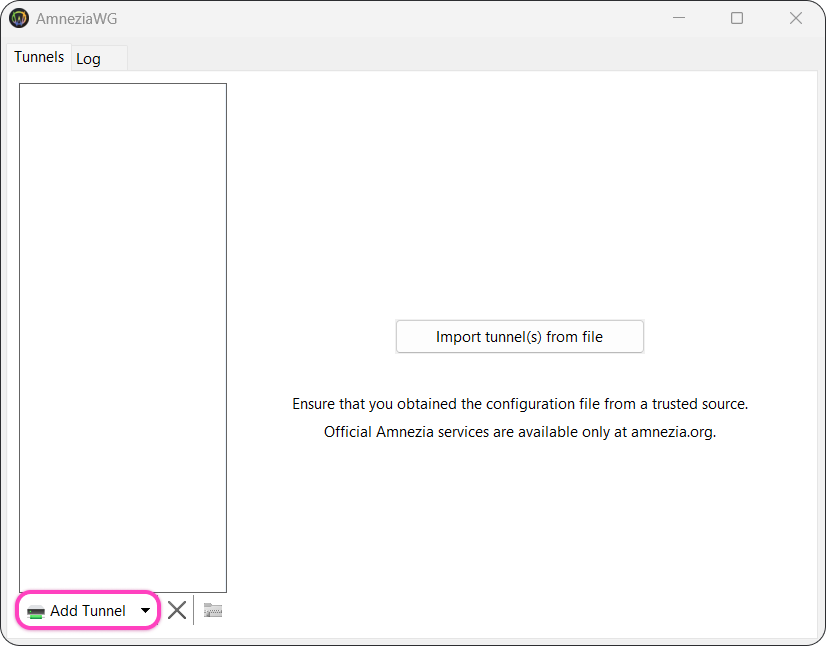
- Go to the AmneziaWG app window and click Add Tunnel.
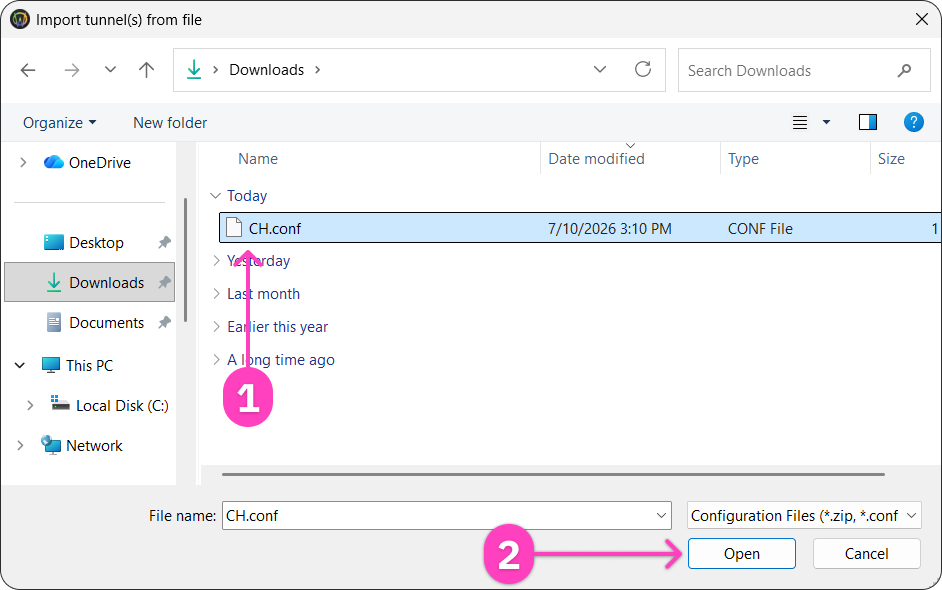
- In the Import tunnel(s) from file window, find the downloaded configuration file and click Open. By default, the configuration file is in the Downloads folder.
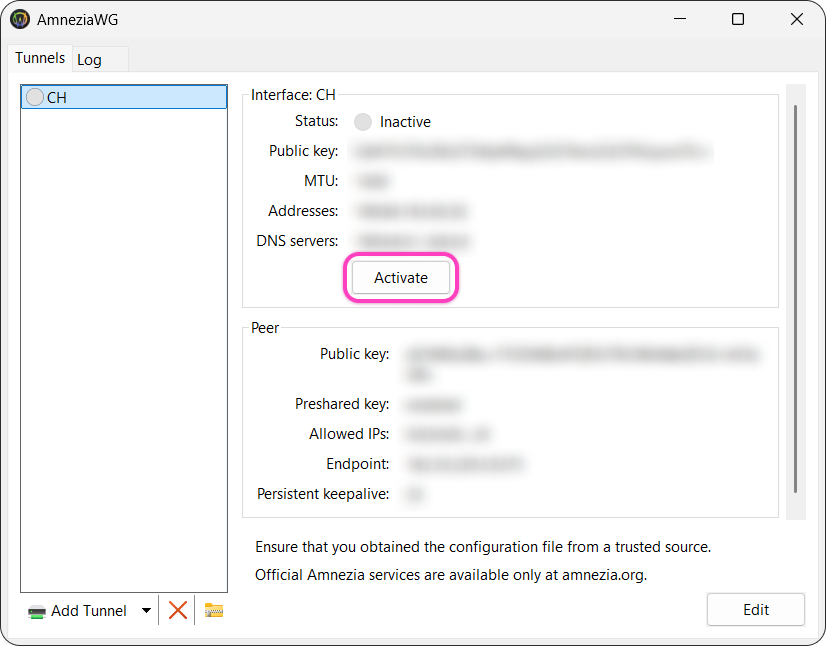
- Click Activate in the AmneziaWG app.
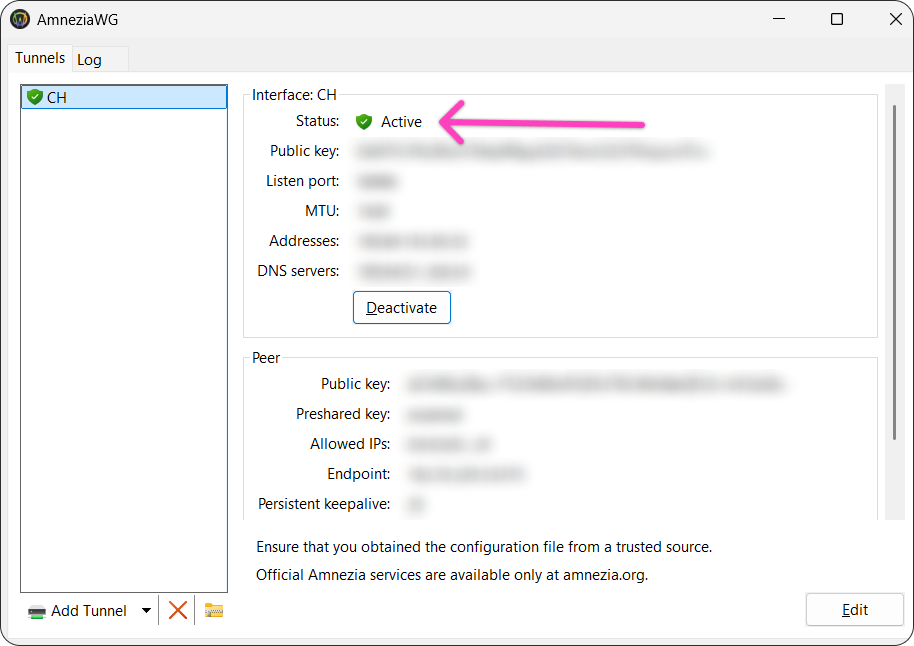
After it connects, the status in the app will change to Active with a check mark. The VPN is connected to the selected location. In this example, it is Switzerland.
To connect to another location, download a separate configuration file for that location and import it into AmneziaWG the same way.
macOS
Install the AmneziaWG app
- Install the AmneziaWG app from the App Store.
The AmneziaWG app requires macOS 12.0 or later. To check your macOS version, open the Apple menu in the top-left corner of the screen → About This Mac. The window will show the macOS name and version number, for example macOS Monterey 12, macOS Ventura 13, macOS Sonoma 14, macOS Sequoia 15, or macOS Tahoe 26.
Configuration file for AmneziaWG
- Open the email that was sent to the address you used to buy Amnezia Premium. Select the full
vpn://subscription key from the email and copy it.
- Open the Personal Dashboard (mirror). Paste the full key into the input field and click Login.
- In the Personal Dashboard, find Configuration Files and open this section.
Before downloading the configuration file, turn off other VPN apps and the VPN connection in AmneziaVPN.
- In the list, choose the location you need and click the download icon on the right. In this example, the location is [P2P] Switzerland.
For each Amnezia Premium location, you can generate only one configuration file. Use a different location on each device. If you add the same configuration file to multiple devices, the connection will stop working on all of them.
- In the window that opens, click Yes, get a new one. The configuration file will be downloaded to your computer. It is usually saved to the Downloads folder.
How to use the configuration file in AmneziaWG
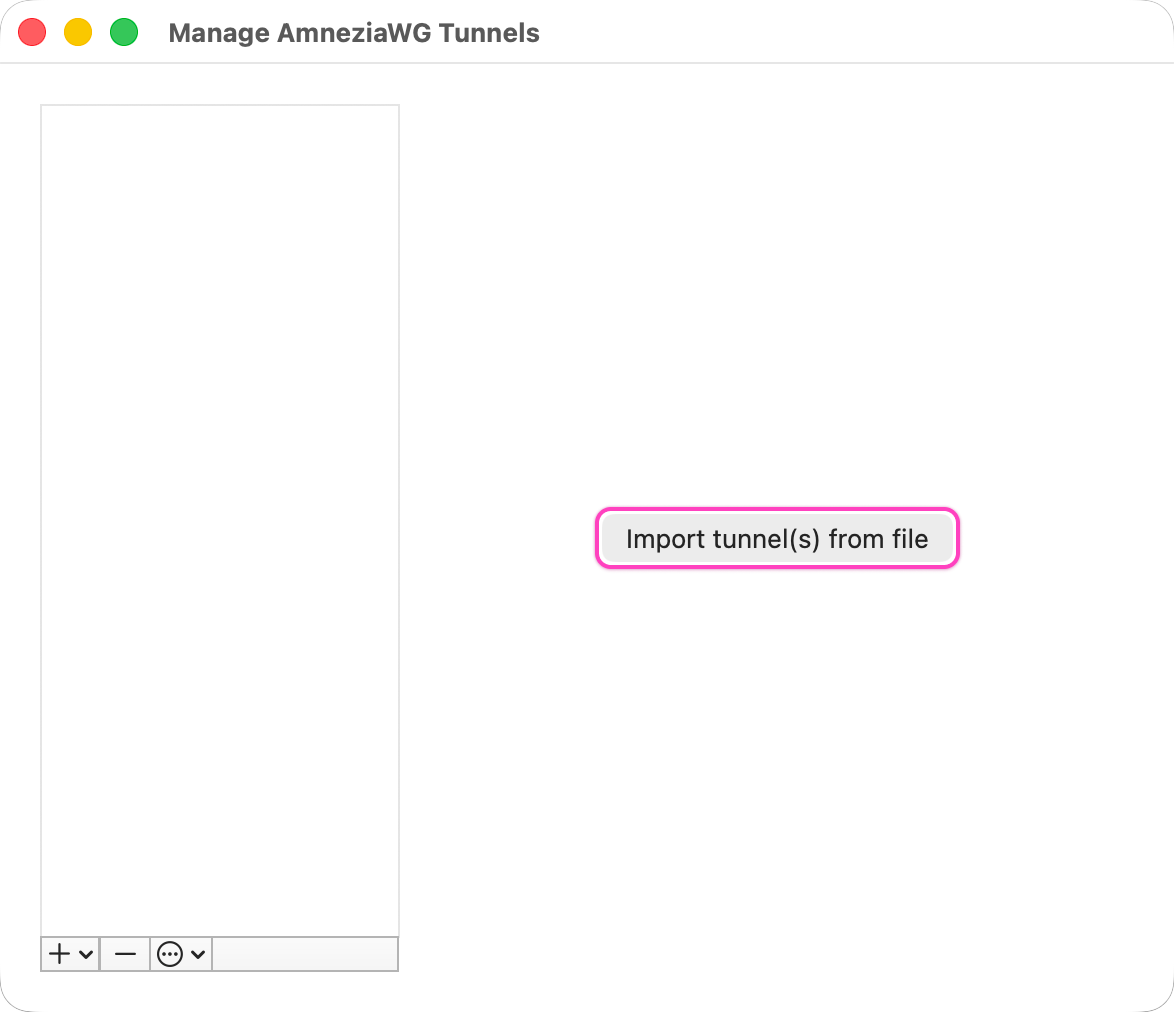
- Open the AmneziaWG app and click the Import tunnel(s) from file button.
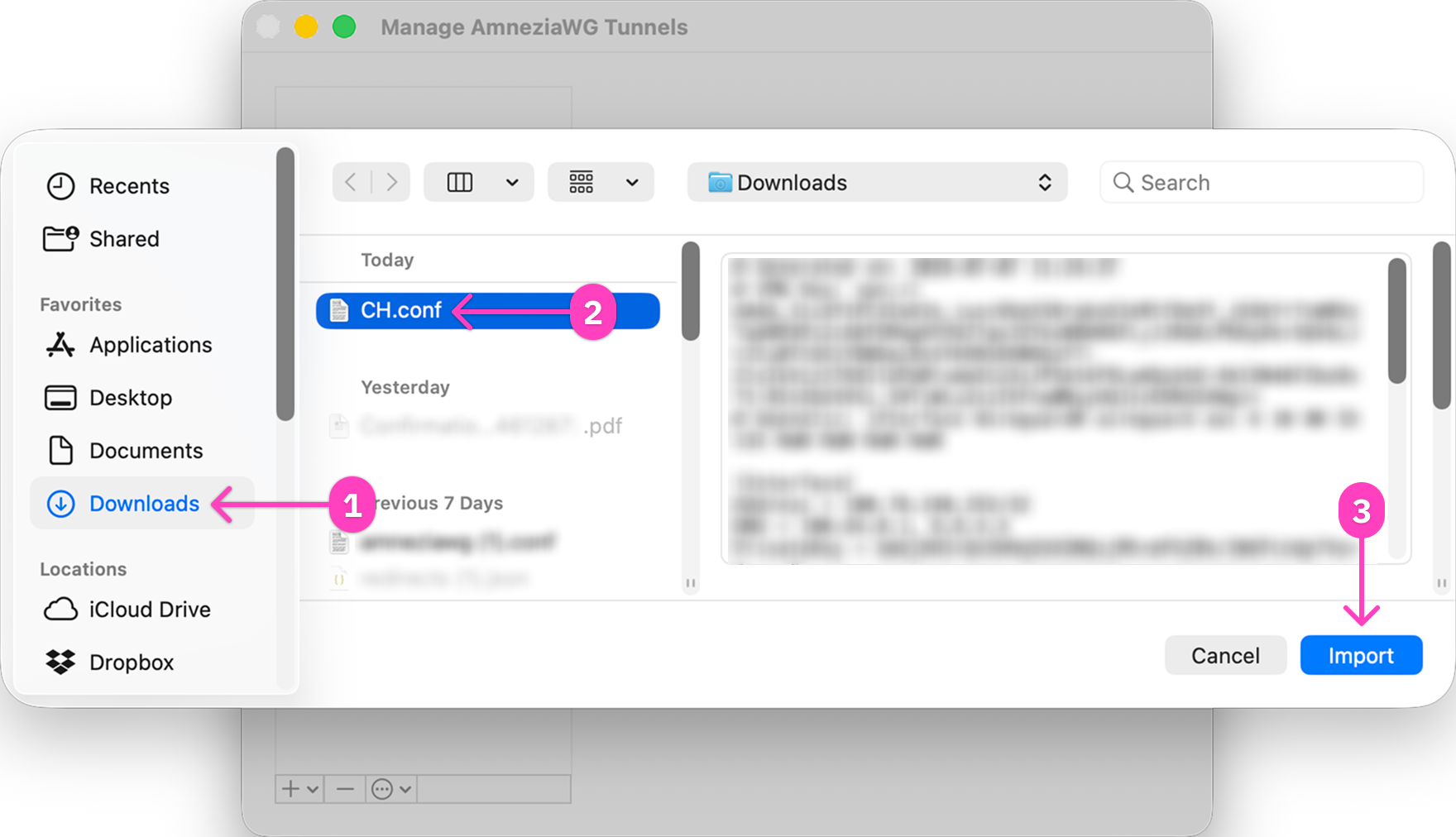
- In the file picker, go to the Downloads folder, select the downloaded
.confconfiguration file, and click Import.
If the file is not shown in the Downloads folder, choose Recents in the side menu of the file picker or use the search field in the top-right corner. In search, you can enter .conf or part of the file name. For example, the screenshots use CH.
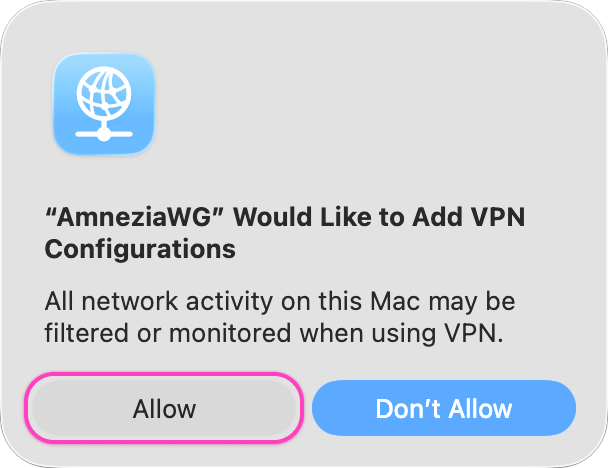
- If macOS asks for permission to add VPN configurations, click Allow.
- In the AmneziaWG window, select the added tunnel and click Activate.
To connect to another location, download a separate configuration file for that location and import it into AmneziaWG the same way.
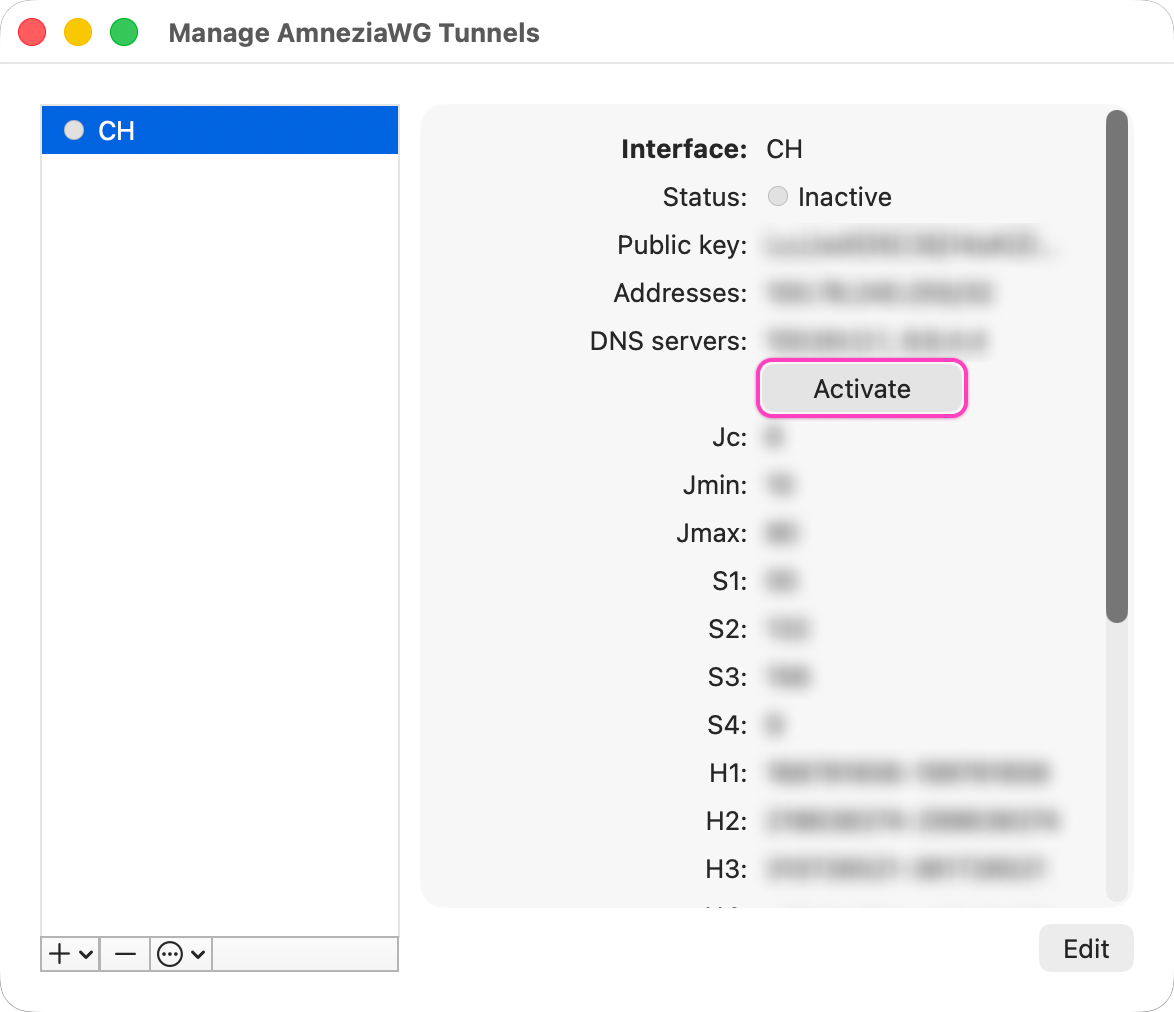
After this, AmneziaWG will connect to the selected location.
Android
Install the AmneziaWG app
- Install the AmneziaWG app from Google Play.
The AmneziaWG app requires Android 7.0 or later. To check your Android version, open Settings → About phone → Android version. The version number is shown at the start of the line, for example 7, 8, 12, or 13.
Configuration file for AmneziaWG
The Personal Dashboard interface on a phone may look different from the screenshots below, but the section names and steps are the same.
- Open the email that was sent to the address you used to buy Amnezia Premium. Select the full
vpn://subscription key from the email and copy it.
- Open the Personal Dashboard (mirror). Paste the full key into the input field and click Login.
- In the Personal Dashboard, find Configuration Files and open this section.
Before downloading the configuration file, turn off other VPN apps and the VPN connection in AmneziaVPN.
- In the list, choose the location you need and click the download icon on the right. In this example, the location is [P2P] Switzerland.
For each Amnezia Premium location, you can generate only one configuration file. Use a different location on each device. If you add the same configuration file to multiple devices, the connection will stop working on all of them.
- In the window that opens, click Yes, get a new one. The configuration file will be downloaded to your phone.
How to use the configuration file in AmneziaWG
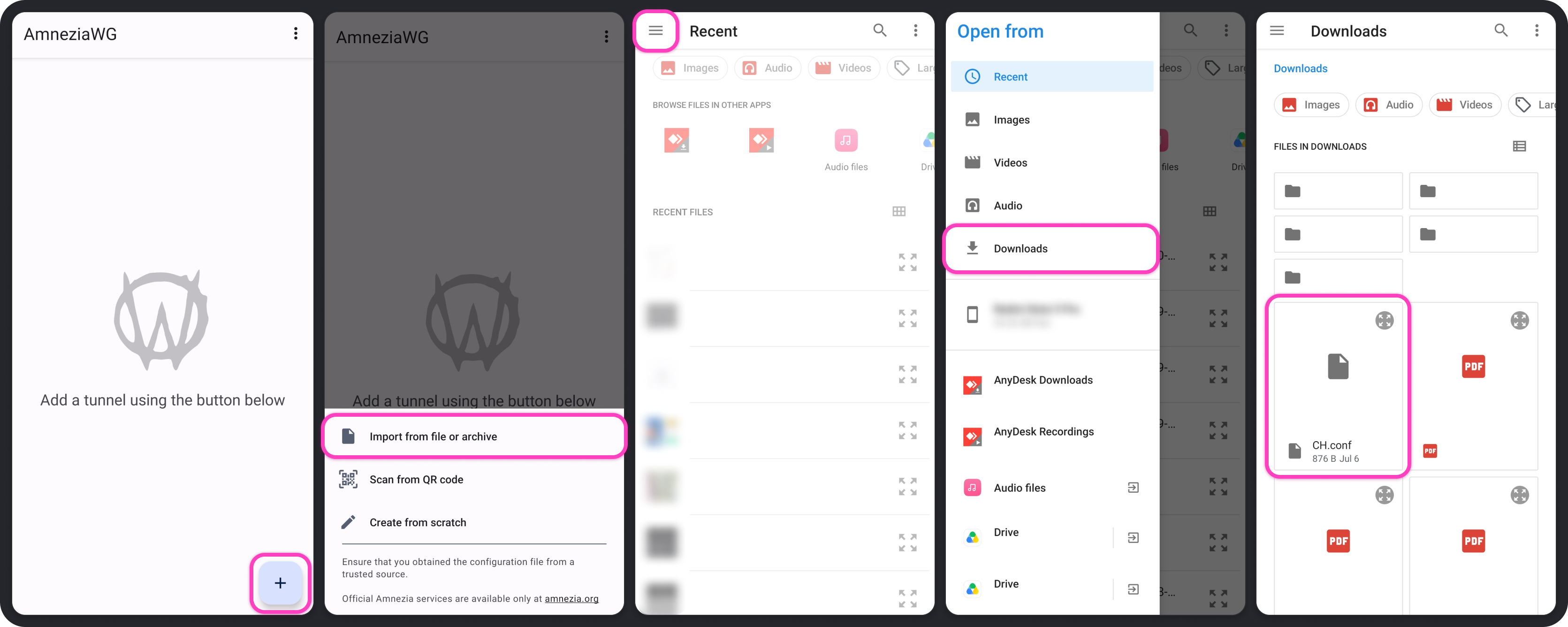
- Go to the AmneziaWG app and tap the plus icon in the bottom-right corner of the screen.
- Select Import from file or archive.
- In the file picker, find the downloaded
.confconfiguration file. Usually it is in the Downloads folder. If the Downloads folder did not open right away, tap the menu icon in the top-left corner and select Downloads.
If the file is not shown in the Downloads folder, check Recents or use search by file name. You can find the file by searching for the .conf extension.
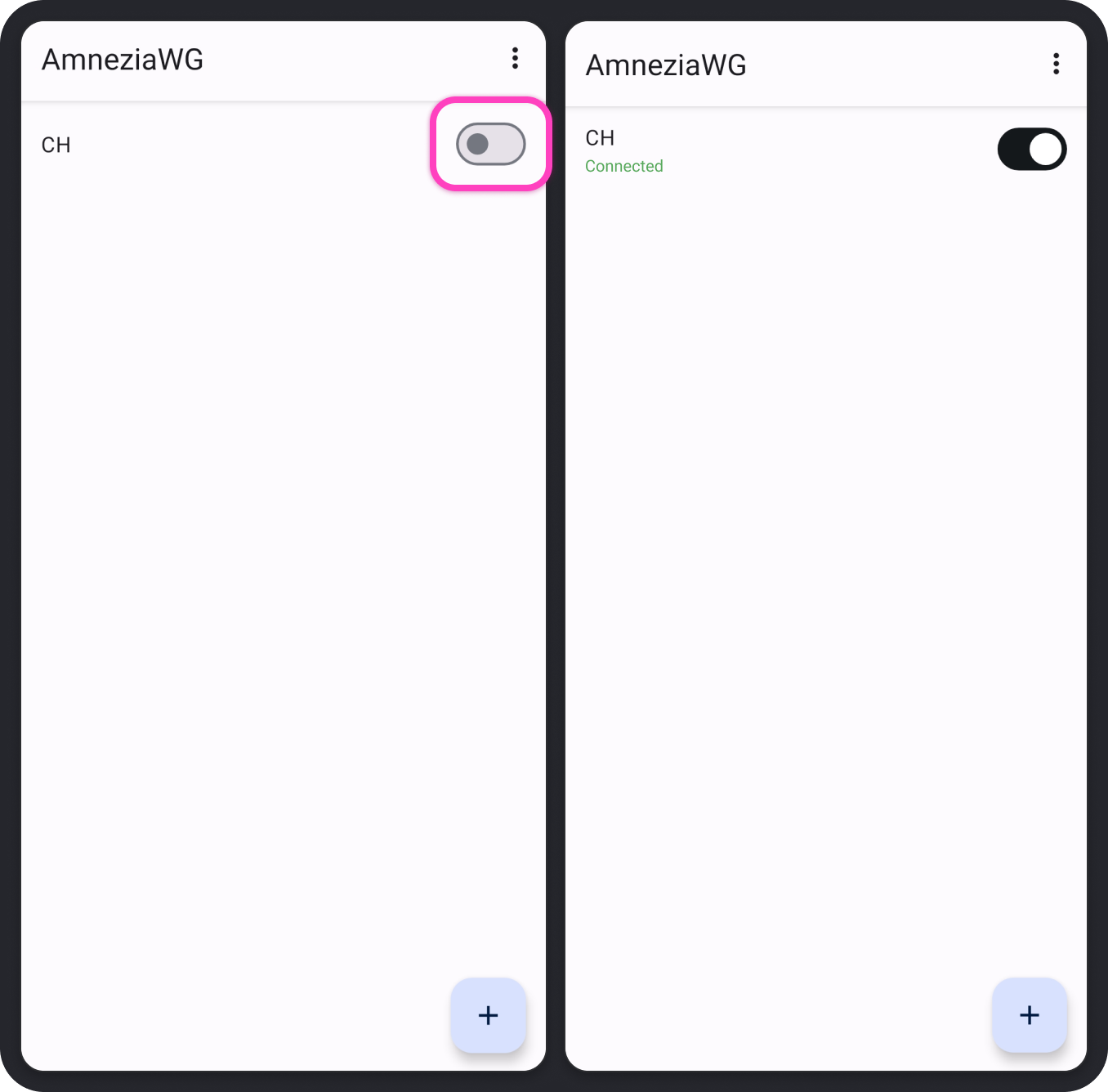
- After importing the file, tap the switch to the right of the connection name.
- After it connects, the Connected status will appear under the connection name.
To connect to another location, download a separate configuration file for that location and import it into AmneziaWG the same way.
iOS
Install the AmneziaWG app
- Install the AmneziaWG app from the App Store.
The AmneziaWG app requires iOS 15.0 or later. To check your iOS version, open Settings → General → About → iOS Version. The version number is shown at the start of the line, for example 15, 17, 18, or 26.
Configuration file for AmneziaWG
The Personal Dashboard interface on a phone may look different from the screenshots below, but the section names and steps are the same.
- Open the email that was sent to the address you used to buy Amnezia Premium. Select the full
vpn://subscription key from the email and copy it.
- Open the Personal Dashboard (mirror). Paste the full key into the input field and click Login.
- In the Personal Dashboard, find Configuration Files and open this section.
Before downloading the configuration file, turn off other VPN apps and the VPN connection in AmneziaVPN.
- In the list, choose the location you need and click the download icon on the right. In this example, the location is [P2P] Switzerland.
For each Amnezia Premium location, you can generate only one configuration file. Use a different location on each device. If you add the same configuration file to multiple devices, the connection will stop working on all of them.
- In the window that opens, click Yes, get a new one. The configuration file will be downloaded to your phone.
How to use the configuration file in AmneziaWG
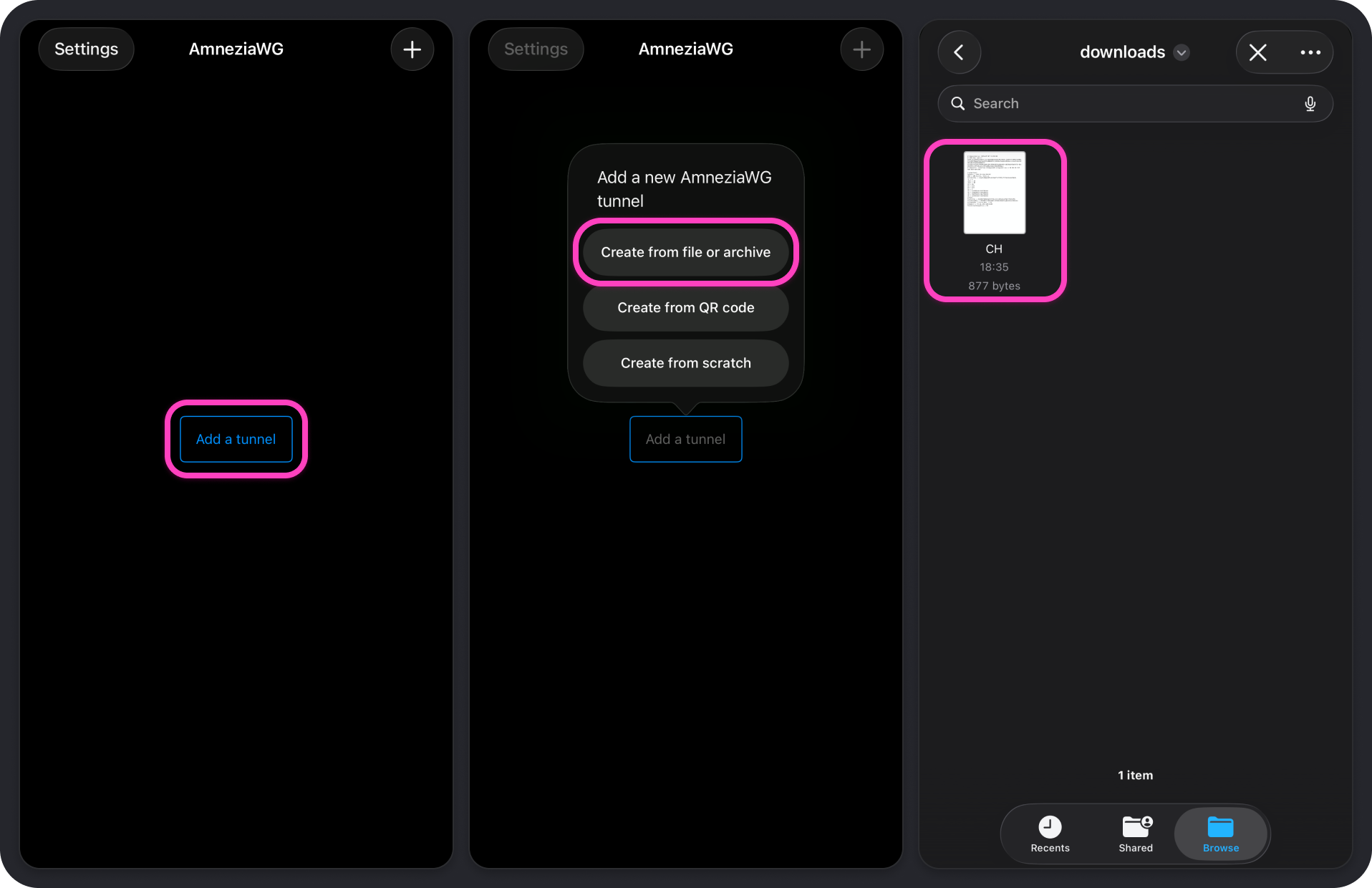
- Open the AmneziaWG app and tap Add a tunnel.
- Select Create from file or archive.
- In the file picker, find the downloaded
.confconfiguration file.
Usually the file is in Downloads. If the file is not shown, check Recents or use search by file name. The configuration file has the .conf extension.
- Press and hold the file until the context menu opens.
You need to press and hold the file. A normal tap may open a file preview instead of the menu with Share.
- In the context menu, tap Share.
- In the share menu, select AmneziaWG. If the app is not shown right away, scroll the app list or tap More.
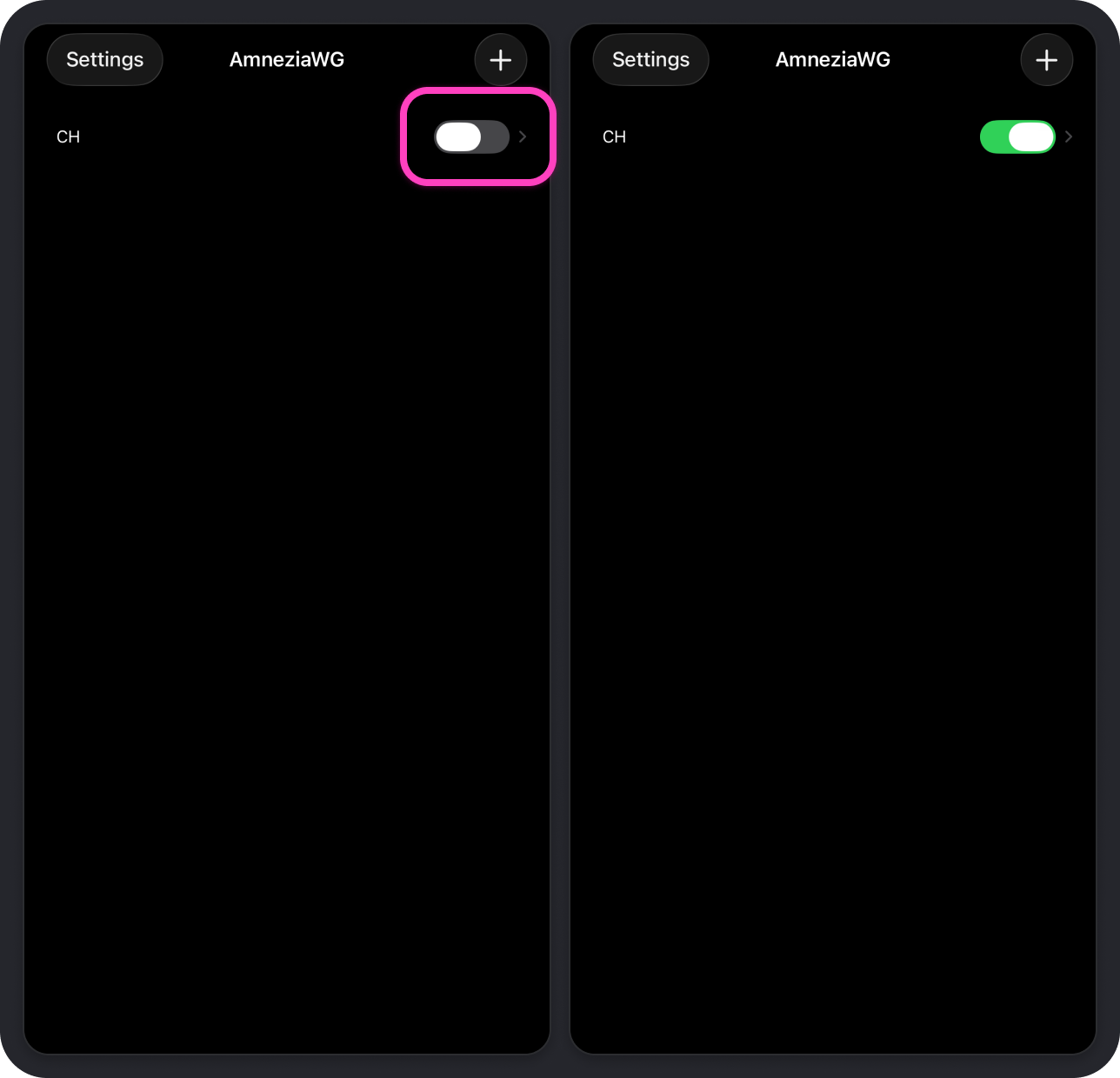
- In the AmneziaWG app, tap the switch to the right of the connection name.
- After it connects, the switch will become green.
To connect to another location, download a separate configuration file for that location and import it into AmneziaWG the same way.
AmneziaWG Connection Does Not Work for Amnezia Premium
If the VPN does not connect through the AmneziaWG app, check that:
- the same configuration file is not used on multiple devices
- your Amnezia Premium subscription has not expired
Try to generate a new configuration file for the needed location in the Personal Dashboard.
If the connection still does not work, contact Amnezia support:
Connect to Amnezia Self-hosted
The AmneziaWG protocol is usually already installed on a Self-hosted server. If it is not in the protocol list, install it first: Install VPN on Your Server.
To connect to your own server through the AmneziaWG app, first get a .conf configuration file in the AmneziaVPN app.
- Open AmneziaVPN on a device where you have full access to your server.
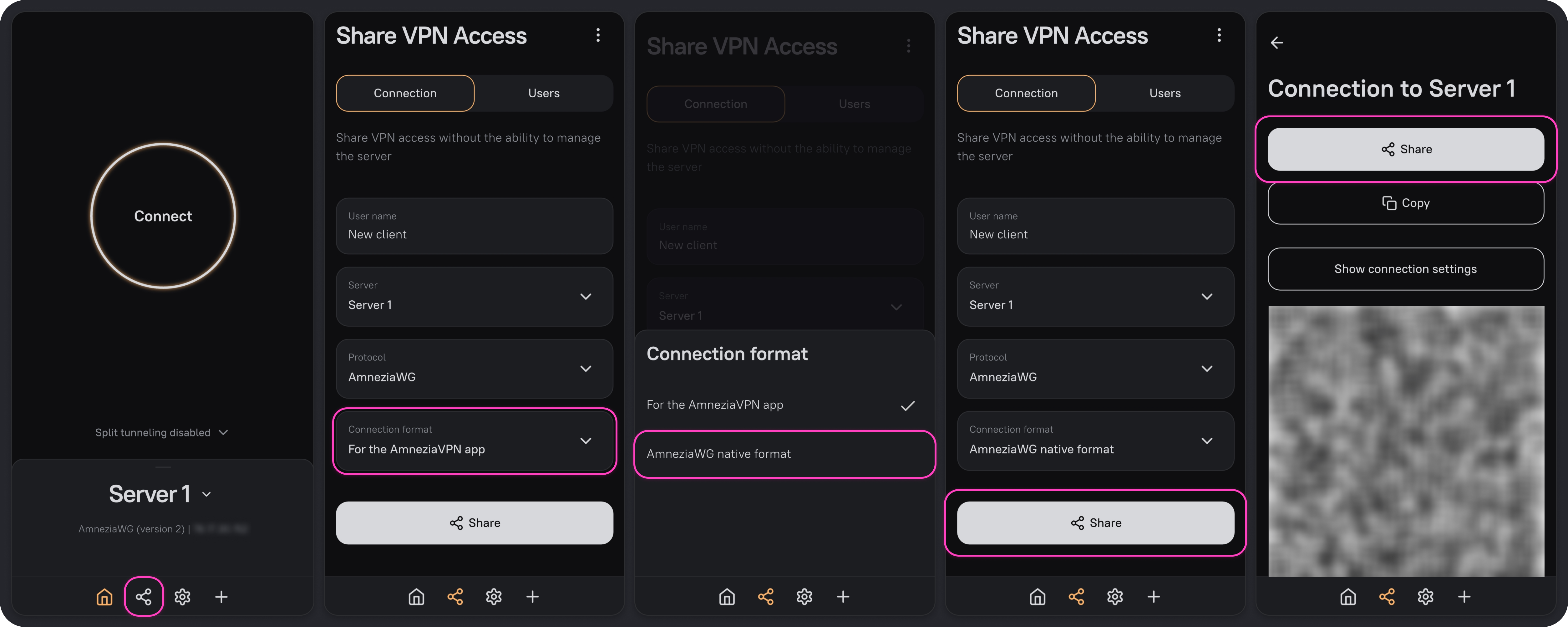
- Click the Share icon, shown as three connected dots, on the bottom bar.
- Enter a user name, select the needed server, and select the AmneziaWG protocol.
- In Connection format, select AmneziaWG native format.
- Click Share and save the
.conffile on the device. Then send it to the device where you will use it in the AmneziaWG app.
For the AmneziaWG app, you need the AmneziaWG native format.
Do not add the same configuration file to multiple devices. In this case, the connection will stop working on all of them. Use a separate configuration file for each device.
After this, import the .conf file into AmneziaWG using the steps for your operating system above.
AmneziaWG Connection Does Not Work for Amnezia Self-hosted
If the VPN does not connect through the AmneziaWG app, check that:
- the configuration file was created for the AmneziaWG protocol
- AmneziaWG native format was selected as the connection format
- the same configuration file is not used on multiple devices
- the server is active
For Self-hosted servers, use this troubleshooting guide: Self-Hosted Connection via the AmneziaWG Protocol Does Not Work.