Application Update on macOS
Current versions of AmneziaVPN for macOS require macOS 14.0 or later. Earlier macOS versions are not supported.
For macOS versions earlier than 14.0, use the alternative app AmneziaWG.
Updating from the app
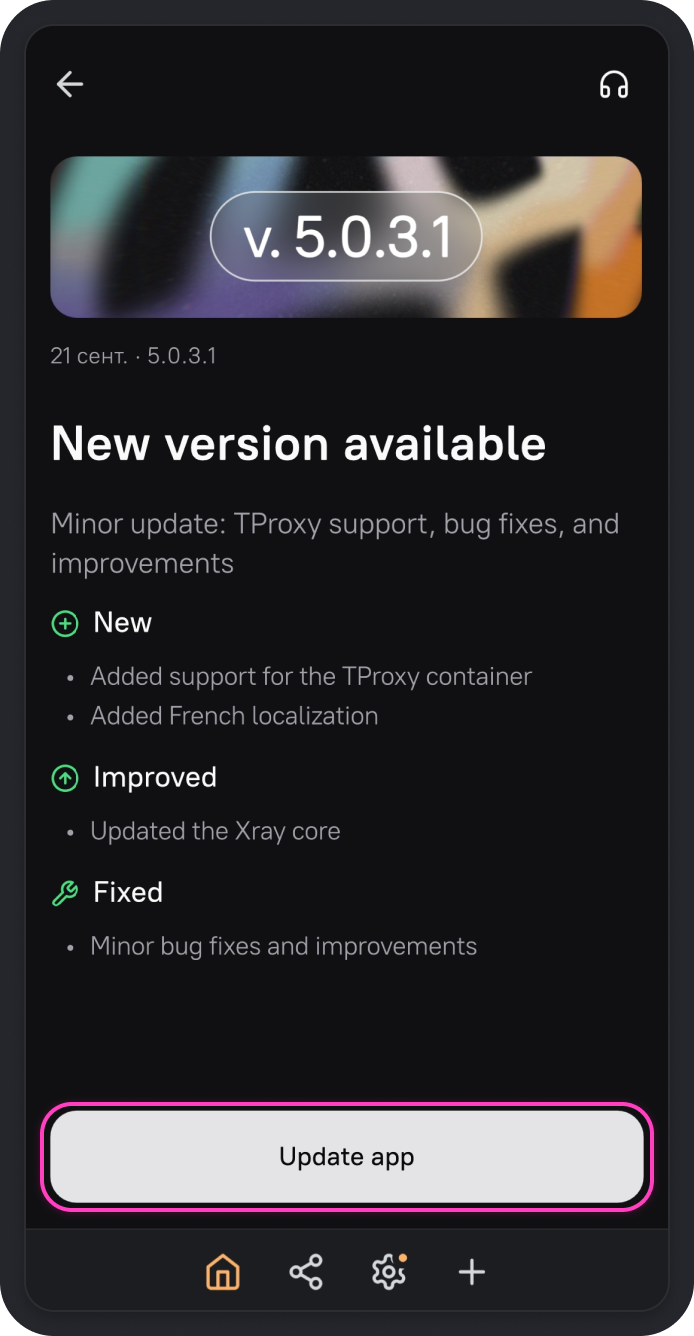
The latest versions of AmneziaVPN display a screen prompting you to update the app.
-
On the screen with the new version details, click Update app.
-
The update will begin and the AmneziaVPN is active window will open. To continue, switch to AmneziaVPN and press Command + Q to quit the app completely. Closing the window with the red button leaves the app running.
If the app is still running, open Activity Monitor, select the AmneziaVPN process, click Stop, and choose Force Quit.
-
Return to the AmneziaVPN is active window and click Retry.
-
Continue with the steps in Installing the new app version.
If you see Download failed download manually from amnezia.org, quit AmneziaVPN completely, reopen it, and click Update app again. If the error persists, update the app manually using the instructions below.
How to prepare for the update
When updating manually using a .pkg file, you need to remove the previous version of AmneziaVPN yourself.
When you remove AmneziaVPN through Finder, your connections, app settings, and split tunneling settings are saved. To keep them safe, you can create a backup first: Backup and Restore.
- Open AmneziaVPN and click ⚙️ (gear icon) on the bottom panel.
- Go to About AmneziaVPN.
- At the bottom of the screen, you will see the current app version. Note it down and click Check for updates.
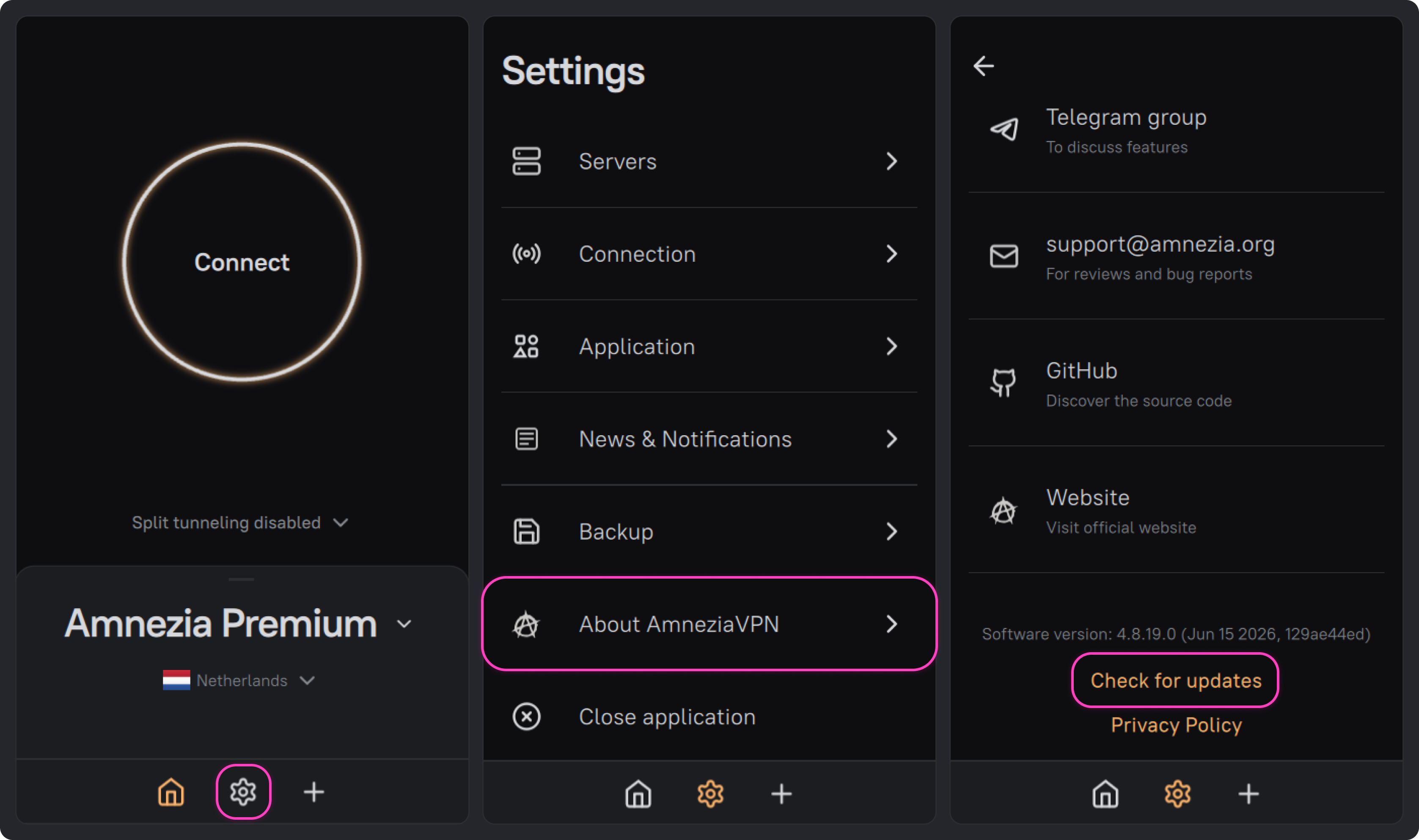
After that, the latest stable AmneziaVPN release page will open in your browser. If the page does not open, use this link: github.com/amnezia-vpn/amnezia-client/releases/latest.
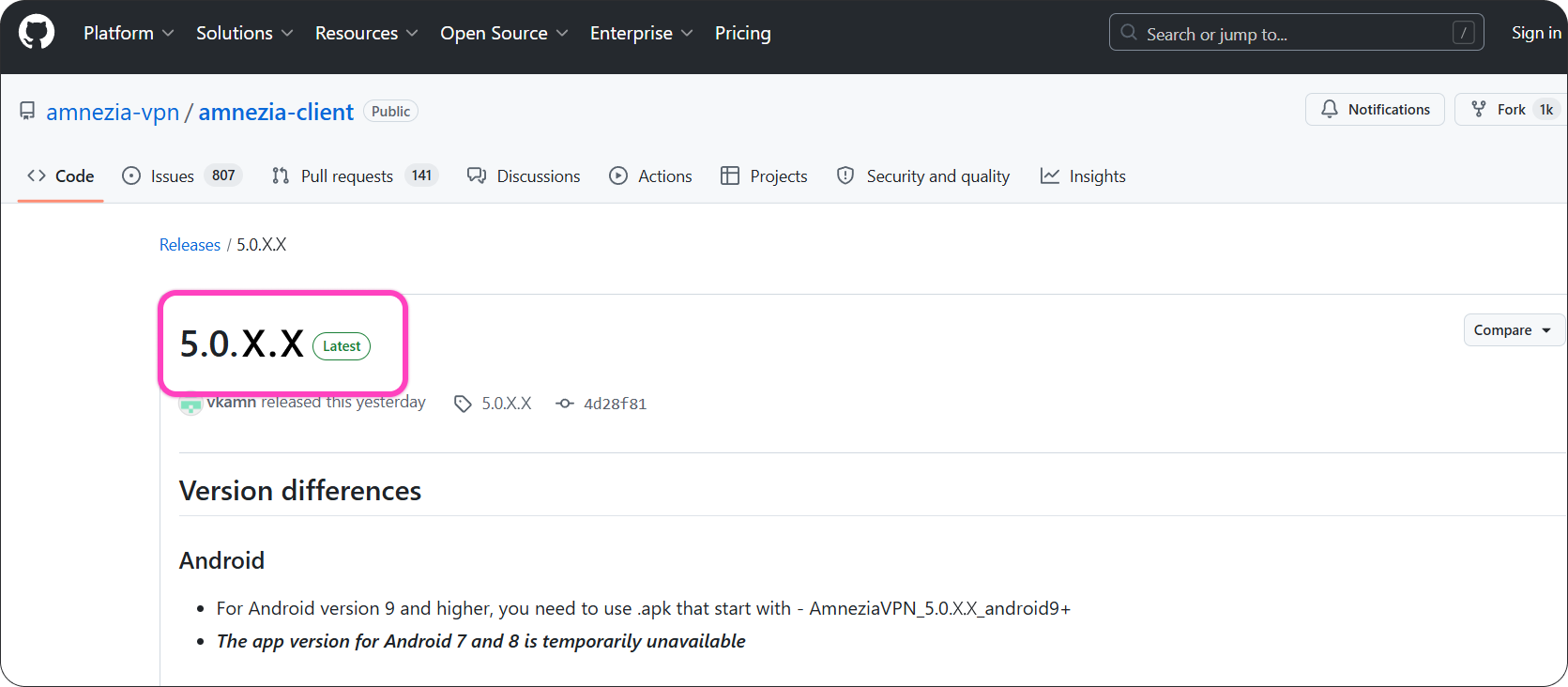
On the GitHub releases page, find the latest stable AmneziaVPN release marked with the green Latest badge. Compare its version number with the app version installed on your device. If your installed version is older, download and install the update.
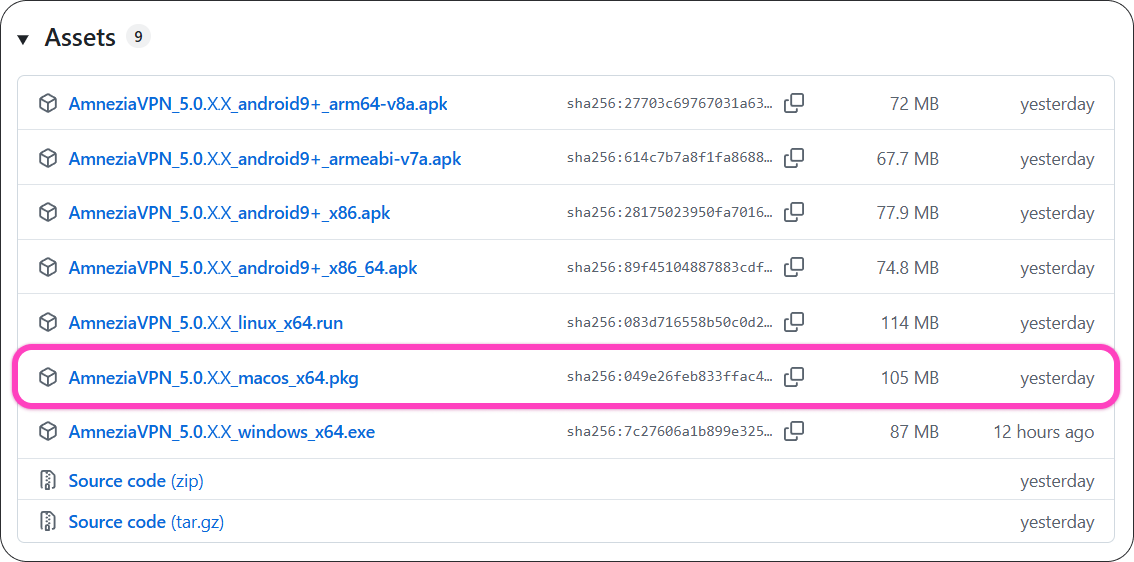
- Find the
.pkgfile for macOS in the release files list and download it.
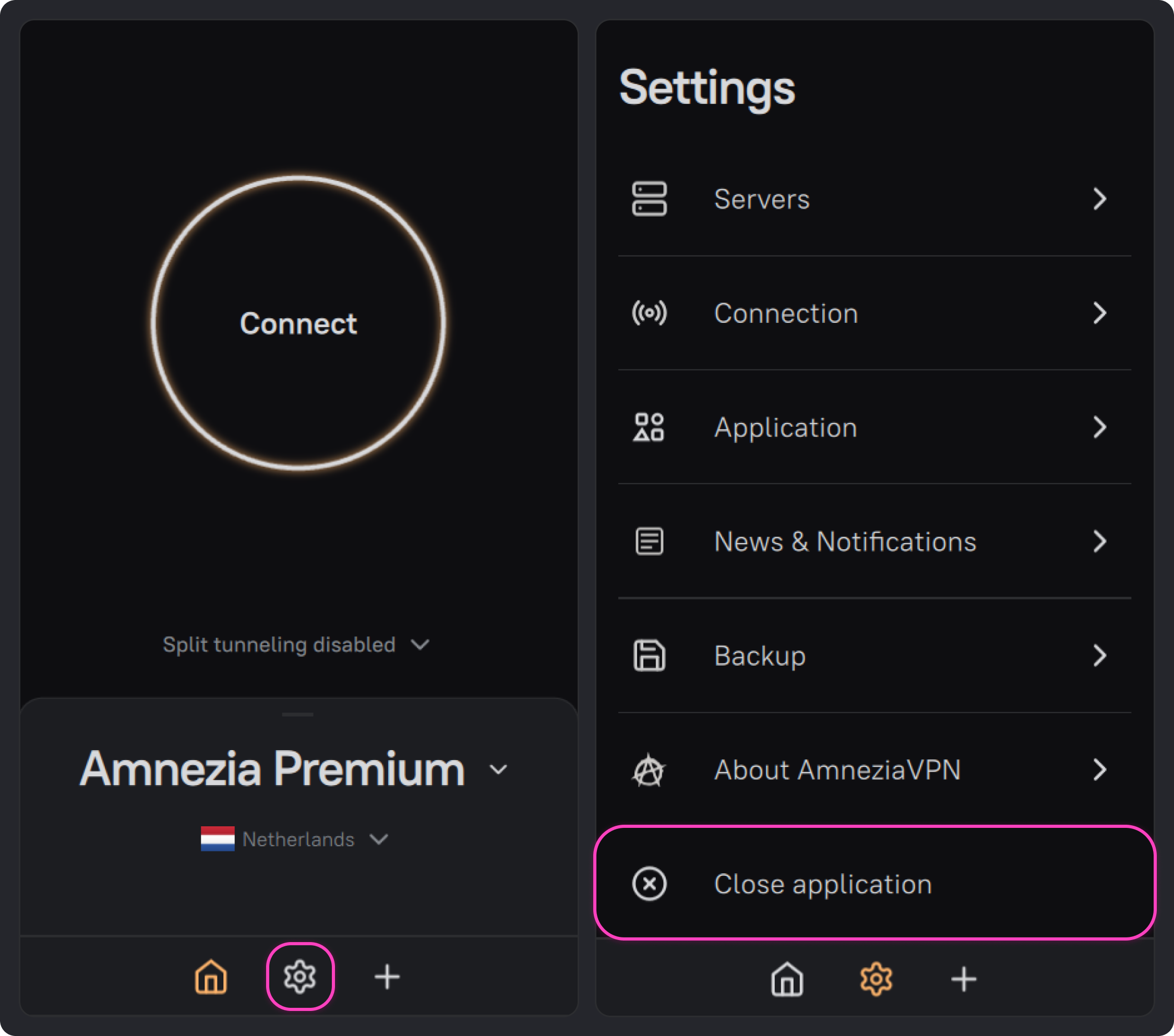
- Go back to the AmneziaVPN app, open settings, and click Close application.
Removing the old app version
When updating manually using a .pkg file, the installer does not remove the old version of AmneziaVPN automatically. Before installing the new version, remove the old version manually.
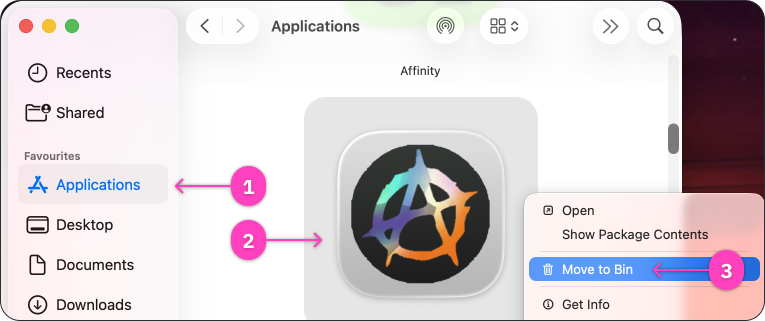
- Open Finder.

- Go to Applications, find AmneziaVPN, open the app context menu, and select Move to Bin.
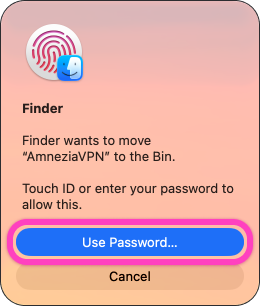
- If macOS asks for confirmation, click Use Password..., enter the administrator password, or confirm removal with Touch ID.
Installing the new app version
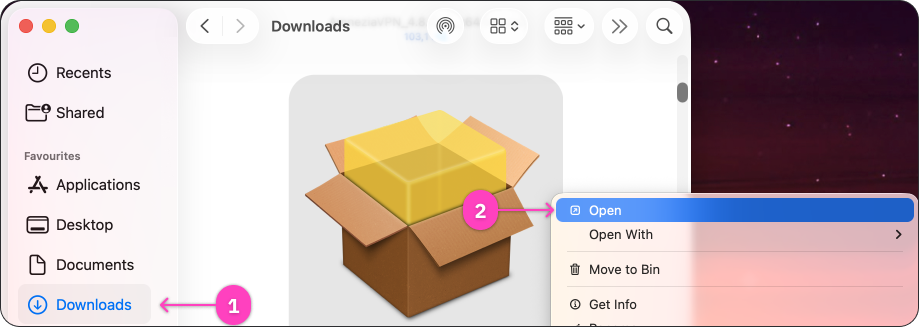
- If the installer is not already open, open the downloaded
.pkgfile. It is usually in Downloads.
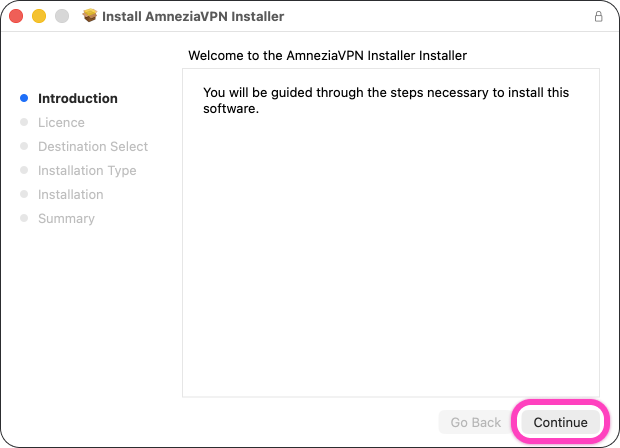
- In the AmneziaVPN installer, click Continue.
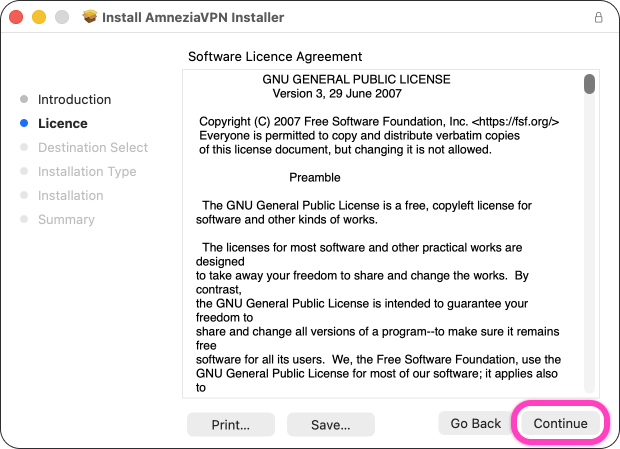
- On the license agreement screen, click Continue.
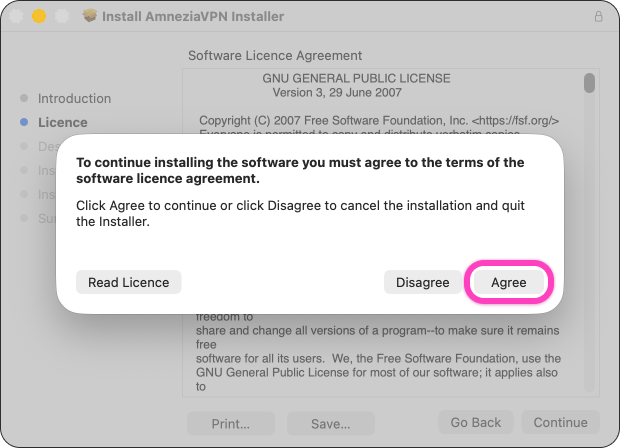
- To continue the installation, click Agree.
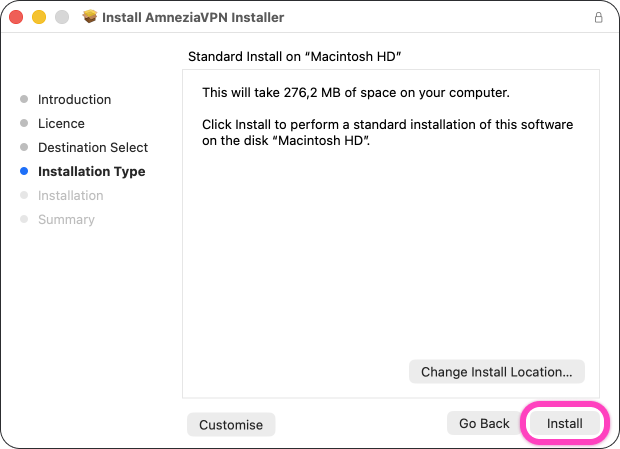
- On the installation type screen, click Install.
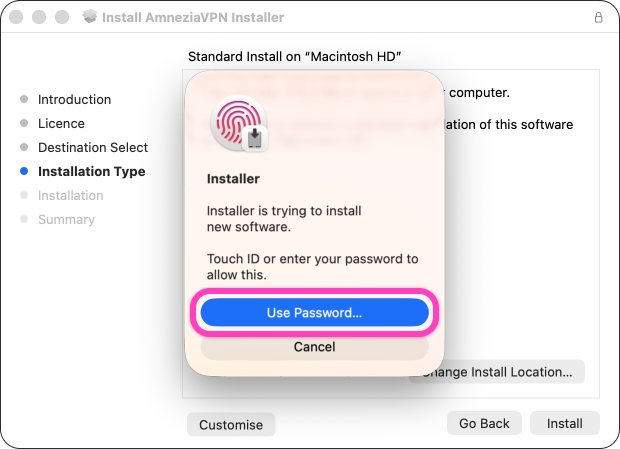
- If macOS asks for confirmation, click Use Password..., enter the administrator password, or confirm the installation with Touch ID.
- Wait until the installation is complete and click Close.
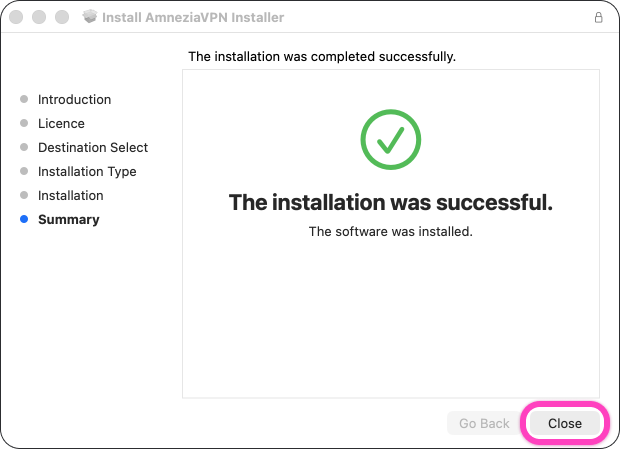
When the installation is complete, AmneziaVPN will open automatically. We recommend restarting your device after installing the update. After that, you can connect.