Application Update on Android
If you need to uninstall the app manually to change the installation method, create a backup first: Backing up and restoring app settings.
The app version for Android 7 and 8 is temporarily unavailable. Current APK files are available for Android 9 and later.
Updating from the app
The latest versions of AmneziaVPN display a screen prompting you to update the app.
-
On the screen with the new version details, tap Update app.
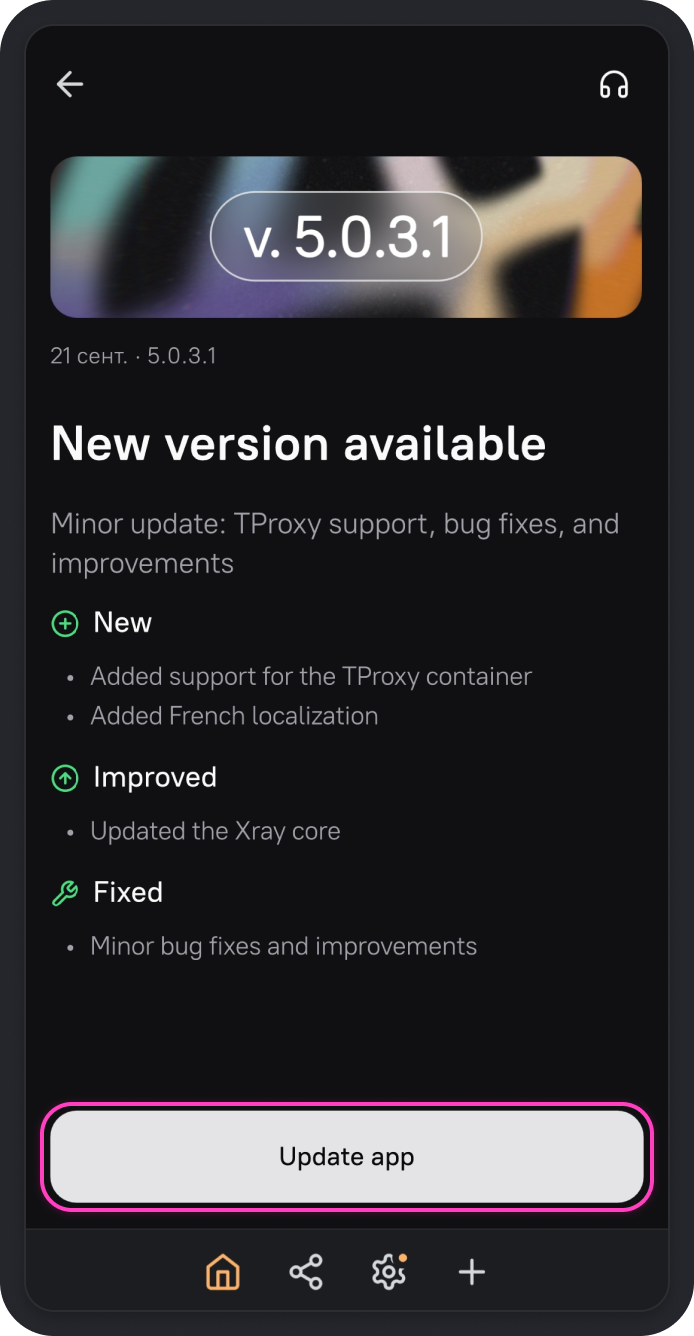
-
The AmneziaVPN page on Google Play will open. Tap Update in the store and wait for the update to finish.
If AmneziaVPN was installed using an APK file, you cannot update it via Google Play. Follow the steps in Updating via APK file below.
Updating via Google Play
If AmneziaVPN was installed from Google Play, you do not need to uninstall the app. The new version will be installed automatically after the update is published in the store. With automatic updates, all app settings are saved.
Open the AmneziaVPN page on Google Play. If the update is already available, tap Update.
The update may appear in Google Play later than the APK file on GitHub because the new version must pass the store review.
If AmneziaVPN was installed from Google Play, you cannot install an APK update over the Google Play version.
If you want to update as soon as possible, you can install the new version using an APK file. To do this, first uninstall the version installed from Google Play, then install the APK. When you uninstall the app, its settings are reset. To avoid this, create a backup of the settings.
Updating via APK file
If AmneziaVPN was installed using an APK file, the app will not update automatically. You need to install each update manually.
If the previous version was also installed using an APK file, you can install the new version from an APK file over the old one. You do not need to uninstall the app, and the app settings will be saved.
To install or update AmneziaVPN using an APK file, use this guide: Installing APK files on Android.
If AmneziaVPN was installed using an APK file, you cannot update the app via Google Play.
To receive automatic updates again, uninstall the version that was installed from the APK file, then install AmneziaVPN from Google Play. Before uninstalling the app, create a backup of the settings, because the app settings are reset when the app is uninstalled.