How to Set Up VPN on Amnezia Hosting Server
Overview
This guide describes how to install VPN on an Amnezia Hosting server using the AmneziaVPN app.
No need to connect via SSH or change server settings if you're only using the server for VPN.
Setting Up VPN on the Server
- Download and install AmneziaVPN from the official download page (mirror).
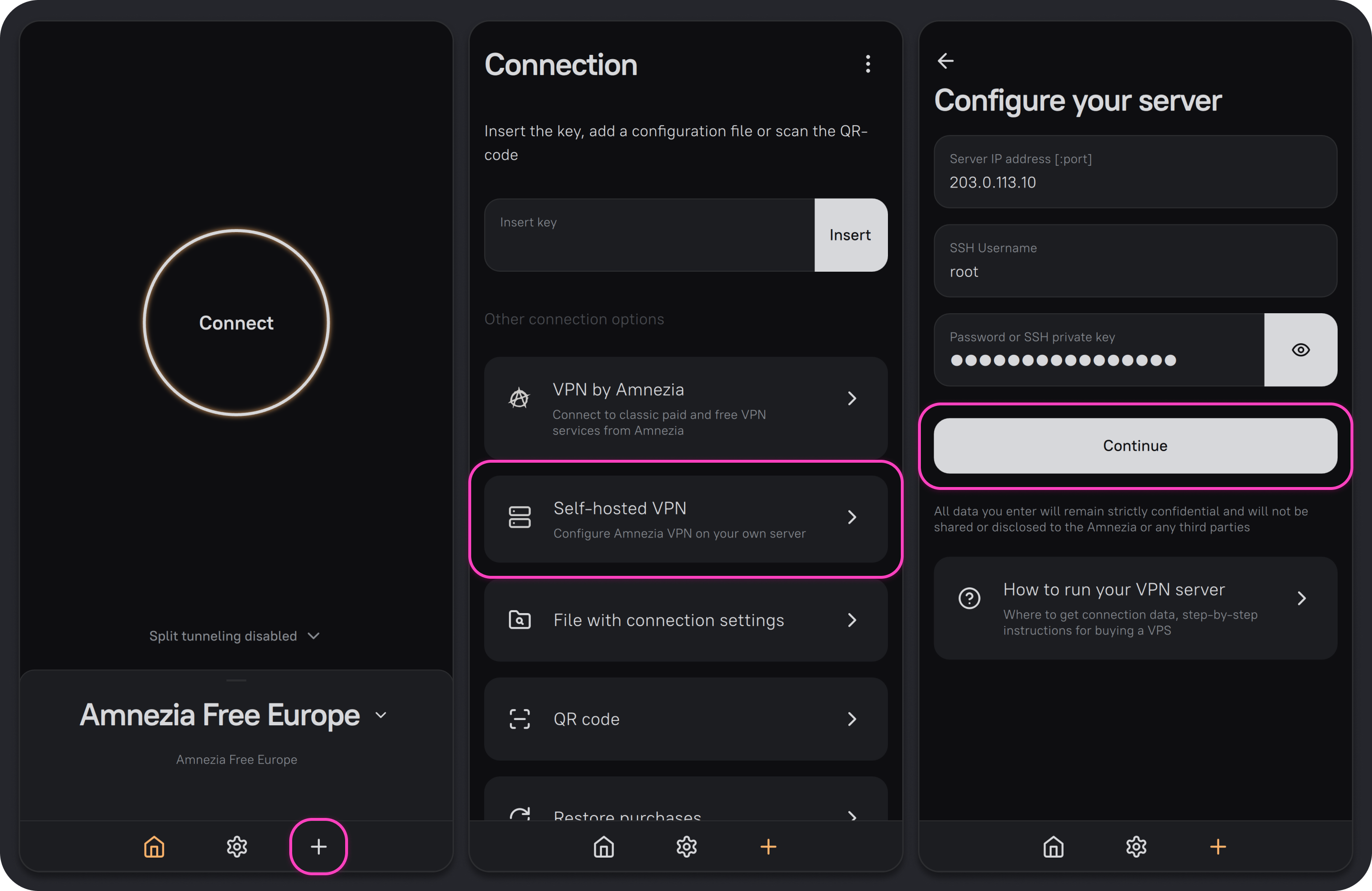
- Open AmneziaVPN and click ➕ (plus icon) or the Get Started button if you have no other connections.
- Select Self-hosted VPN.
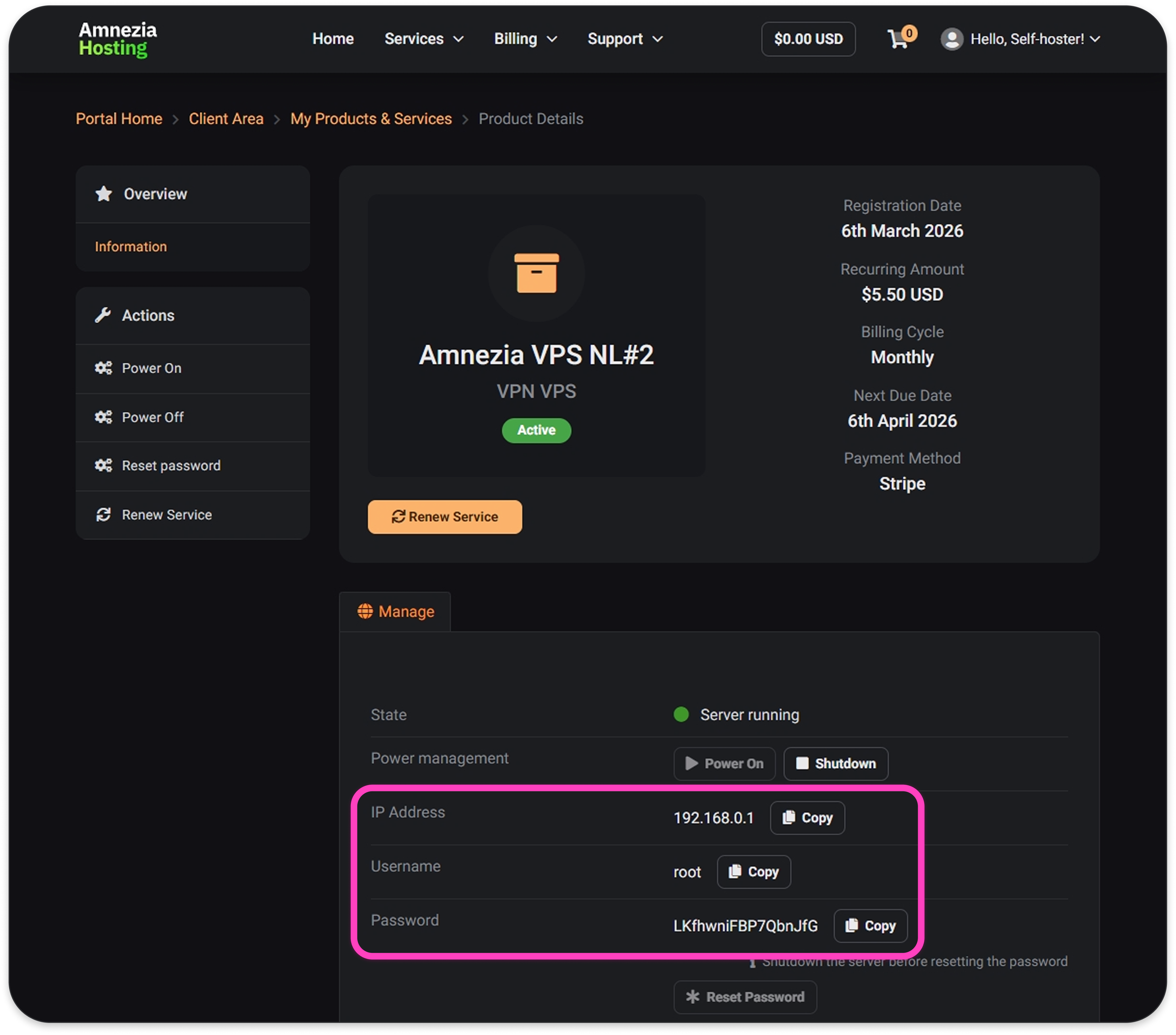
- Enter the server IP address, username (
root), and password.
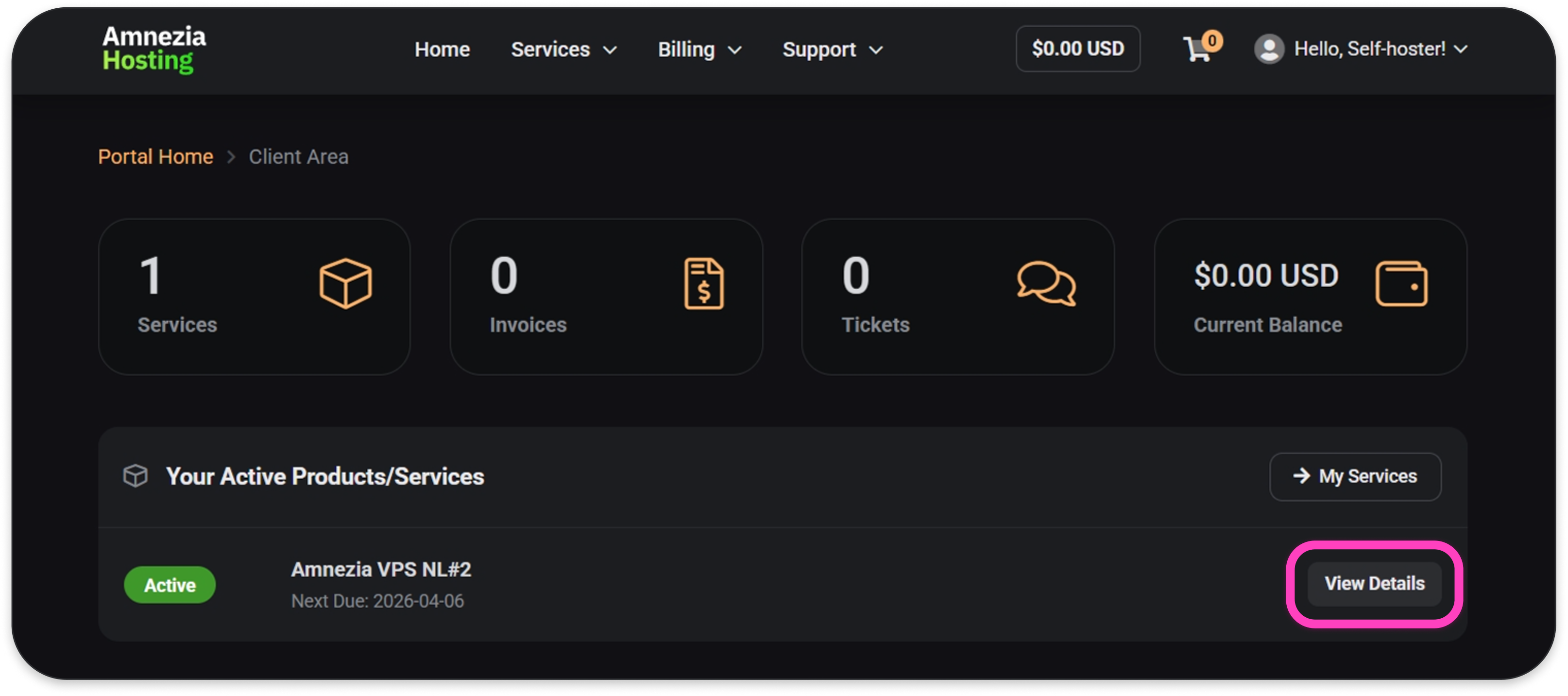
You can find the connection details in the Amnezia Hosting client area (mirror) — click View Details next to the server.
- Choose the installation type and click Continue:
- Automatic — installs only the AmneziaWG protocol. Other protocols can be installed later.
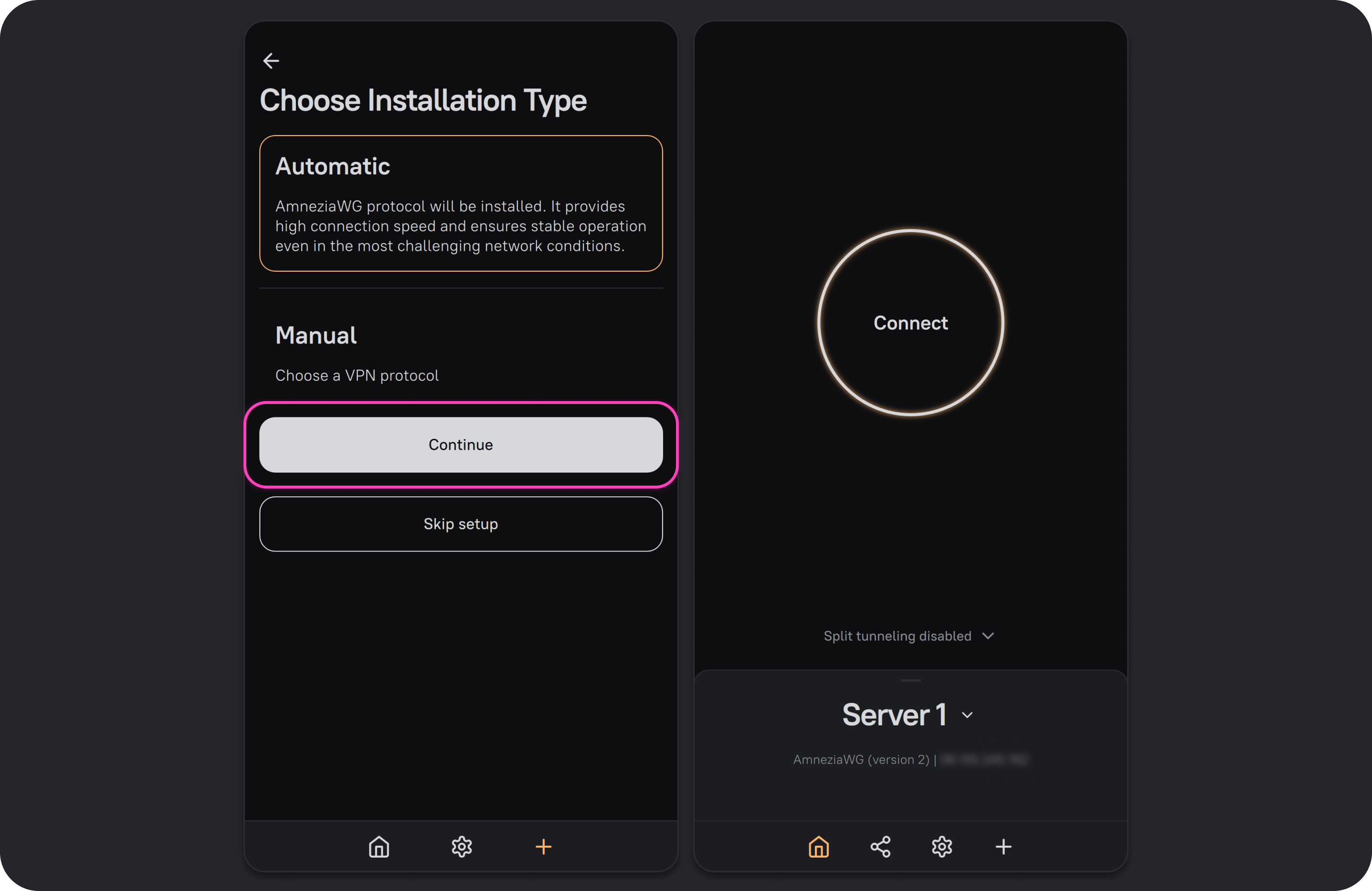
- Manual — installs one protocol of your choice. Others can be installed later. After selecting a protocol, click Install.
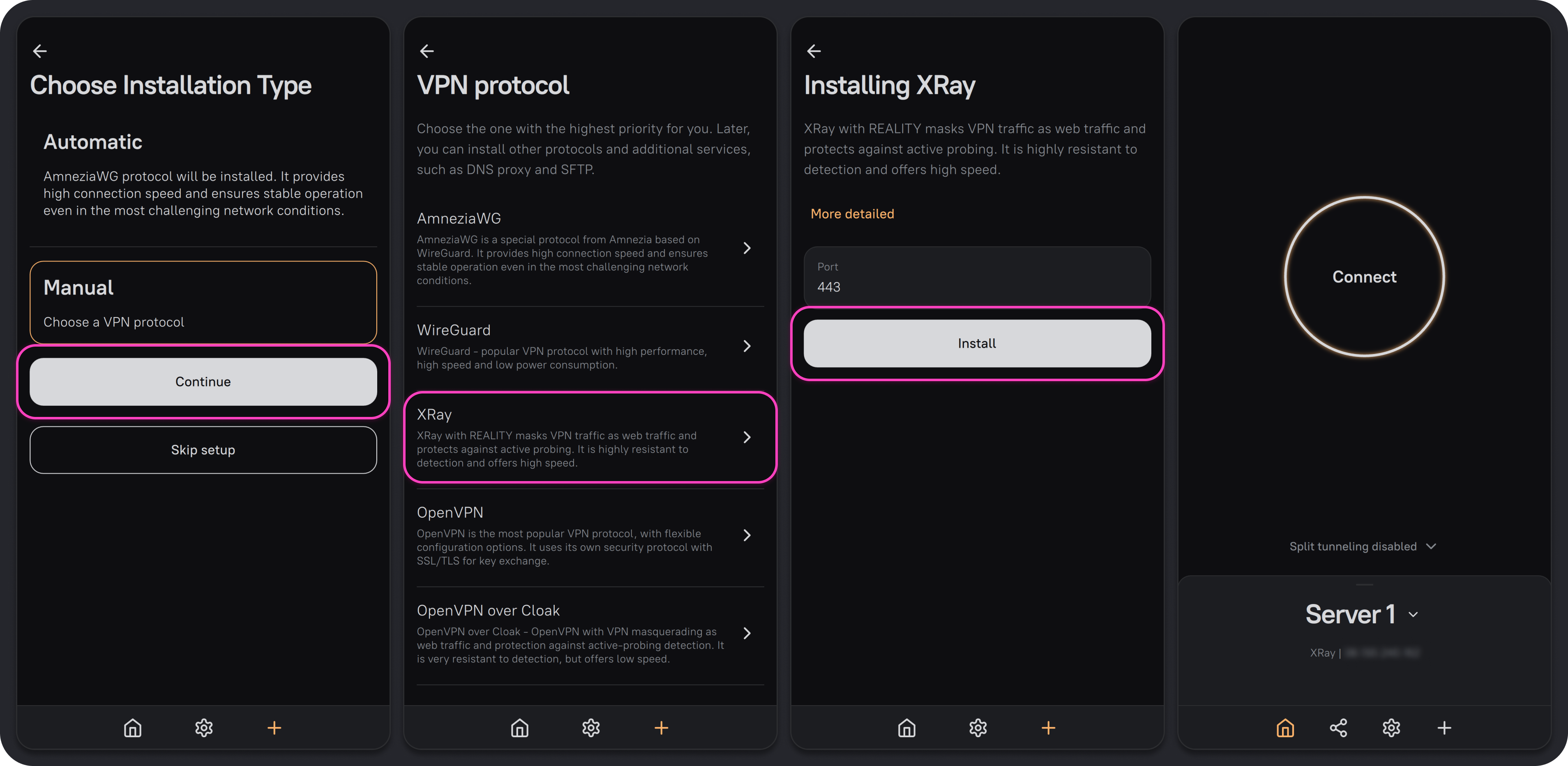
Once installation finishes, AmneziaVPN will create a ready-to-use VPN connection with full access to the server.
We recommend reading the guide next: How to Share VPN Access.
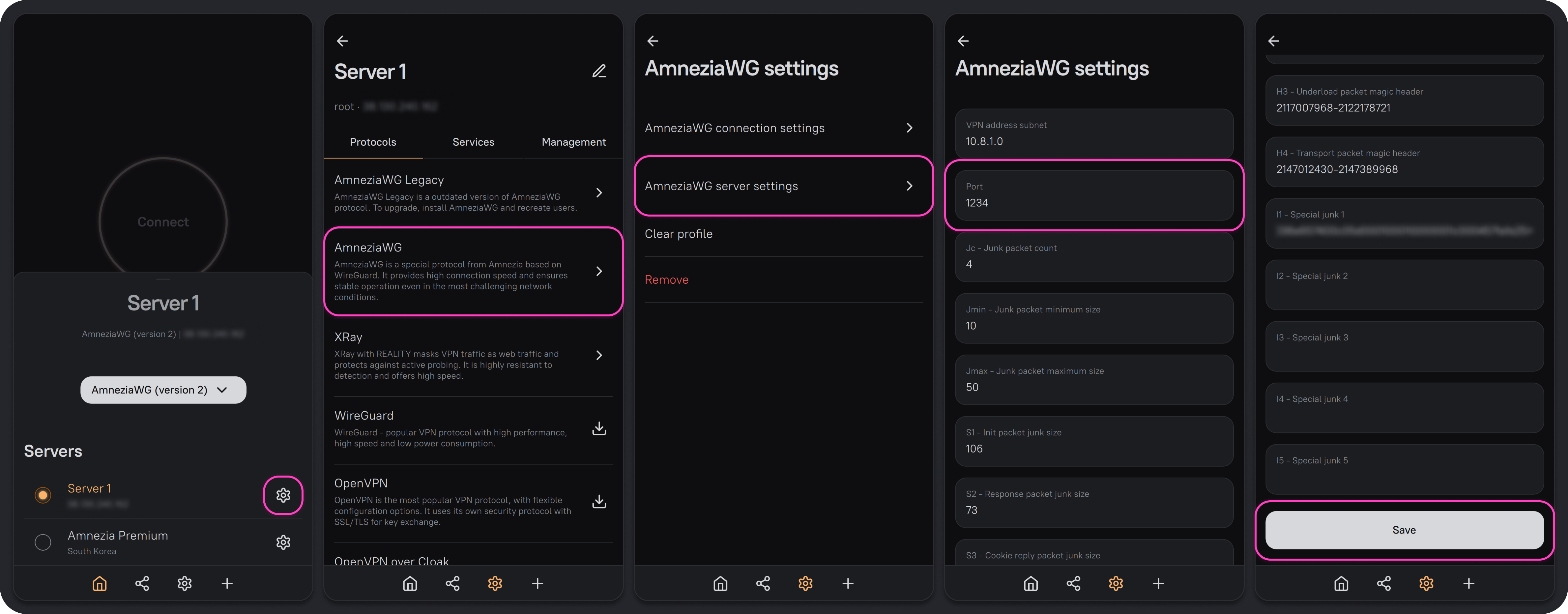
AmneziaWG is installed with a random port by default. Some ISPs block UDP traffic on high ports, so we recommend changing the port immediately to any number up to 9999, for example 585 or 1234. Make sure the port is not already used by another service on the server.
Troubleshooting: Self-Hosted Connection via the AmneziaWG Protocol Does Not Work.
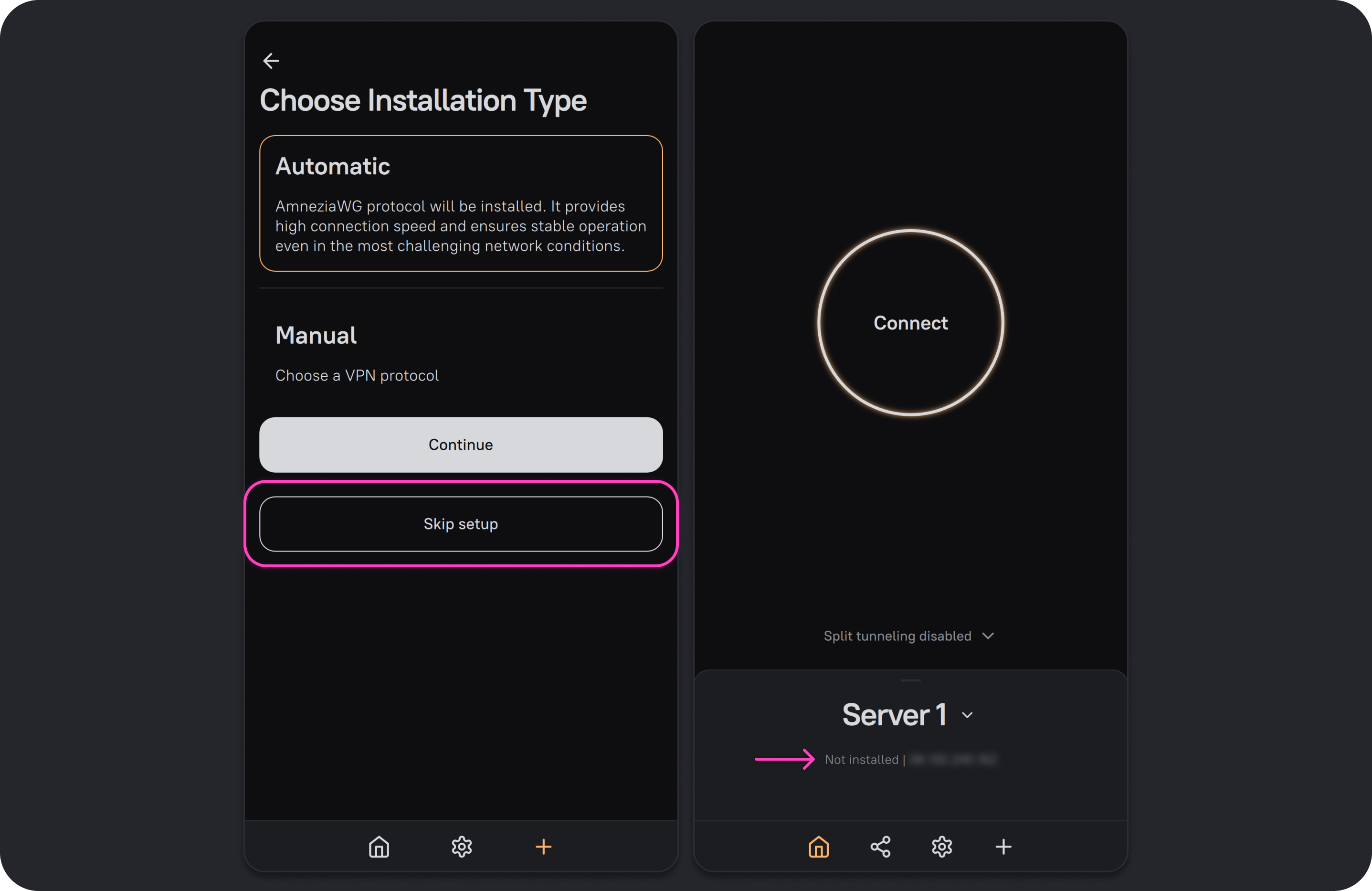
Skip Setup
If you click Skip setup when creating a connection to the server, you get an empty connection — no commands are sent to the server.
Use this when you want full access to a server that already has Amnezia VPN on it — without using a backup file or full access key.
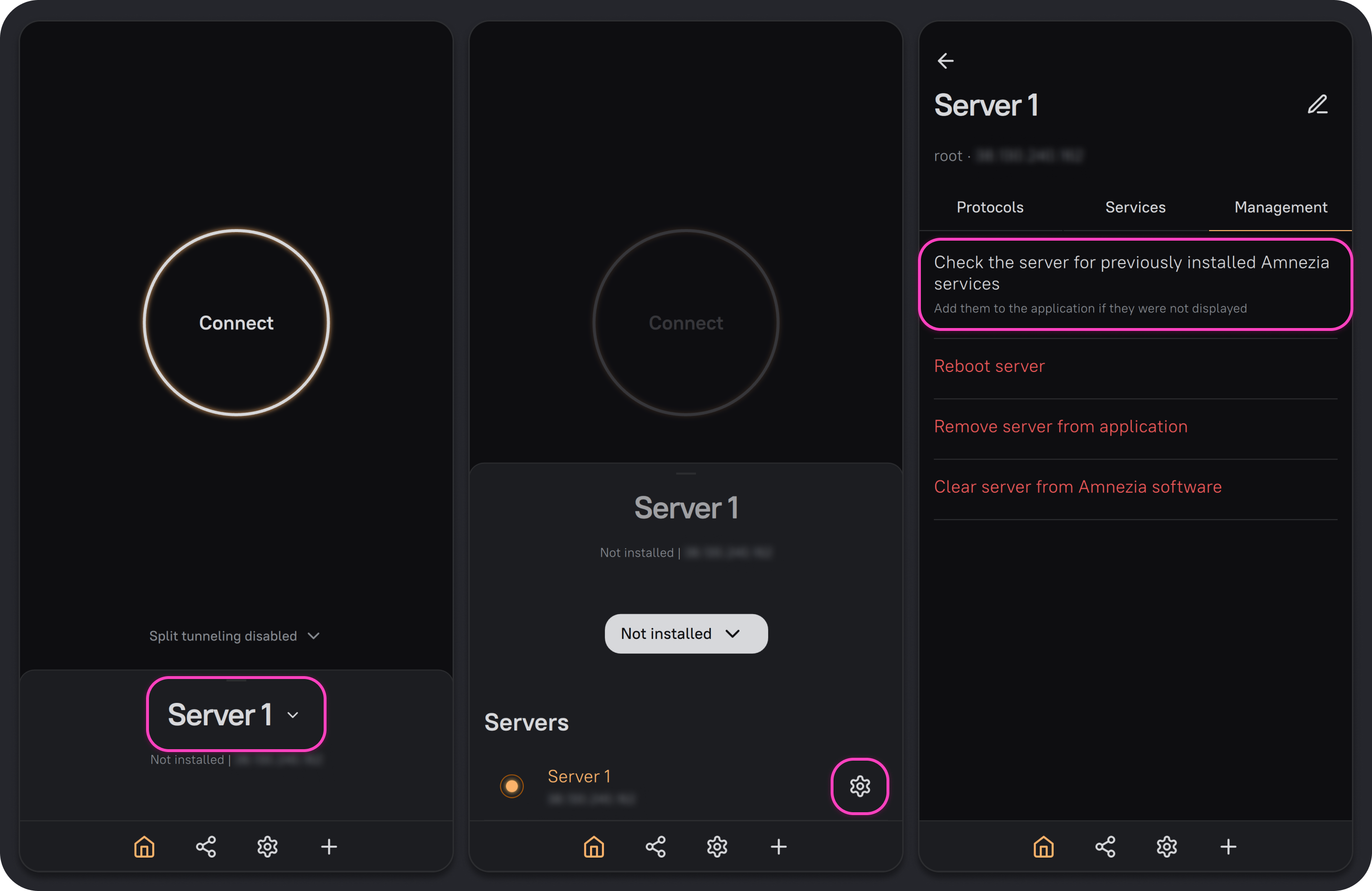
How to use a server that already has Amnezia installed:
- Click any connection name.
- Click ⚙️ (gear icon) next to the connection to your server.
- Go to the Management tab and click Check the server for previously installed Amnezia services.
The app will refresh the connection; any VPN protocols and services already on the server will show up in its settings.
If you skipped setup by mistake and the server is clean, you can continue installation:
- Click any connection name.
- Click ⚙️ (gear icon) next to the connection to your server — you'll see a list of protocols you can install.
- Click 📥 icon next to the protocol you want and click Install.
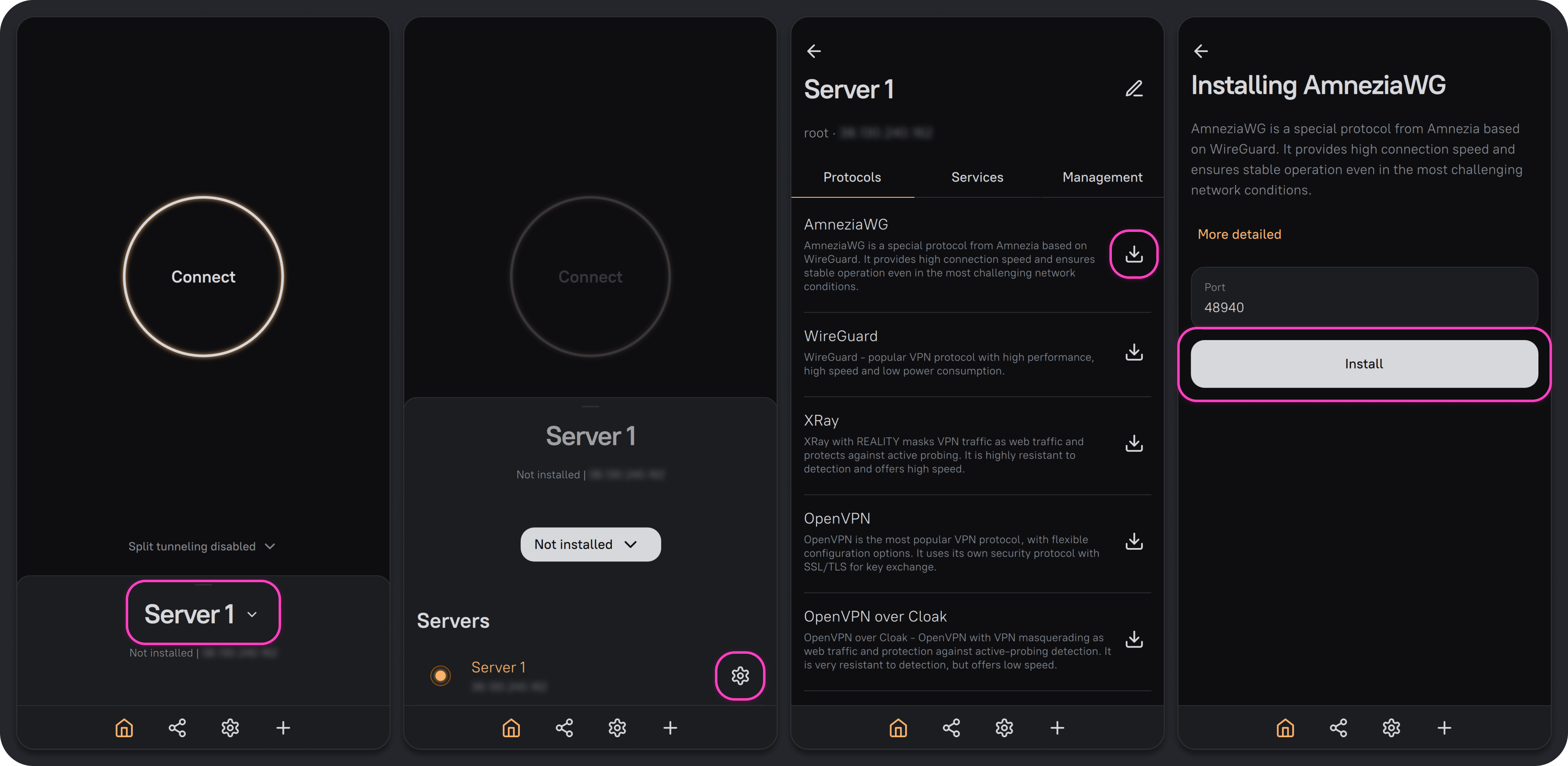
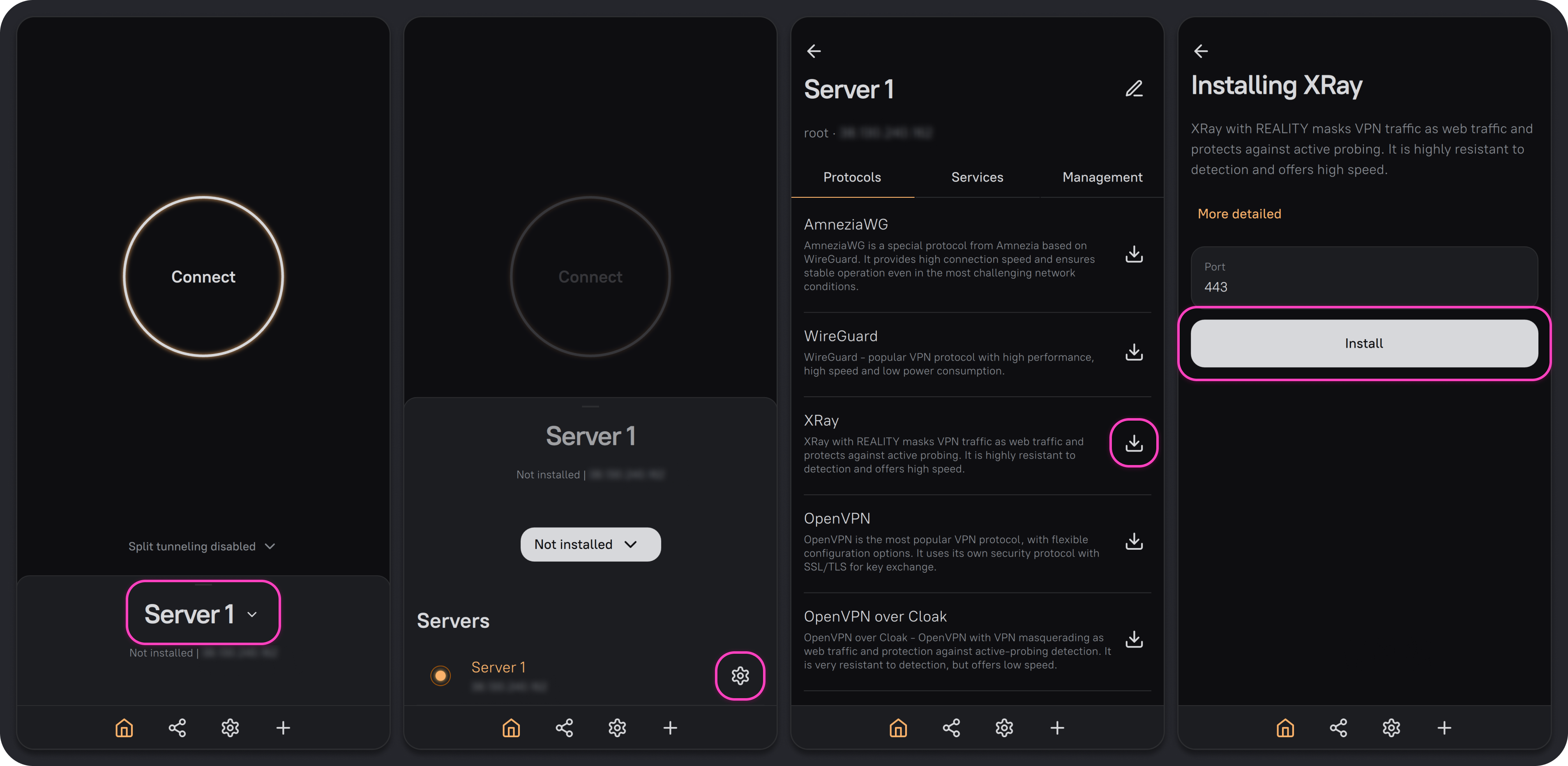
Once installation finishes, AmneziaVPN will create a ready-to-use VPN connection with full access to the server.
You may also find these guides helpful:
AmneziaWG is installed with a random port by default. Some ISPs block UDP traffic on high ports, so we recommend changing the port immediately to any number up to 9999, for example 585 or 1234. Make sure the port is not already used by another service on the server.
Troubleshooting: Self-Hosted Connection via the AmneziaWG Protocol Does Not Work.
VPN Connection Features
Once a VPN protocol is installed, the connection lets you use the VPN and gives you full access to the server with these options:
- manage VPN access
- manage VPN protocols
- install SOCKS5 proxy on the server
- set up your own DNS server
- create SFTP service for file storage and transfer
- deploy a site on the Tor network