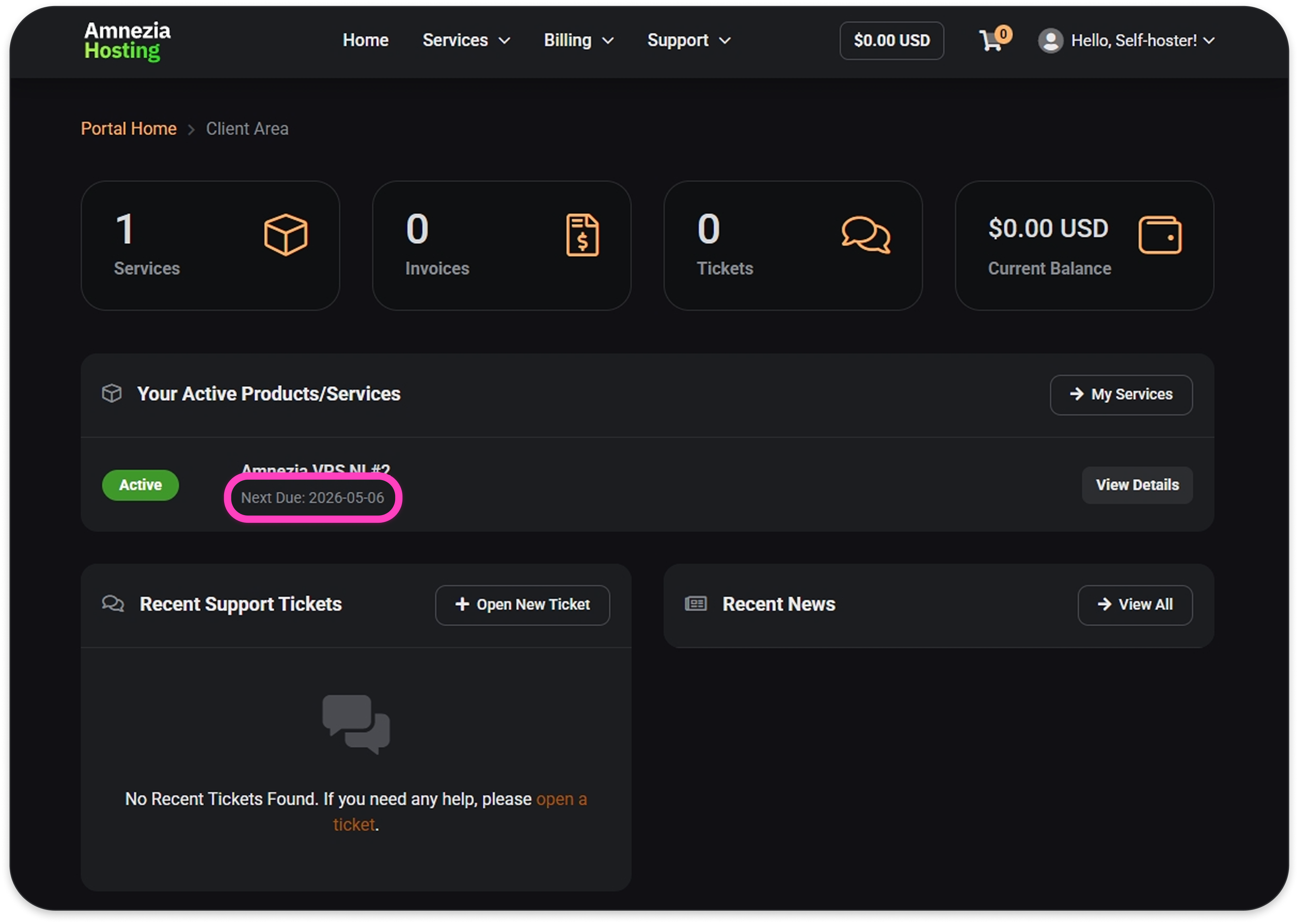
How to Order a Server from Amnezia Hosting
Overview
You can order a server from the main website or from the client area:
- If you order from the Amnezia Hosting homepage (mirror), account registration is part of the order process — the details you enter on step 3 will be used to create your account.
- If you already have an account, order through the Amnezia Hosting client area (mirror).
To create an account, go to: https://my.amnezia.host/register.php?language=english (mirror).
You can pay for your Amnezia Hosting server with any bank card or cryptocurrency. If you're in Russia, you can also pay via "SBP" (Faster Payments System).
After payment, the server is created automatically, and the connection details are sent to your email and appear in the client area.
Option 1. Order from the Amnezia Hosting Homepage
If you already have an Amnezia Hosting account, use the other guide instead.
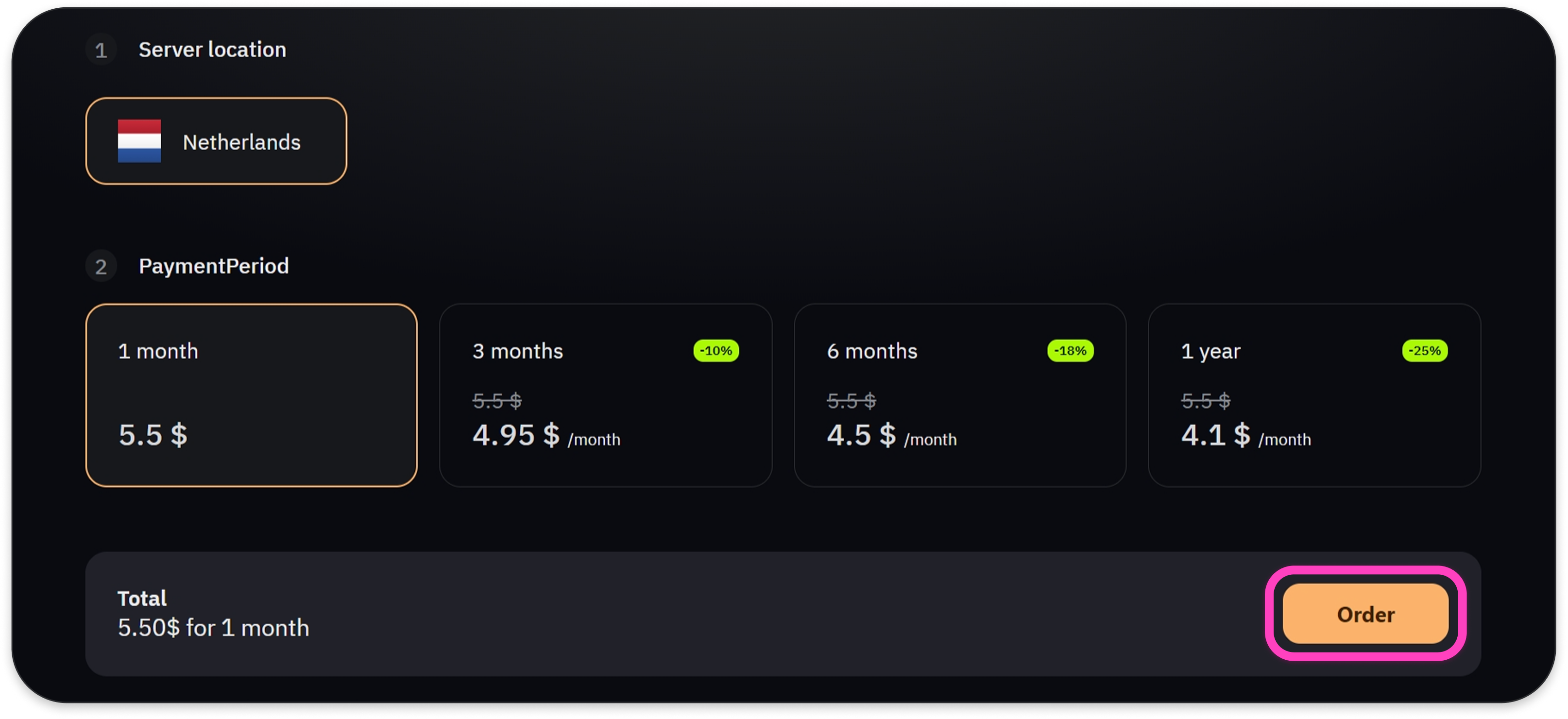
Step 1. Go to the Amnezia Hosting homepage (mirror), select the server location and payment period, then click Order.
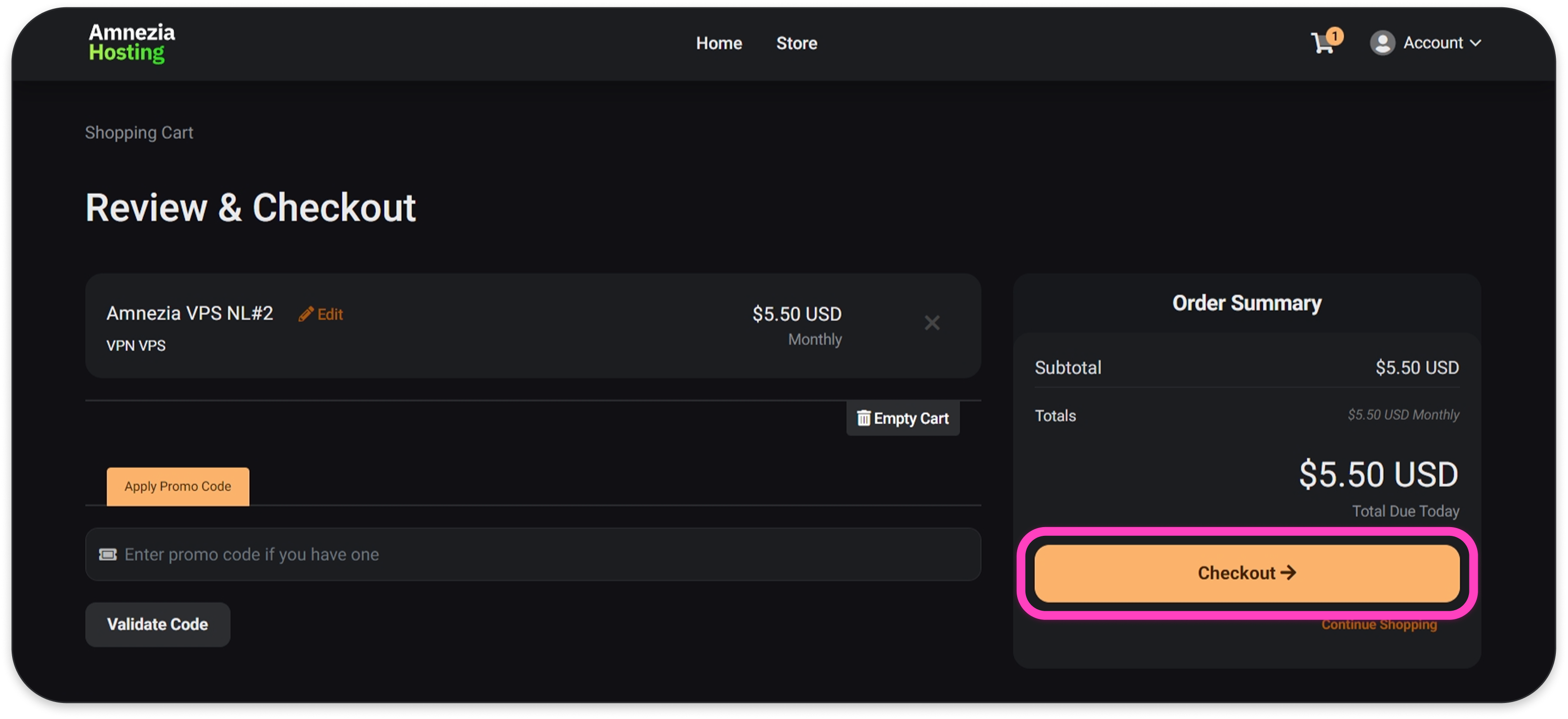
Step 2. Confirm the correct server is in the cart and click Checkout.
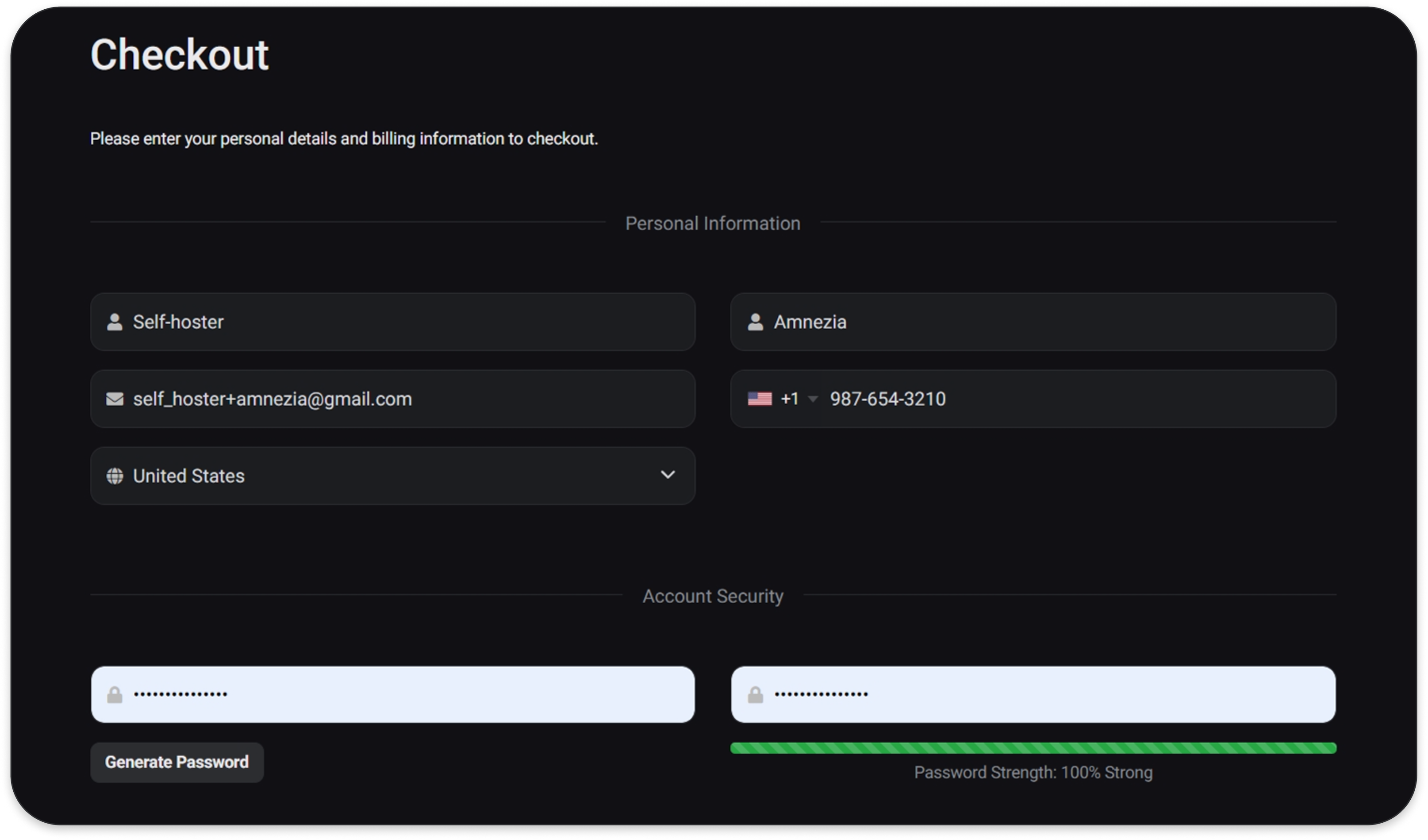
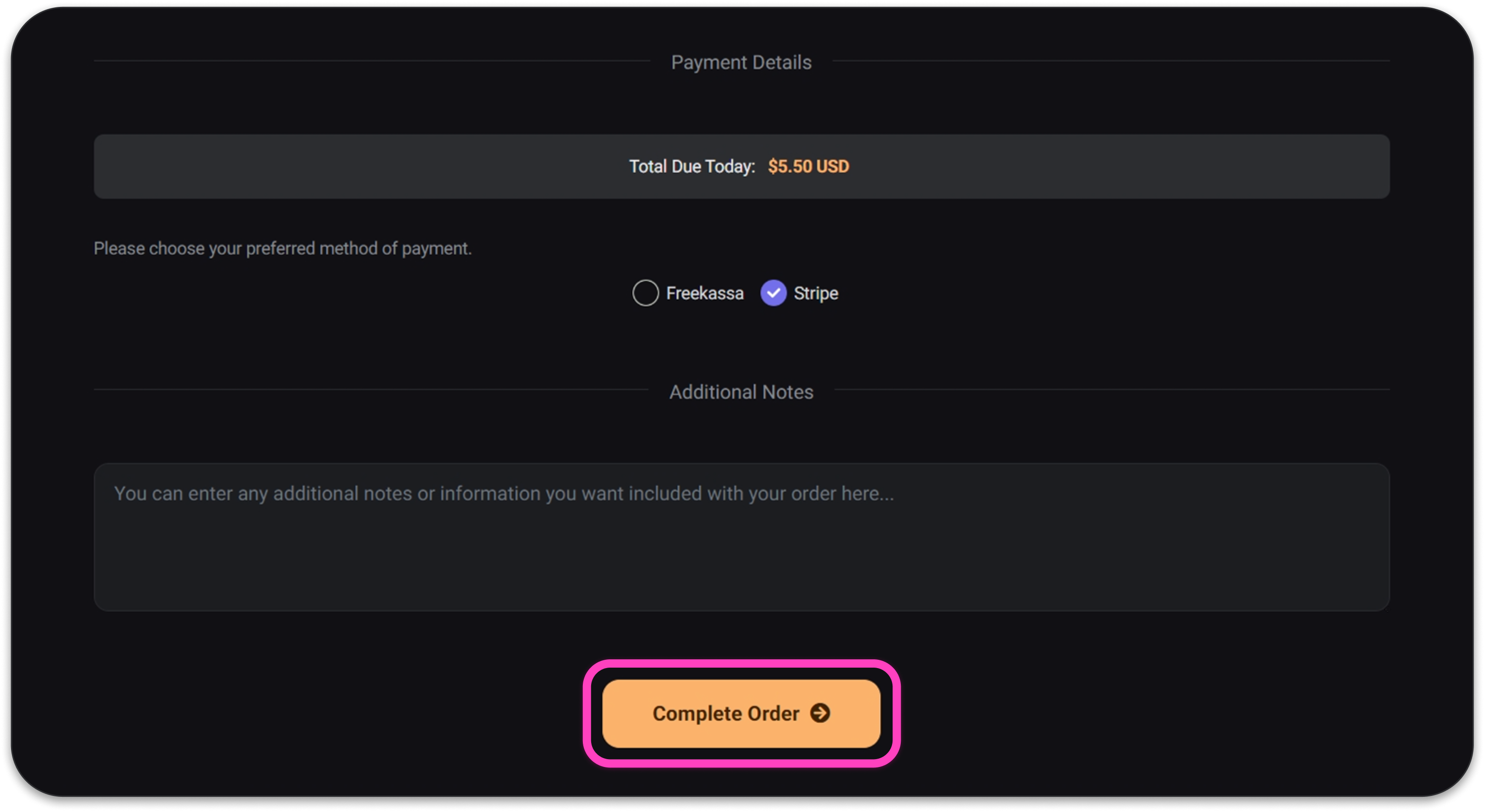
Step 3. Enter your details — they will be used to create your account. On the same page, choose the method of payment, then click Complete Order to go to the payment page.
To enter your phone number, first select the country.
Choose Freekassa to pay with a Russian bank card or cryptocurrency. Choose Stripe to pay with cards from other regions.
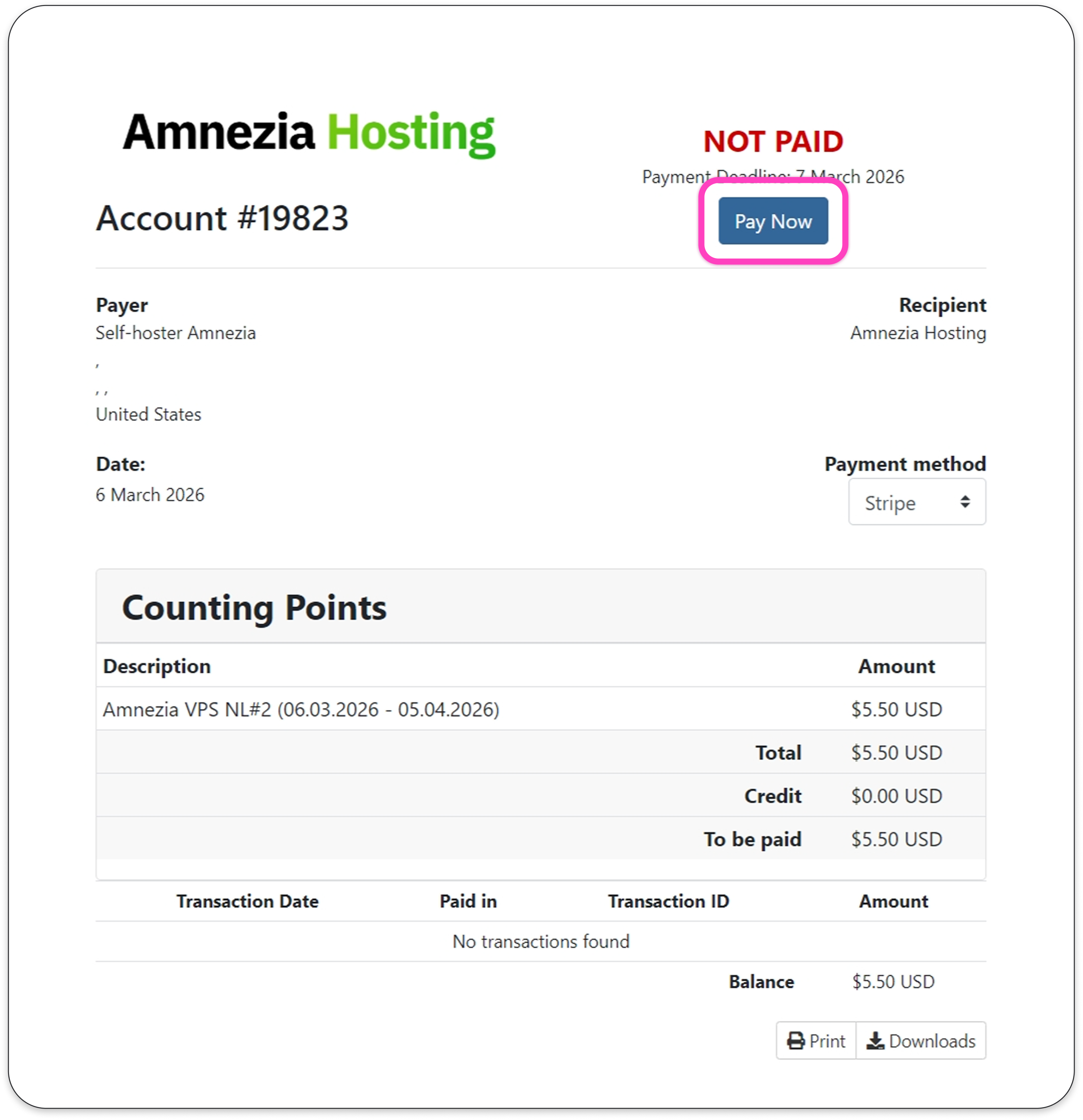
Step 4. Click Pay Now.
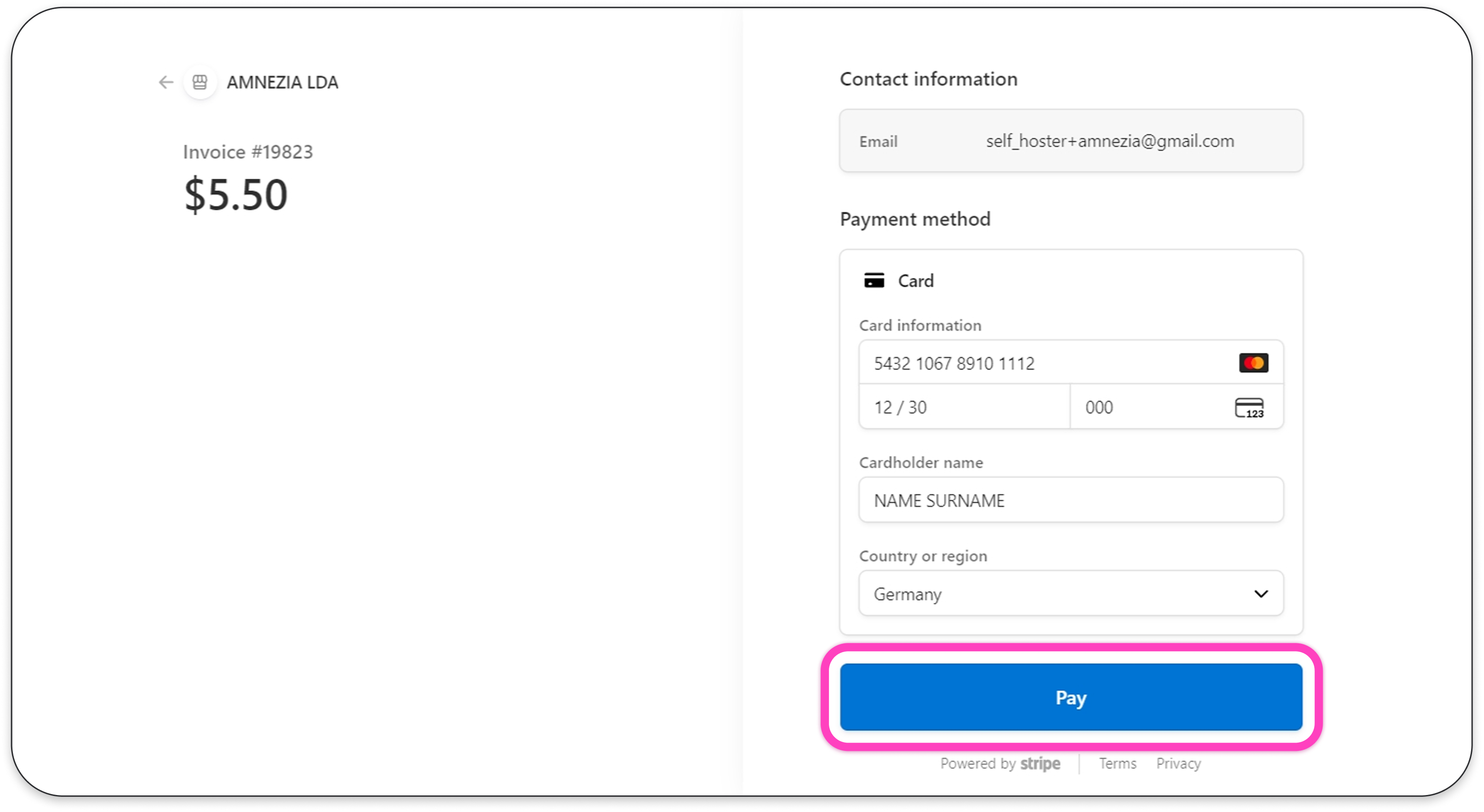
Step 5. Enter your card details and click Pay.
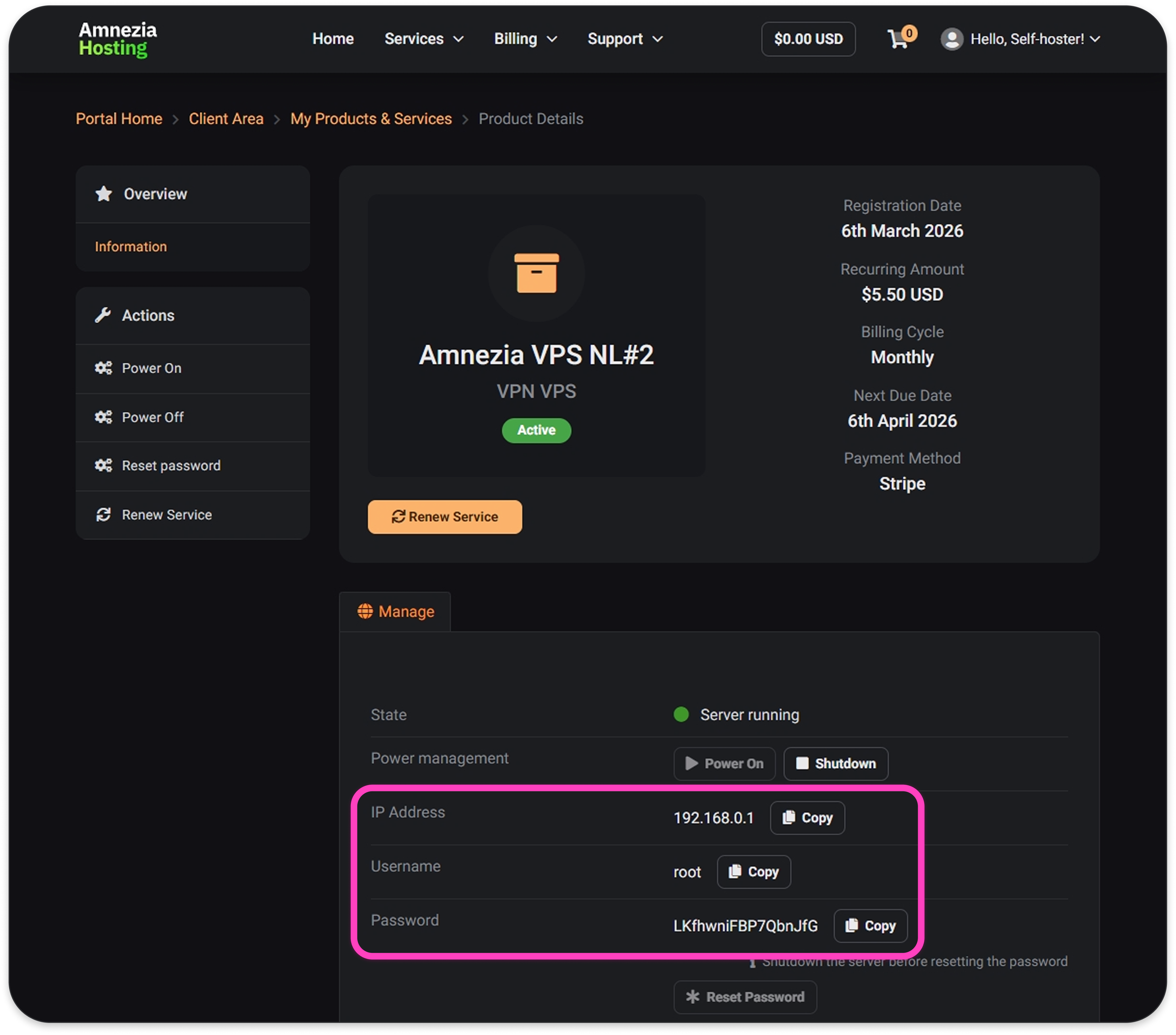
Step 6. After successful payment, you'll receive an email with the server connection details — server IP address and root password.
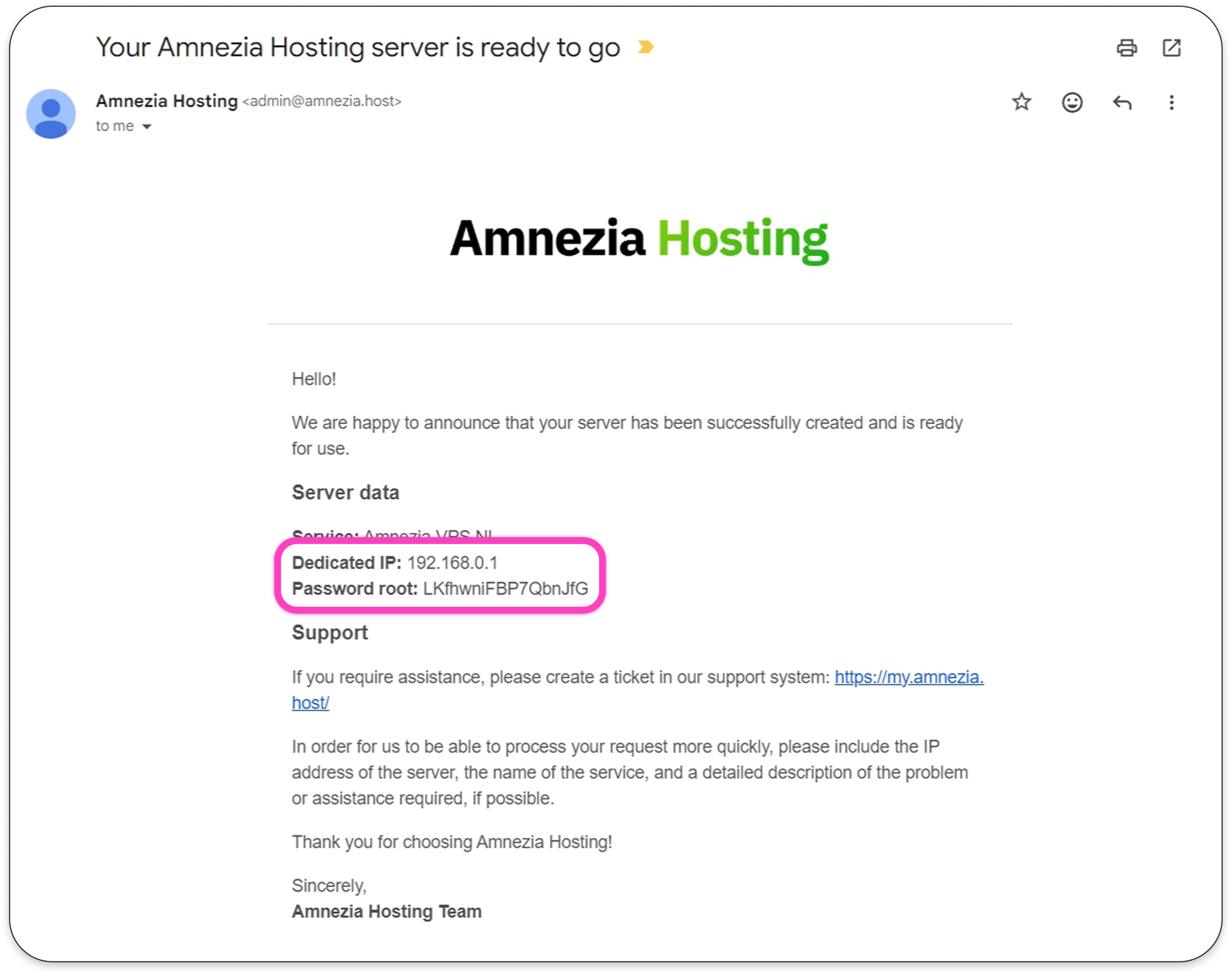
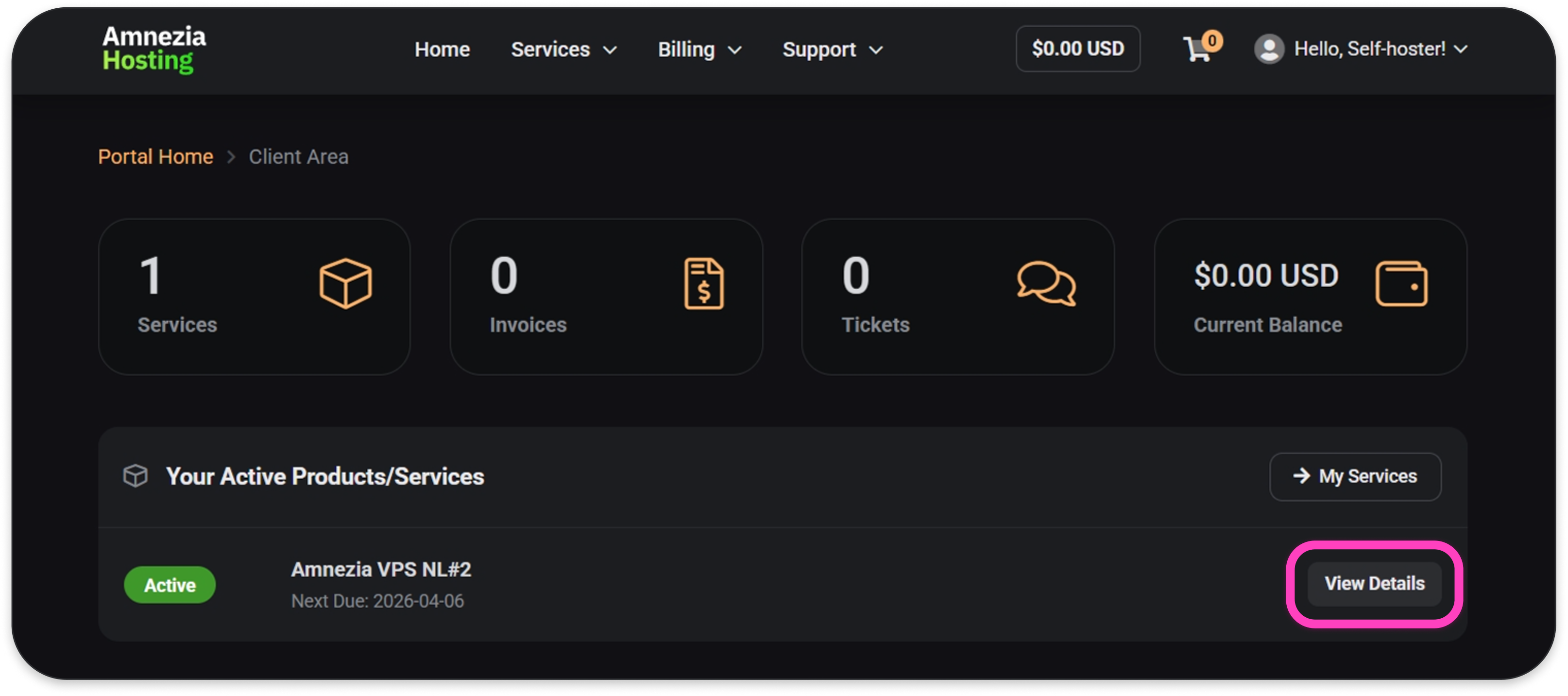
You can also find the connection details in the Amnezia Hosting client area (mirror) by clicking View Details next to the server.
Once you have the server IP address and root password, follow the guide to set up VPN on the server.
Option 2. Order from the Amnezia Hosting Client Area
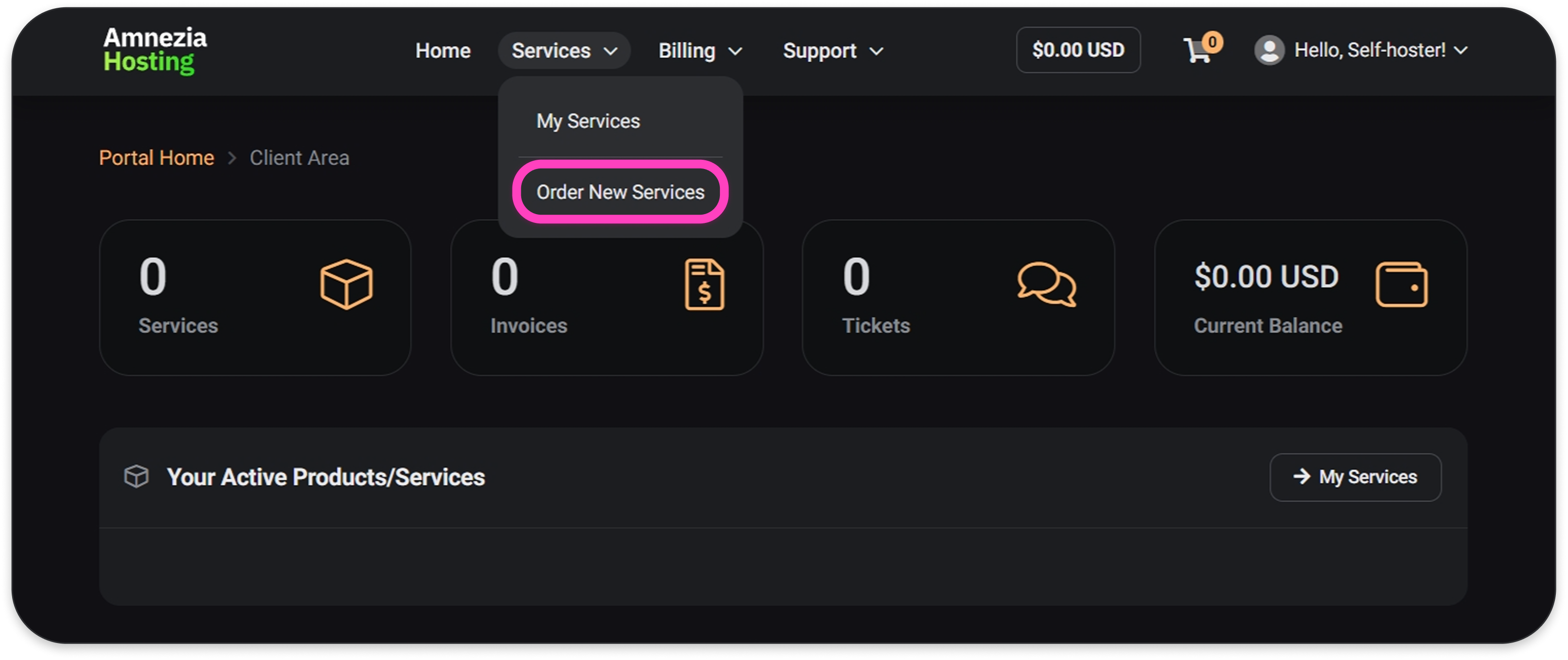
Step 1. Go to the Amnezia Hosting client area (mirror), open Services → Order New Services in the top menu.
Step 2. Select the server location:
- NL — Netherlands
- FR — France
- DE — Germany
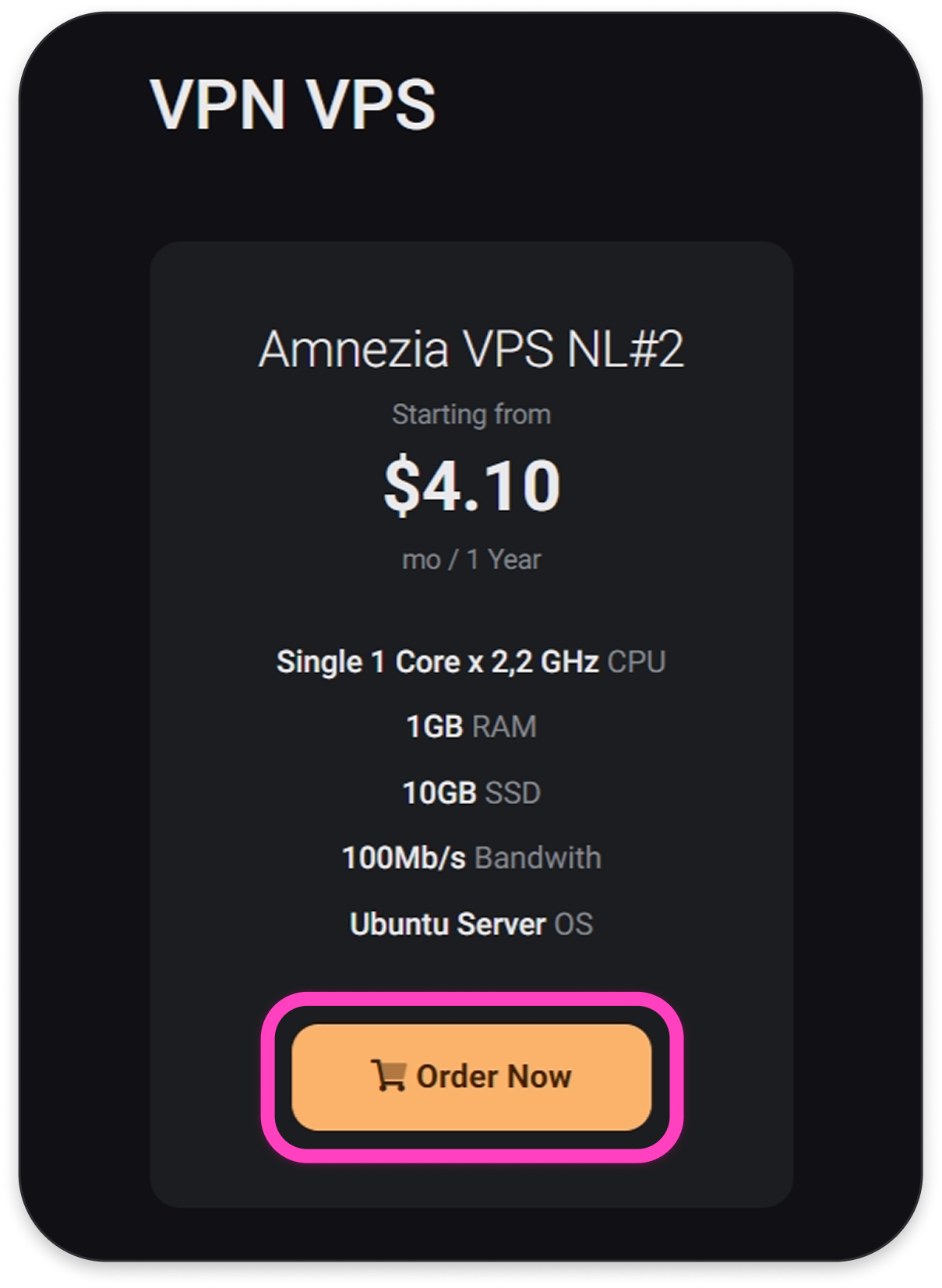
Step 3. Choose the billing cycle (payment period) and click Continue.
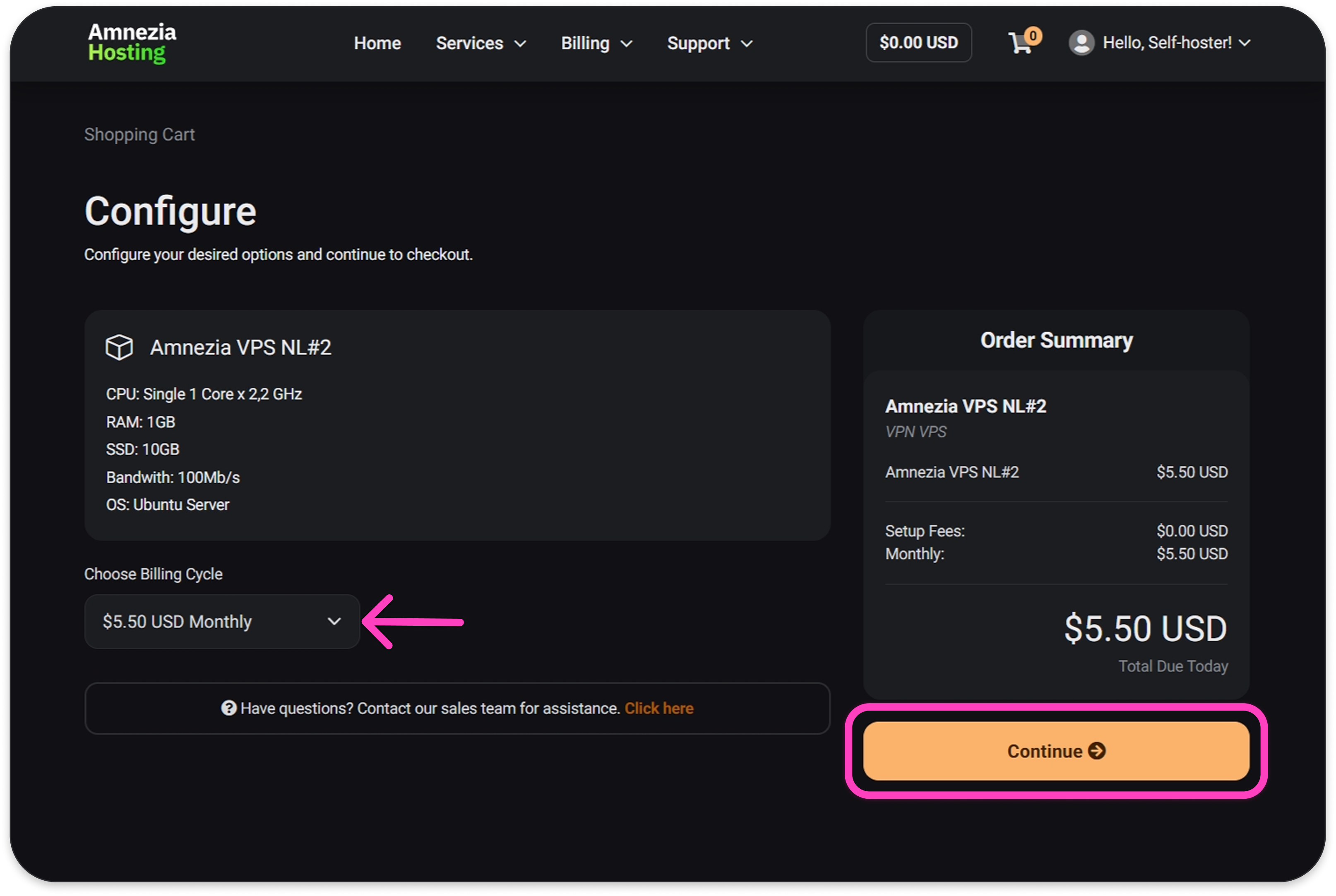
Step 4. Confirm the correct server is in the cart and click Checkout.
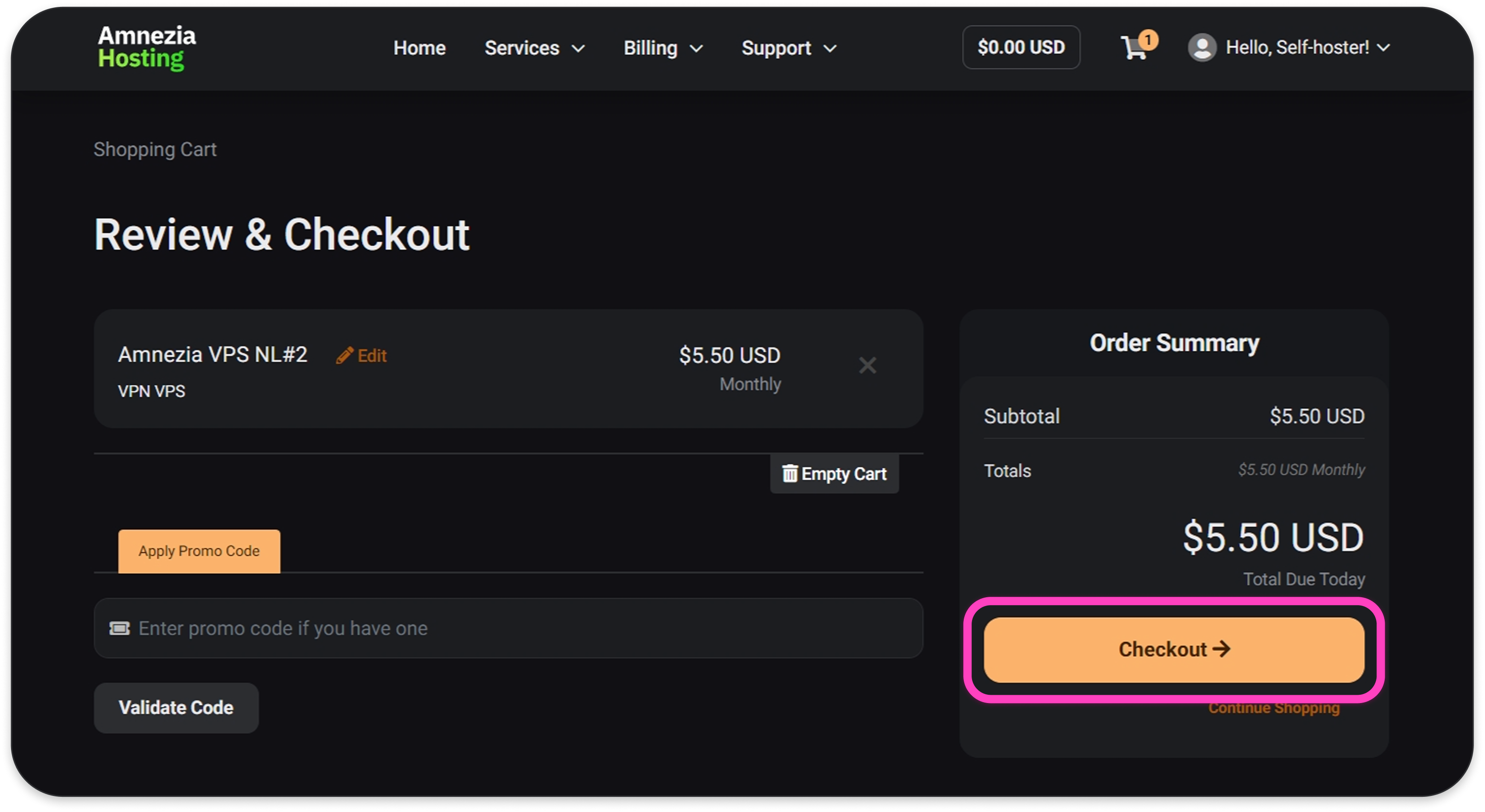
Step 5. Confirm your account is selected for the order, choose the method of payment, then click Complete Order to go to the payment page.
Choose Freekassa to pay with a Russian bank card or cryptocurrency. Choose Stripe to pay with cards from other regions.
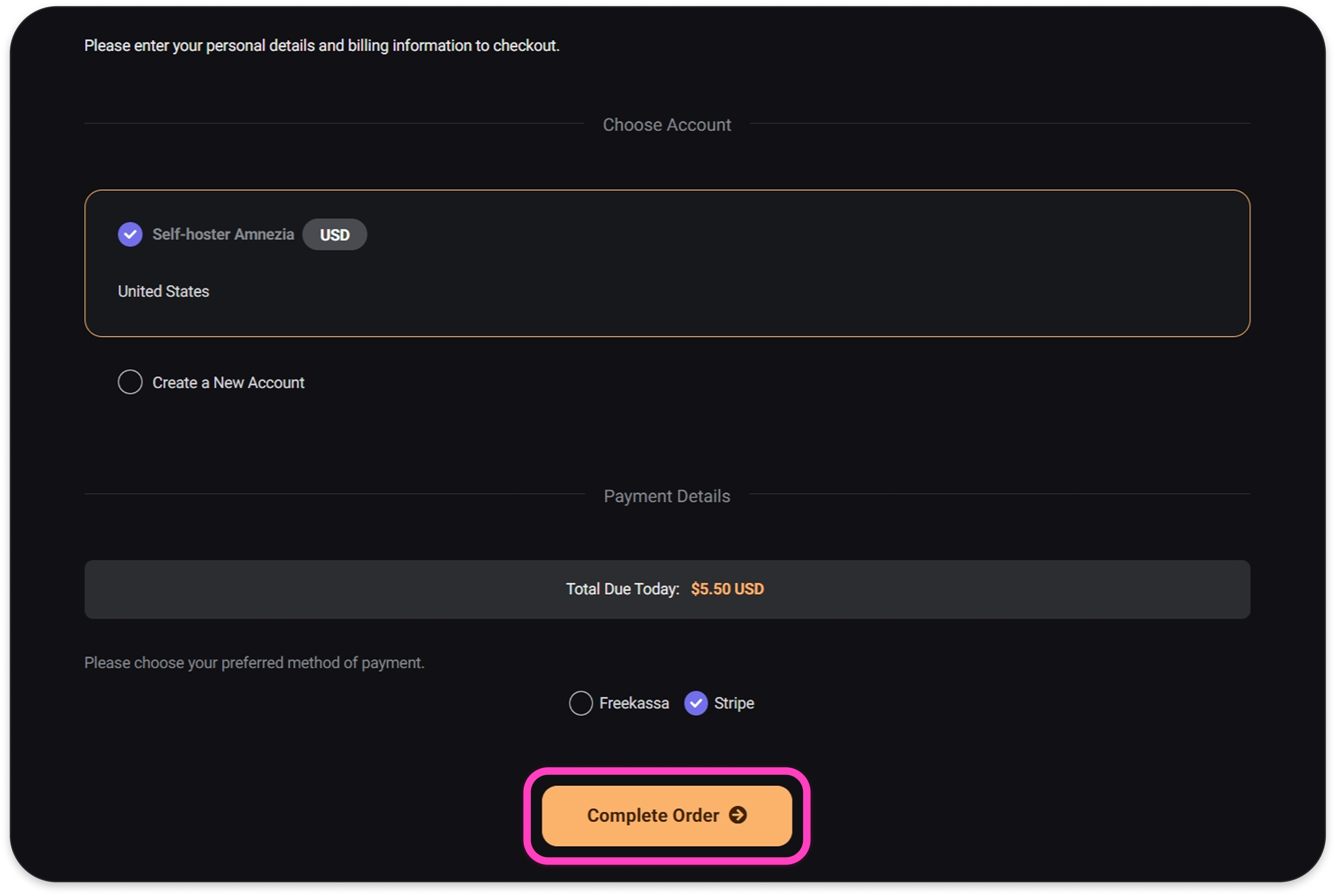
Step 6. Click Pay Now.
Step 7. Enter your card details and click Pay.
Step 8. After successful payment, you'll receive an email with the server connection details — server IP address and root password.
Once you receive the server details, proceed to the guide to set up VPN on the server.
You can also find the connection details in the Amnezia Hosting client area (mirror) by clicking View Details next to the server.
Renewing the Server
Auto-renewal is not available yet. This means you need to pay manually each time the current period is about to end.
An invoice for the next period is sent to your email 5 days before the current period ends. To keep your server, pay the invoice before the period expires.
If you don't pay, the server will be suspended for 7 days after the period ends. 7 days after suspension, the server is deleted automatically.
- if you want the next renewal to be for a different period;
- if you have payment issues but still want to keep the server.
You can renew early if less than a month is left in the current period. To check if renewal is available:
Step 1. Go to the Amnezia Hosting client area (mirror).
Step 2. If renewal is available, you'll see Services renewing soon — click Renew Now.
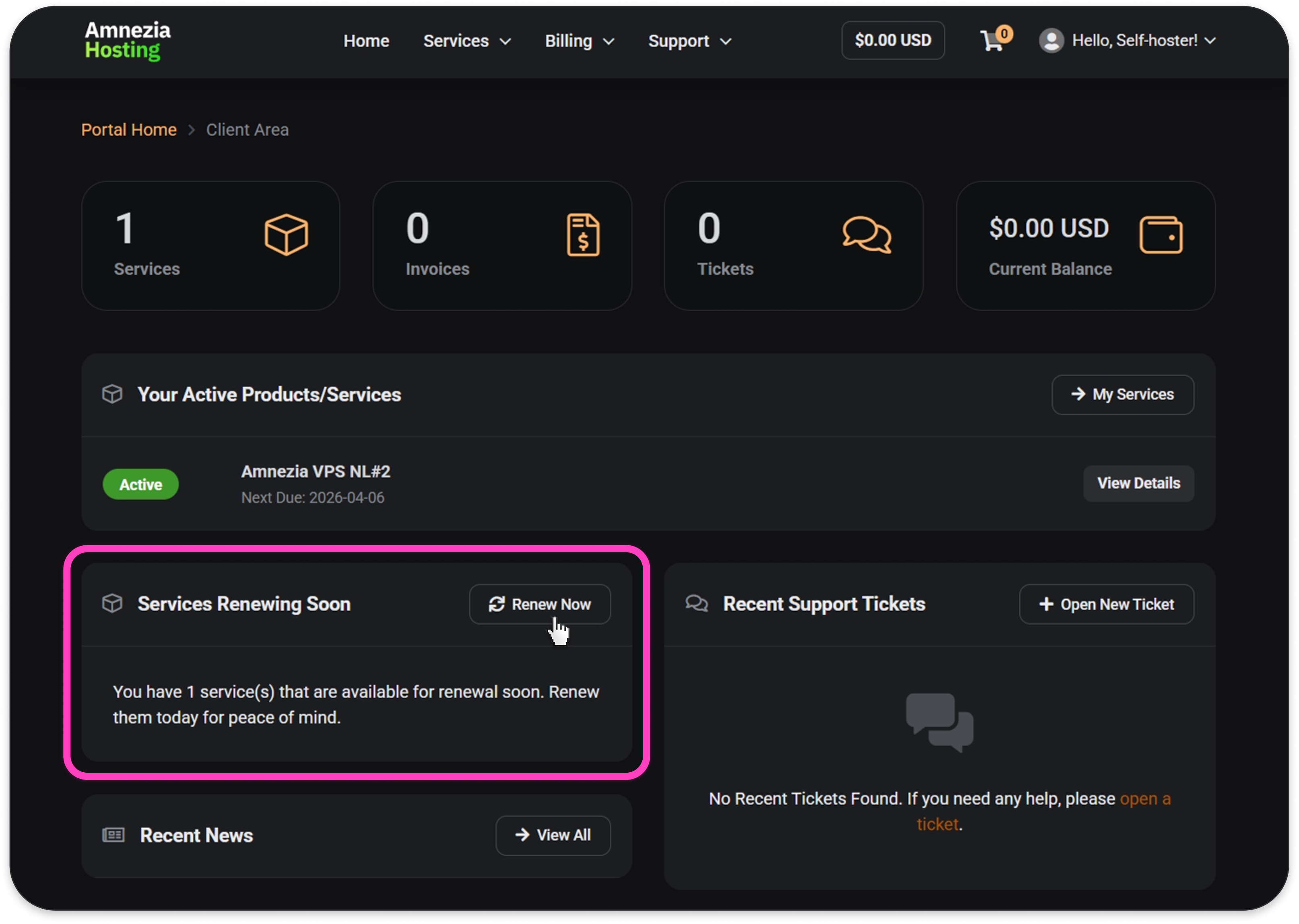
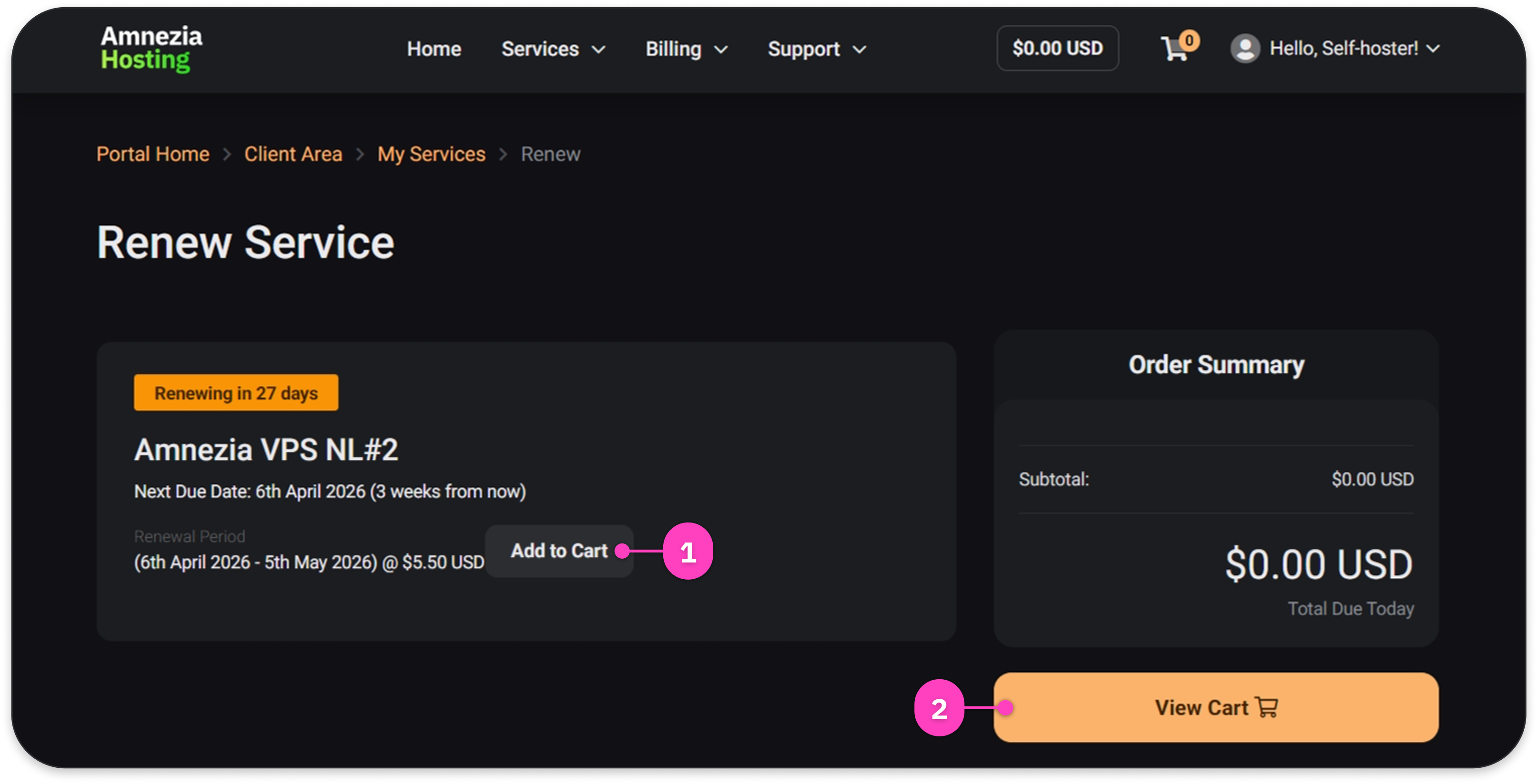
Step 3. Click Add to cart, then View Cart.
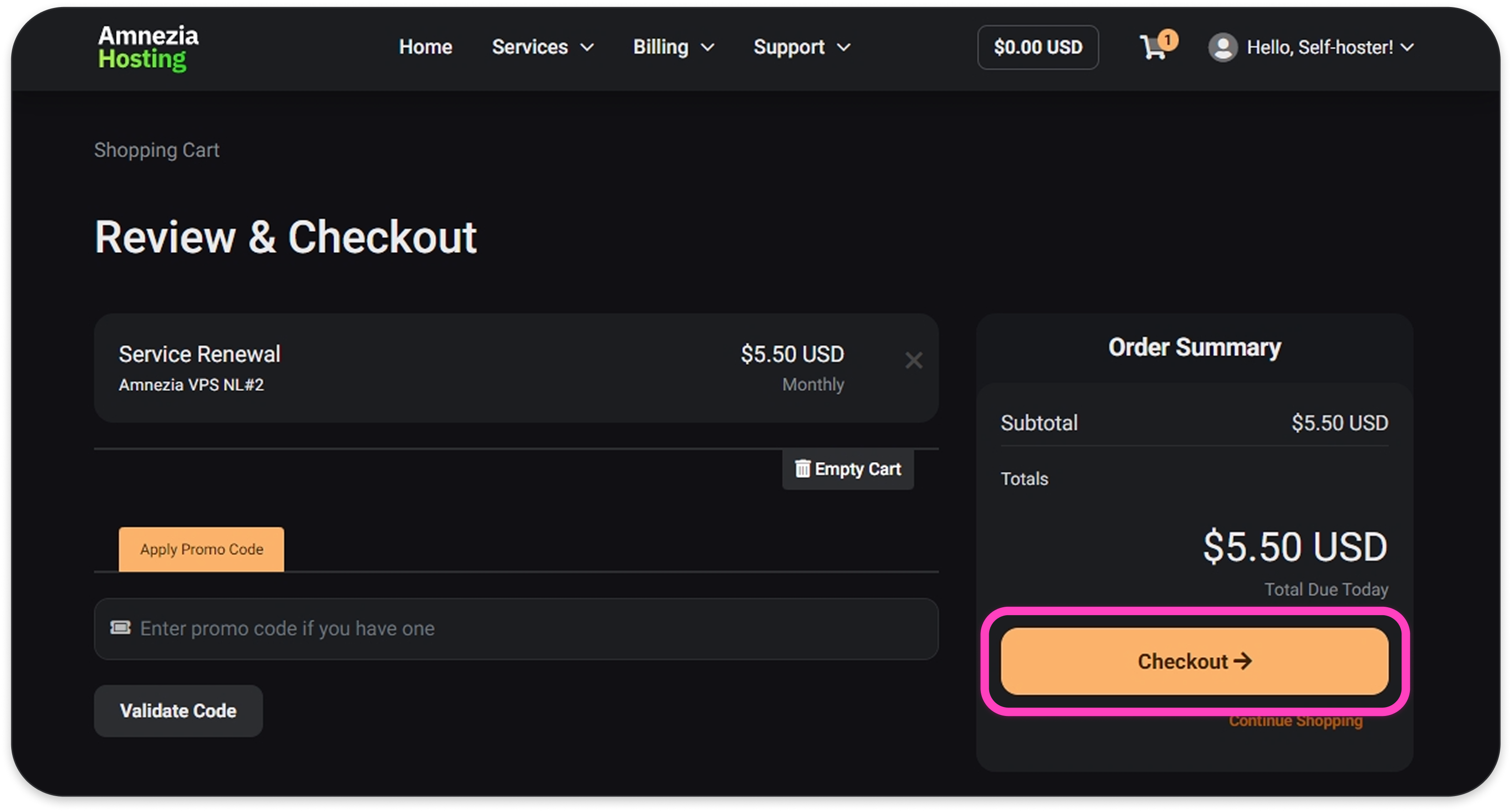
Step 4. Click Checkout.
Step 5. Confirm your account is selected for the order, choose the method of payment, then click Complete Order to go to the payment page.
Choose Freekassa to pay with a Russian bank card or cryptocurrency. Choose Stripe to pay with cards from other regions.
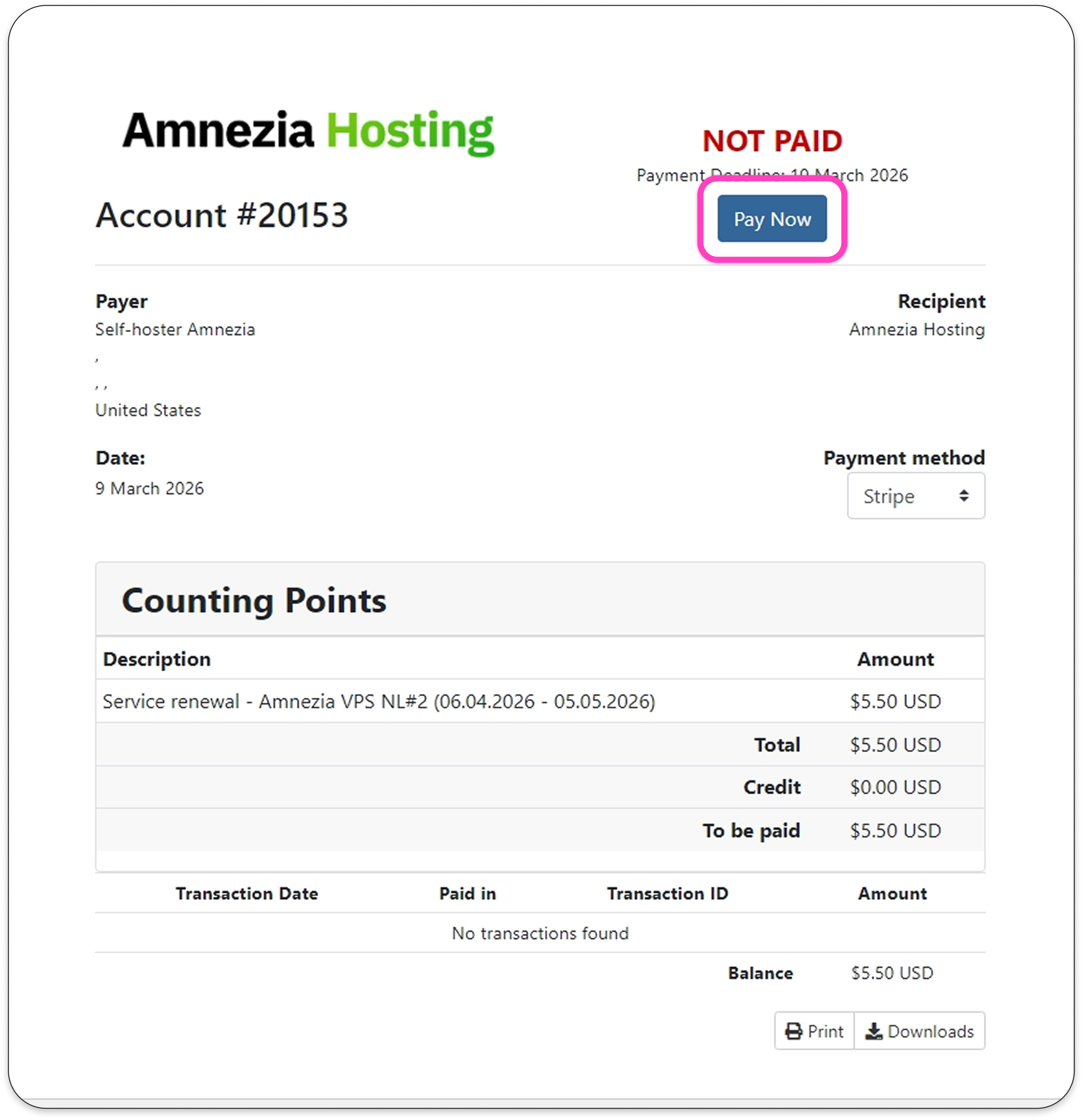
Step 6. Click Pay Now.
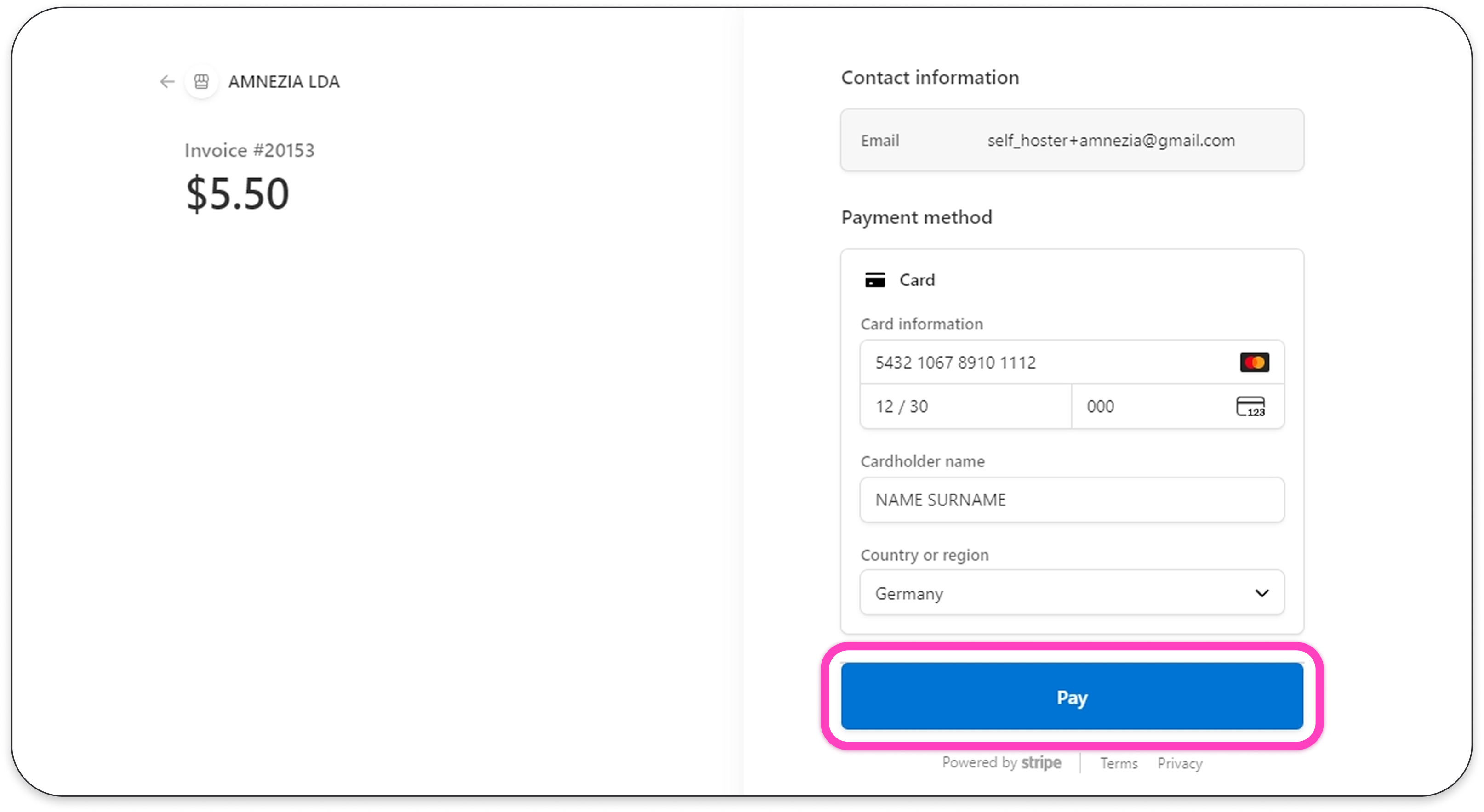
Step 7. Enter your card details and click Pay.
To confirm the renewal, return to the Amnezia Hosting client area after payment — the Services requiring renewal block will disappear and the next payment date will move forward by one period.