Amnezia GPT
About Amnezia GPT
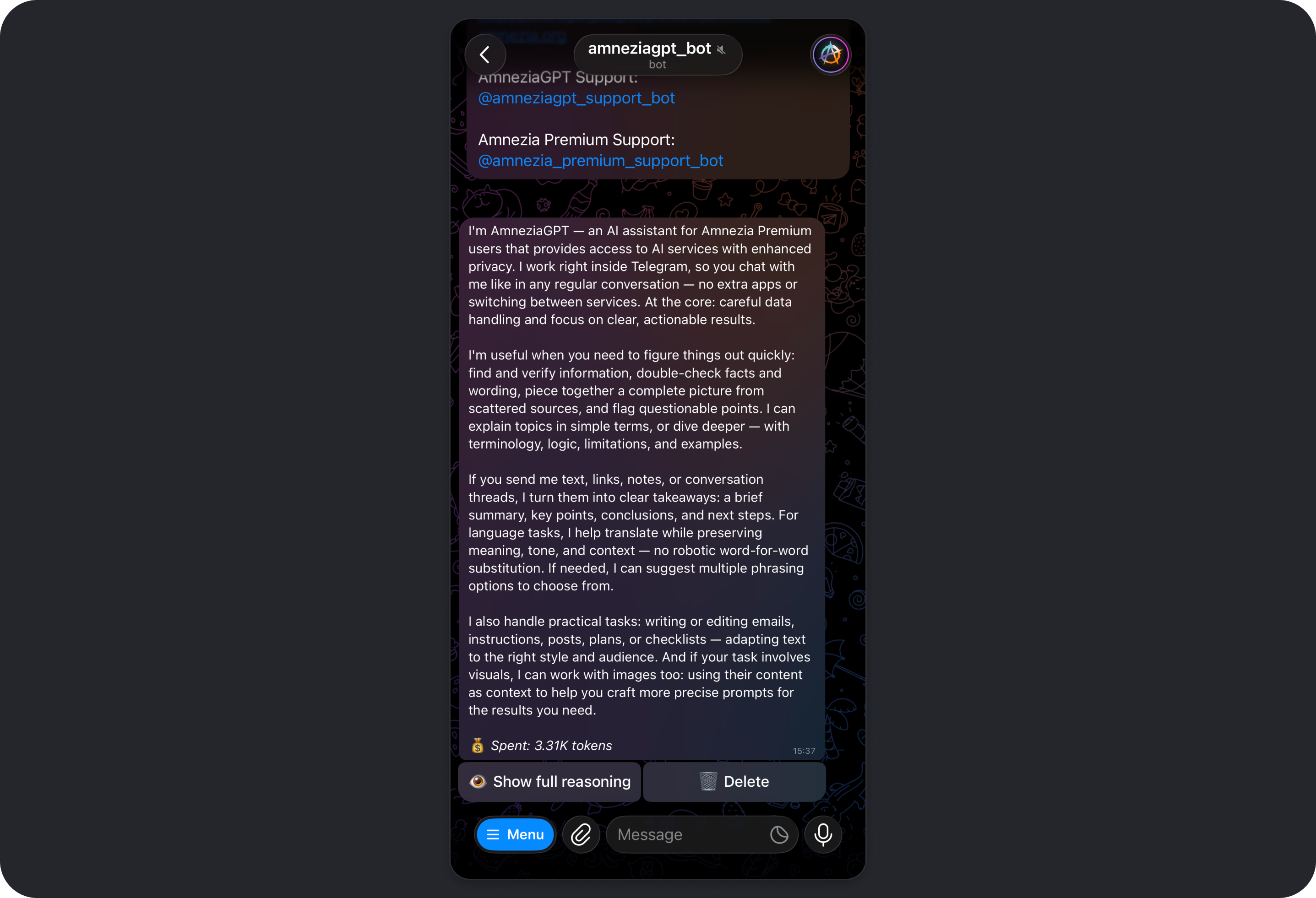
Amnezia GPT is a Telegram bot for Amnezia Premium users that gives you privacy-focused access to AI services.
To learn how data is handled in Amnezia GPT, see Model Parameters: Privacy.
Bot usage is limited by a token allowance.
Tokens are the bot's internal unit used to process your request and generate a response.
Every Amnezia Premium user gets an allowance of 80,000 tokens. It fully refreshes 3 times a day, every 8 hours.
Amnezia GPT helps you quickly find and verify information, understand complex topics, translate and summarize text, handle practical tasks, and work with images.
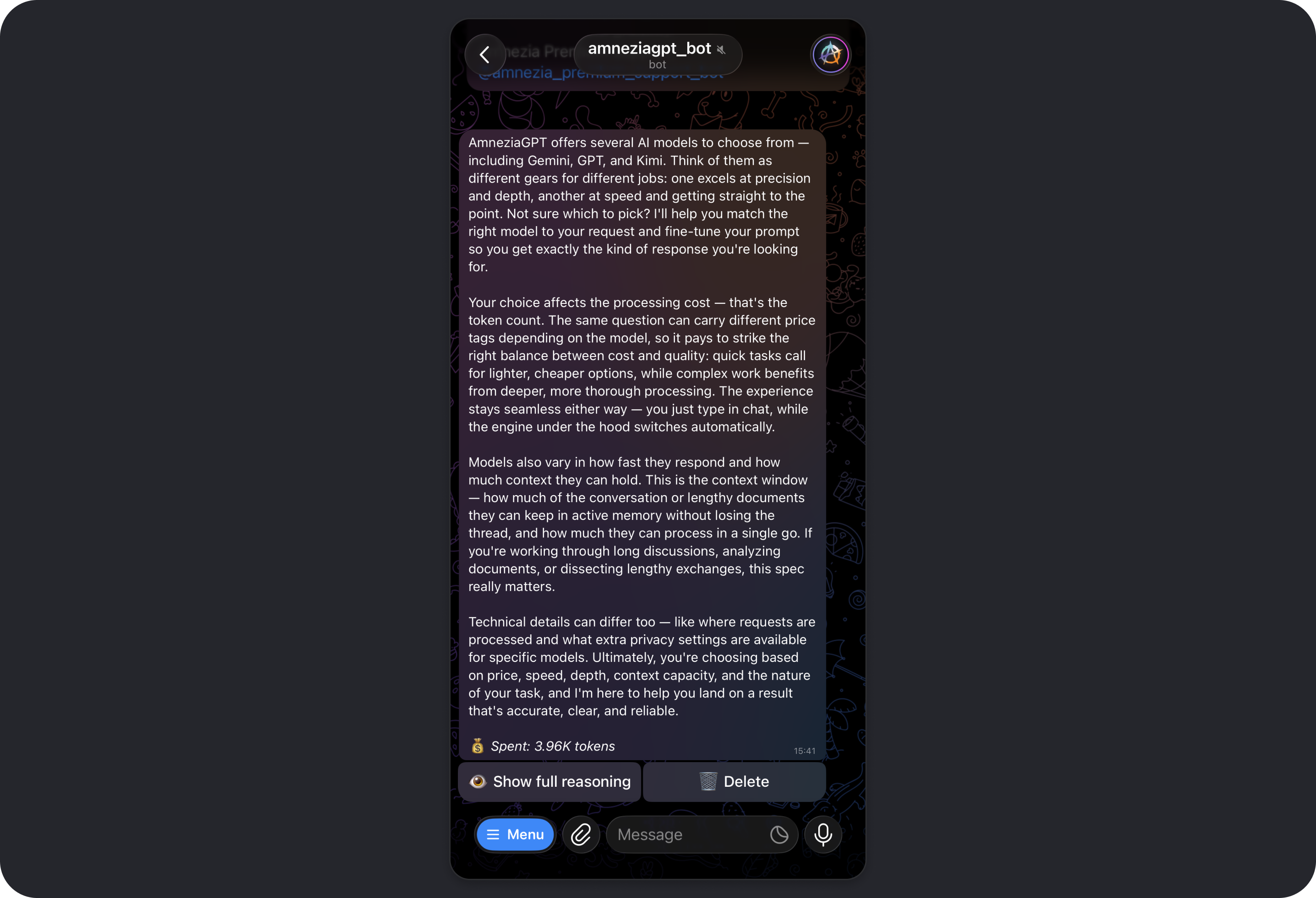
Amnezia GPT offers several AI models, including Gemini, GPT, and Kimi. All of them can:
- use web search, and generate or edit images when those tools are enabled
- use images as context or explain what they show
Your choice of model affects:
- request cost in tokens
- response quality and depth
- speed
- maximum context length, meaning how much conversation history and pasted text the model can take into account
- where requests are processed
- privacy characteristics
Typical use cases:
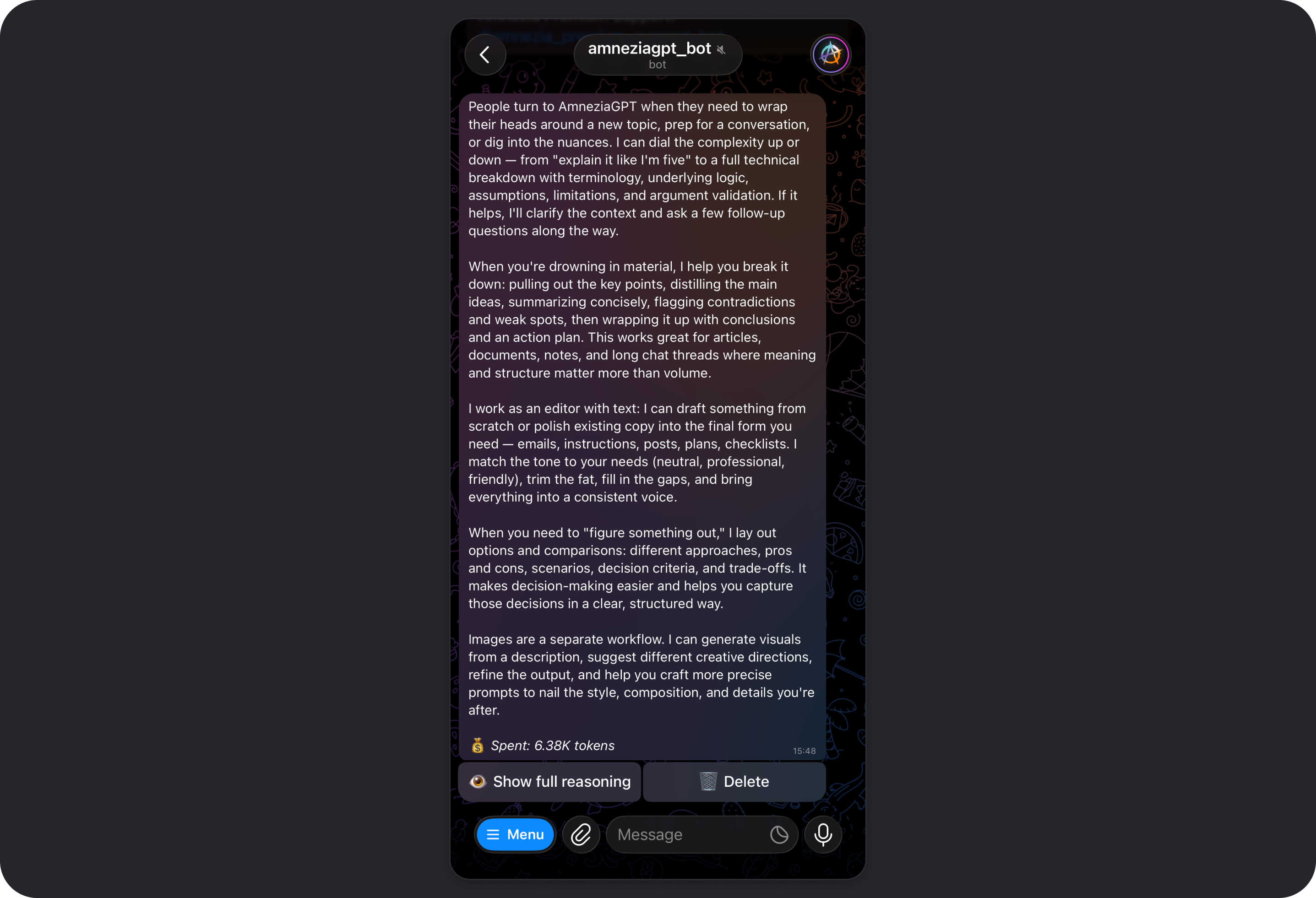
- explaining complex topics in simple terms or at a more advanced level
- summarizing articles, documents, long chats, or notes
- translating text while preserving meaning and tone
- writing and editing emails, instructions, posts, plans, and checklists
- helping with ideas and structure: scenarios, options, comparisons, pros and cons
- creating, editing, and analyzing images
Learn more about Amnezia GPT:
Getting Started with Amnezia GPT
To use Amnezia GPT, you need an active Amnezia Premium subscription and a Telegram account. For now, the bot is available only in Telegram.
If you do not have an Amnezia Premium subscription yet, you can purchase one on the official Amnezia website (mirror).
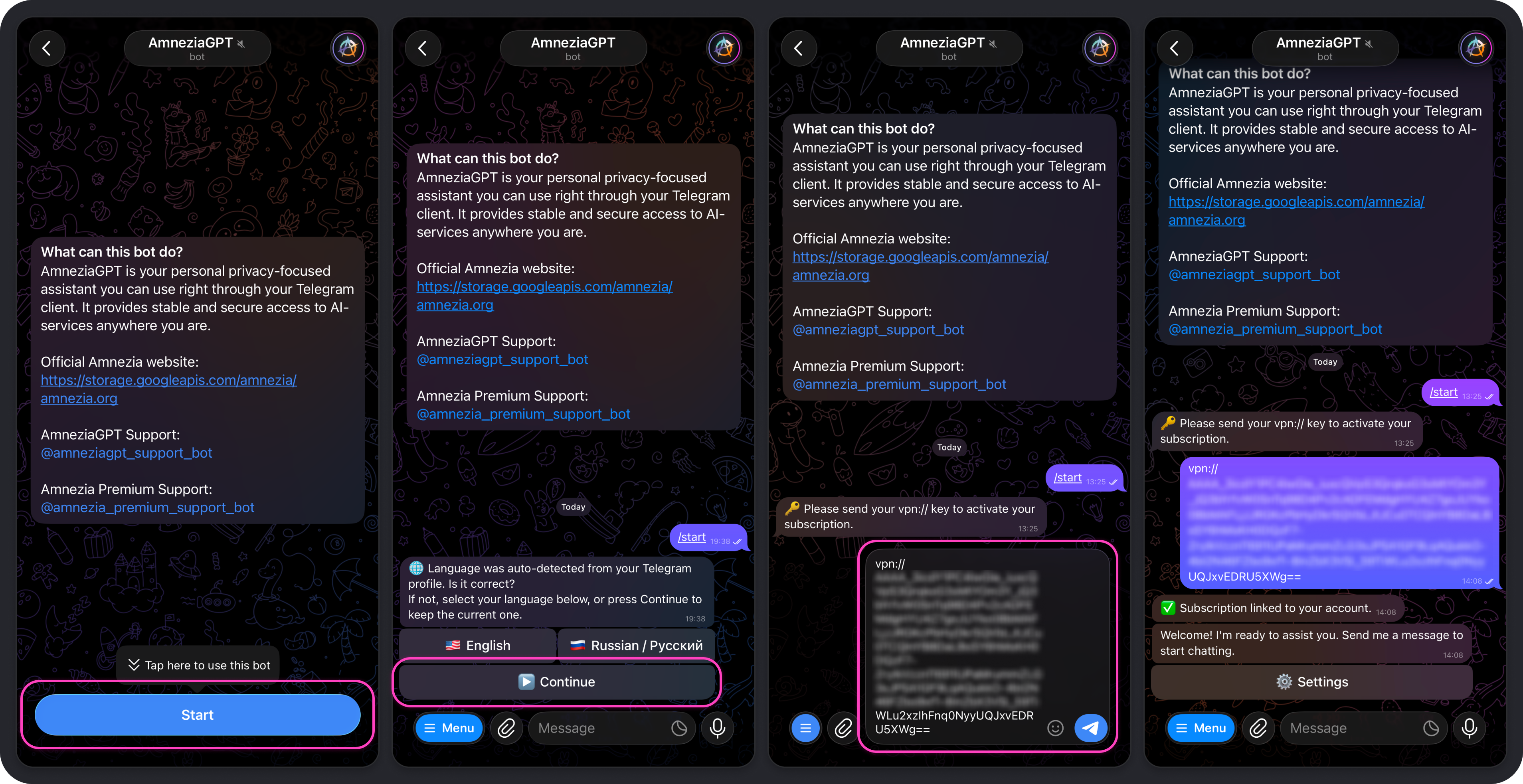
If you already have an active Amnezia Premium subscription:
- Open the Telegram bot and tap Start.
- Select the language for the bot interface.
- Send the bot the subscription key
vpn://....
After that, you will see a confirmation message saying the subscription has been linked to your Telegram account. You can start sending requests right away, and the default model will answer them.
We recommend reviewing the bot settings so you can control token usage: Amnezia GPT Telegram Bot Settings.
If needed, the same Amnezia Premium subscription key can be used with multiple Telegram accounts. That does not increase the available limit: the same shared pool of 80,000 tokens still refreshes 3 times a day, every 8 hours.
If needed, you can unlink the subscription key in the bot with the /logout command.
Amnezia GPT Telegram Bot Settings
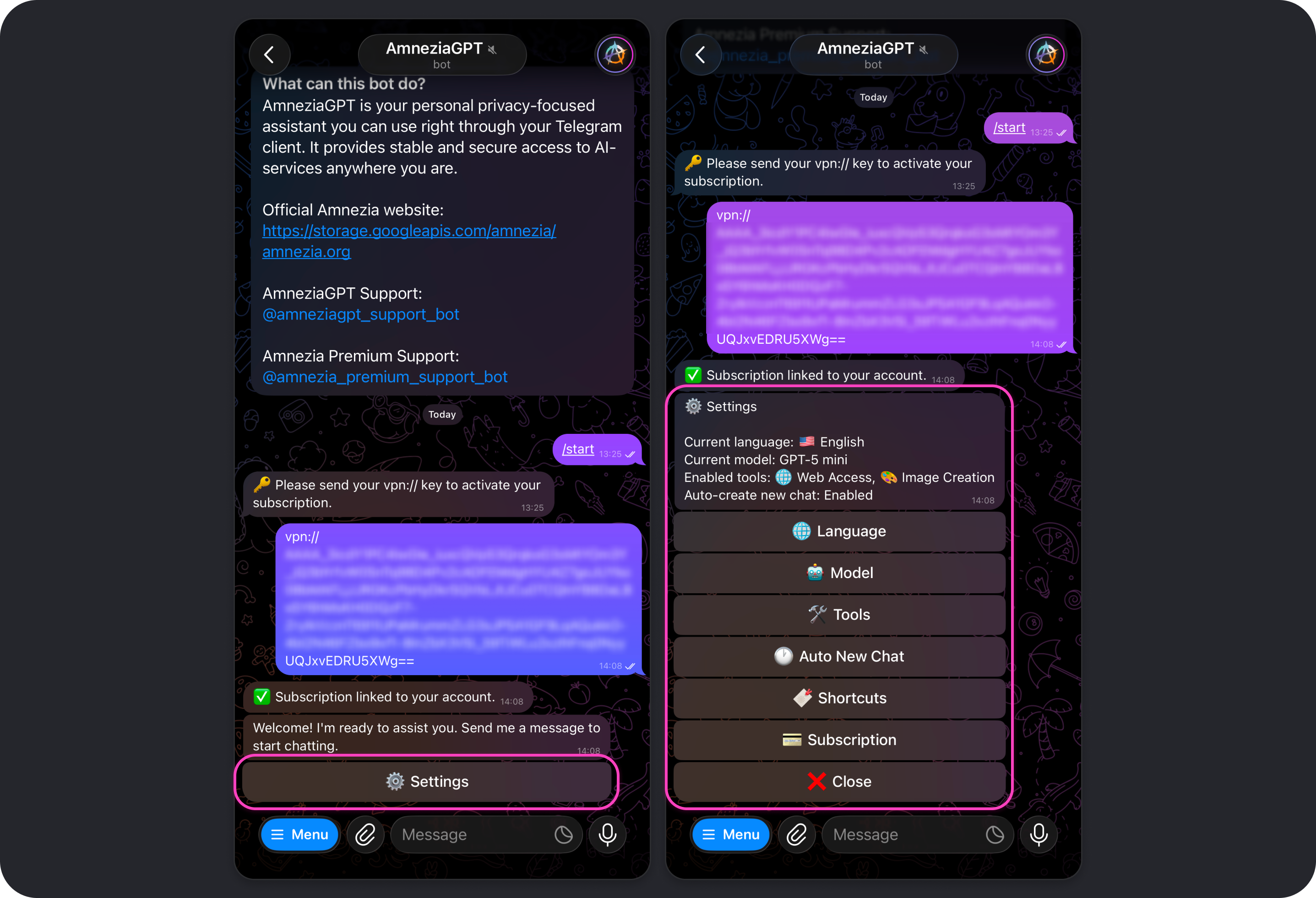
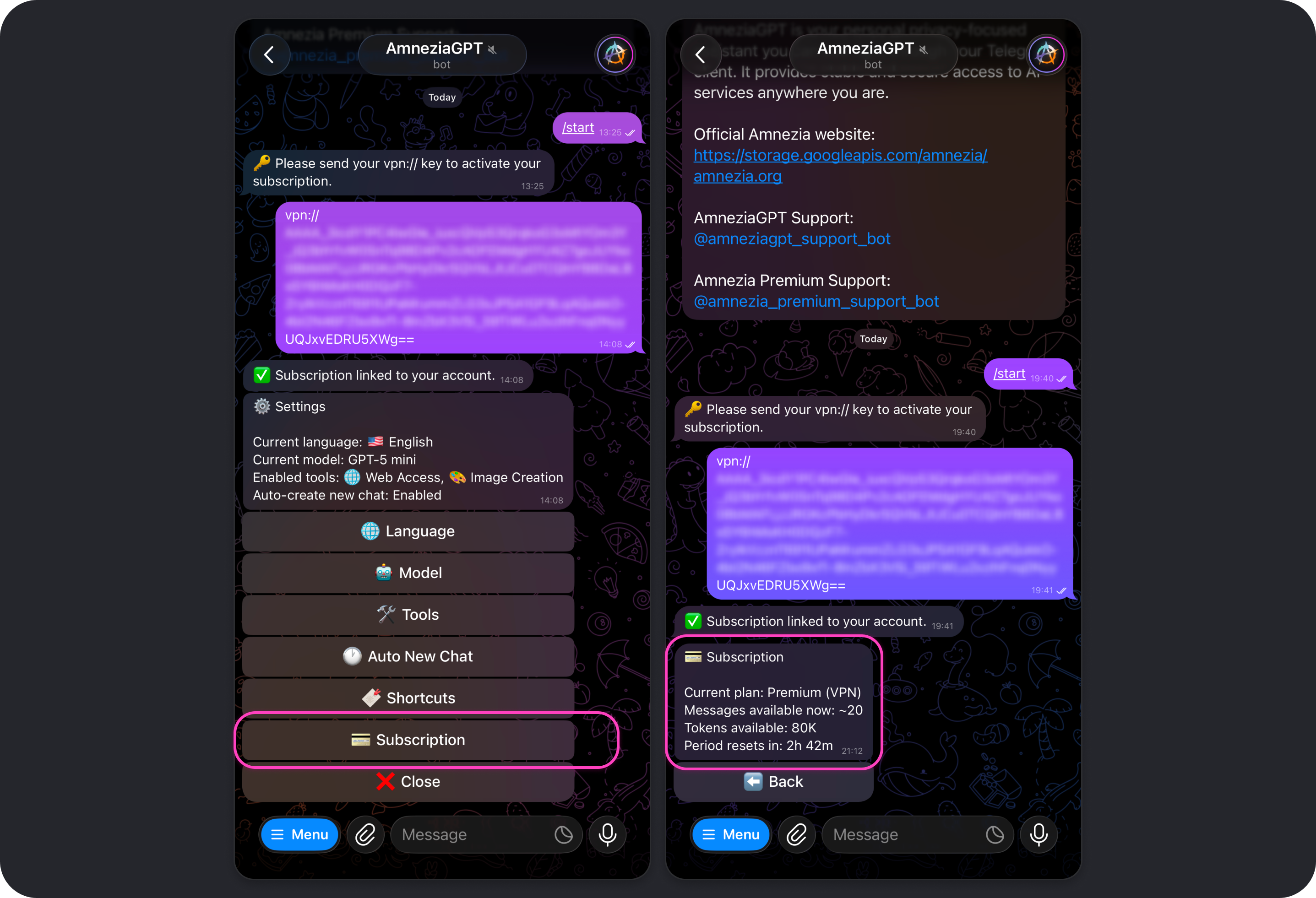
To open Amnezia GPT settings, tap Settings, send /settings in the bot chat, or choose that command from the command list that appears when you tap Menu.
While the settings menu is open, chatting with the bot is unavailable. To return to the chat, tap Close in the settings menu.
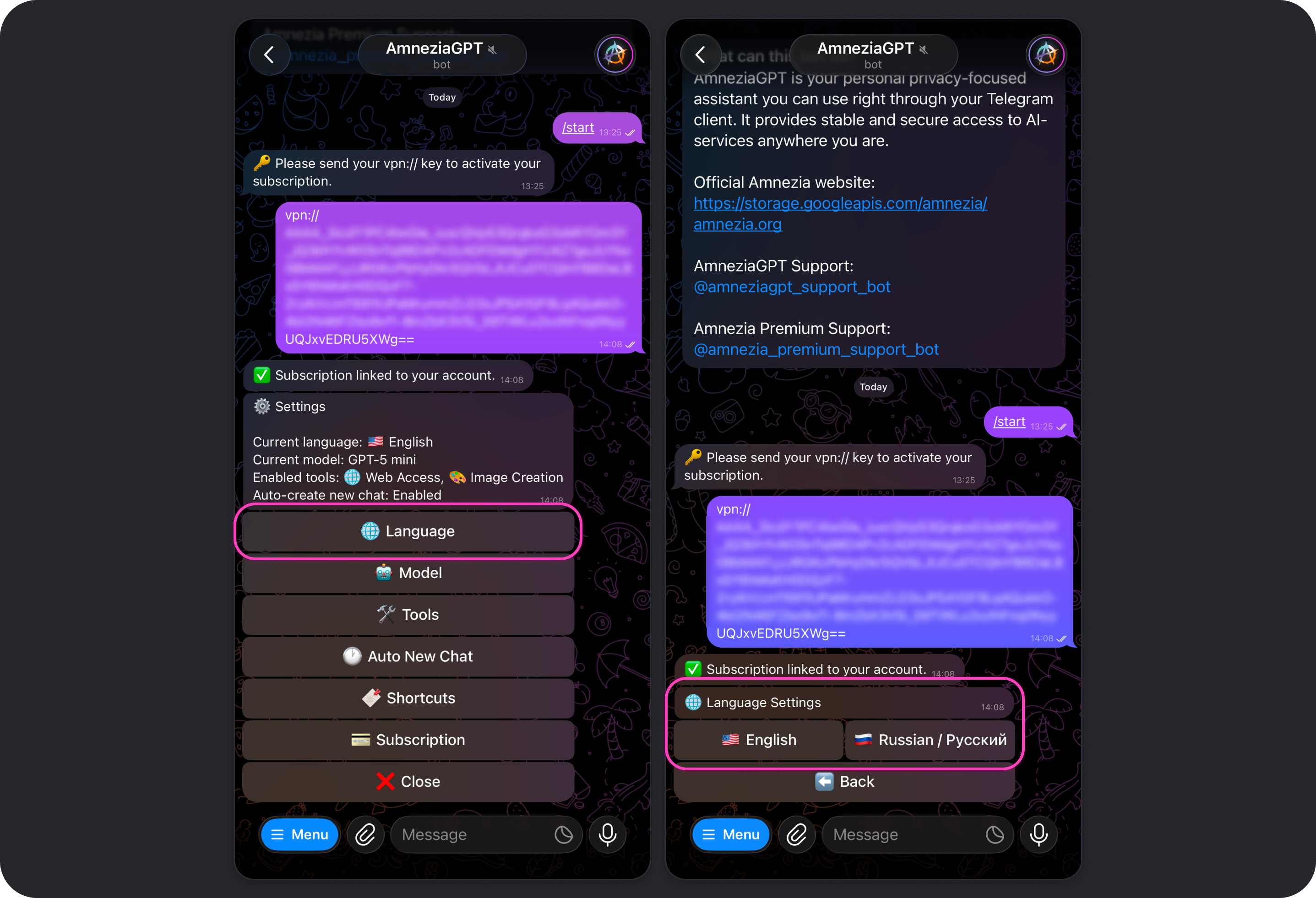
Language
Changes the language used for the bot interface and settings.
The selected interface language does not affect the language the model responds in. By default, the model replies in the same language as your message.
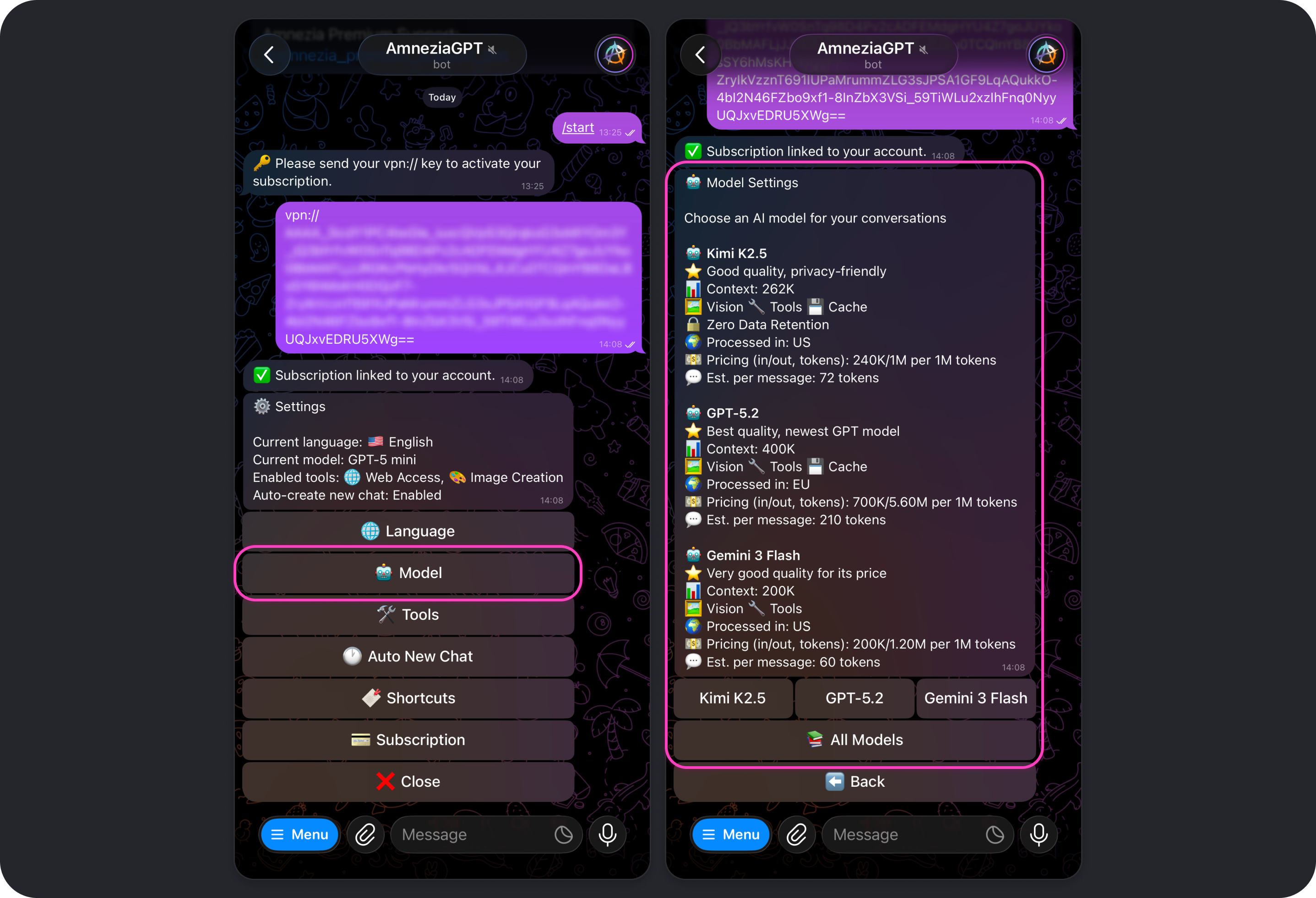
Model
Opens the model picker.
You can also switch models at any point in a conversation using commands such as:
/5,gpt5- GPT-5/m,/mini,/gpt5mini,/5mini- GPT-5 mini/flash,/gemini- Gemini 3 Flash/k2,/kimi- Kimi K2.5
To see the available model commands, send /aliases in the bot chat.
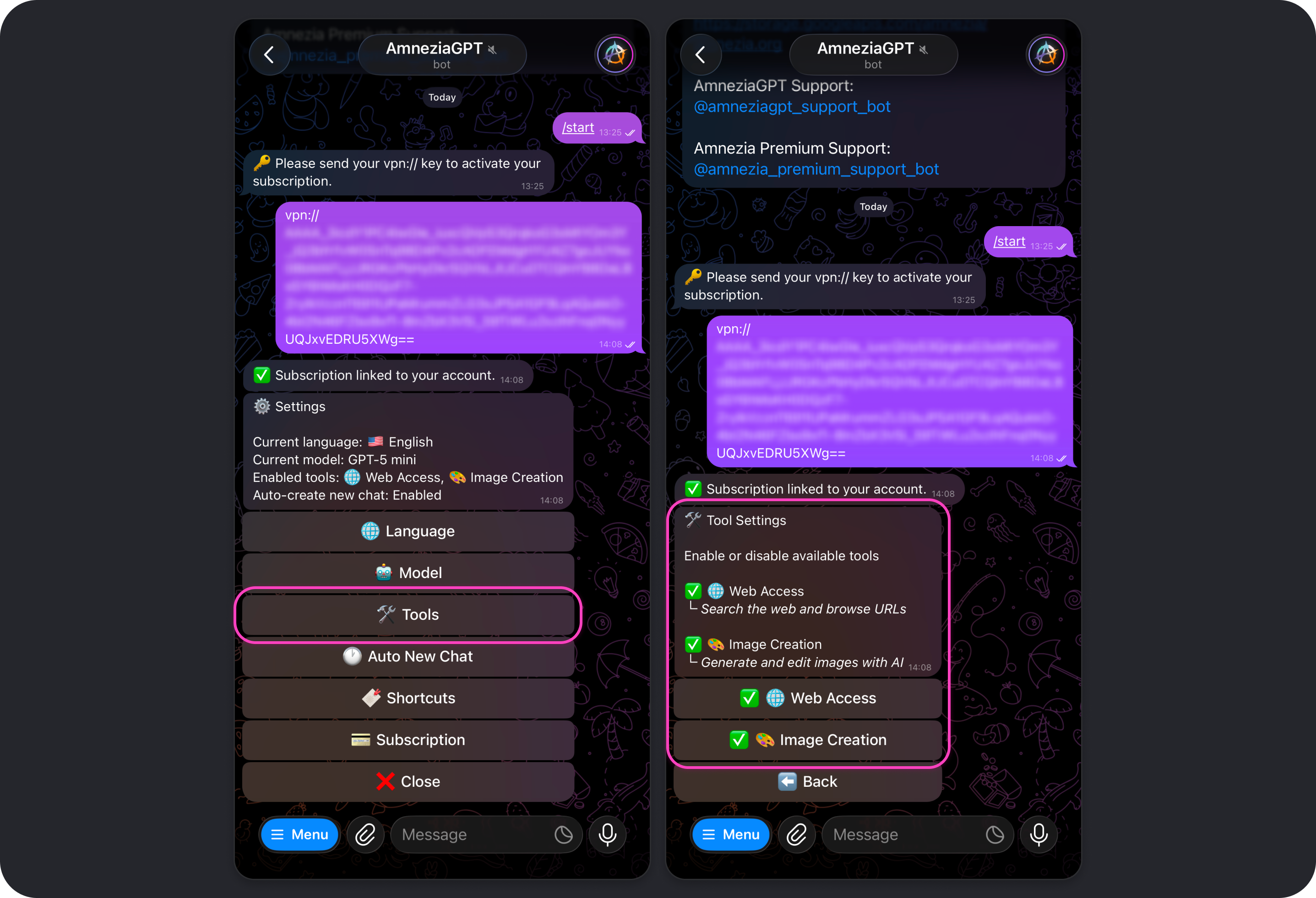
Tools
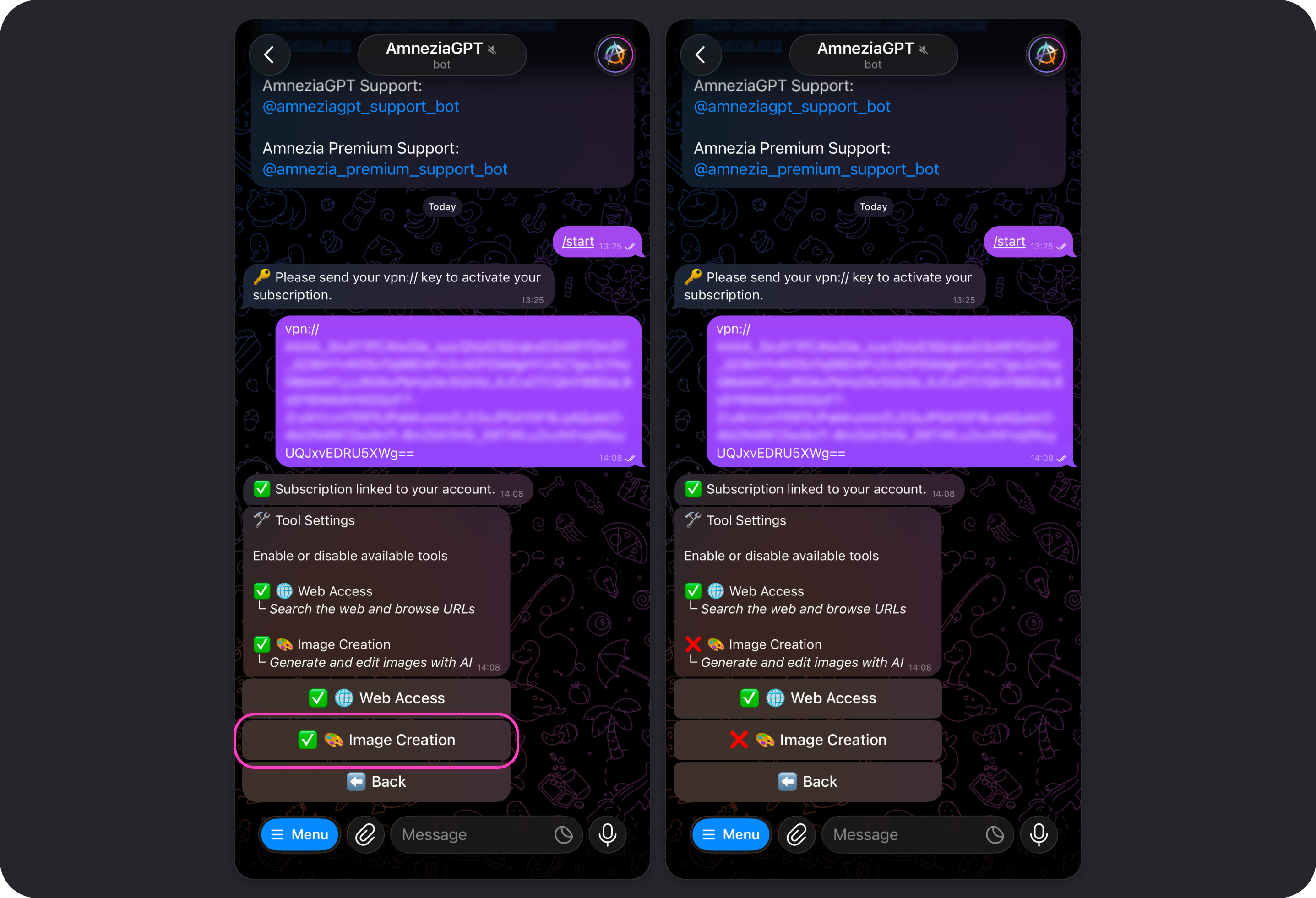
Allows you to enable or disable the tools the model can use, such as Web Access and Image Creation.
Web Access
The Web Access tool is enabled by default. It allows models to use web search so they can go beyond their built-in knowledge and provide the most up-to-date information from the internet.
Read more: How Web Access works.
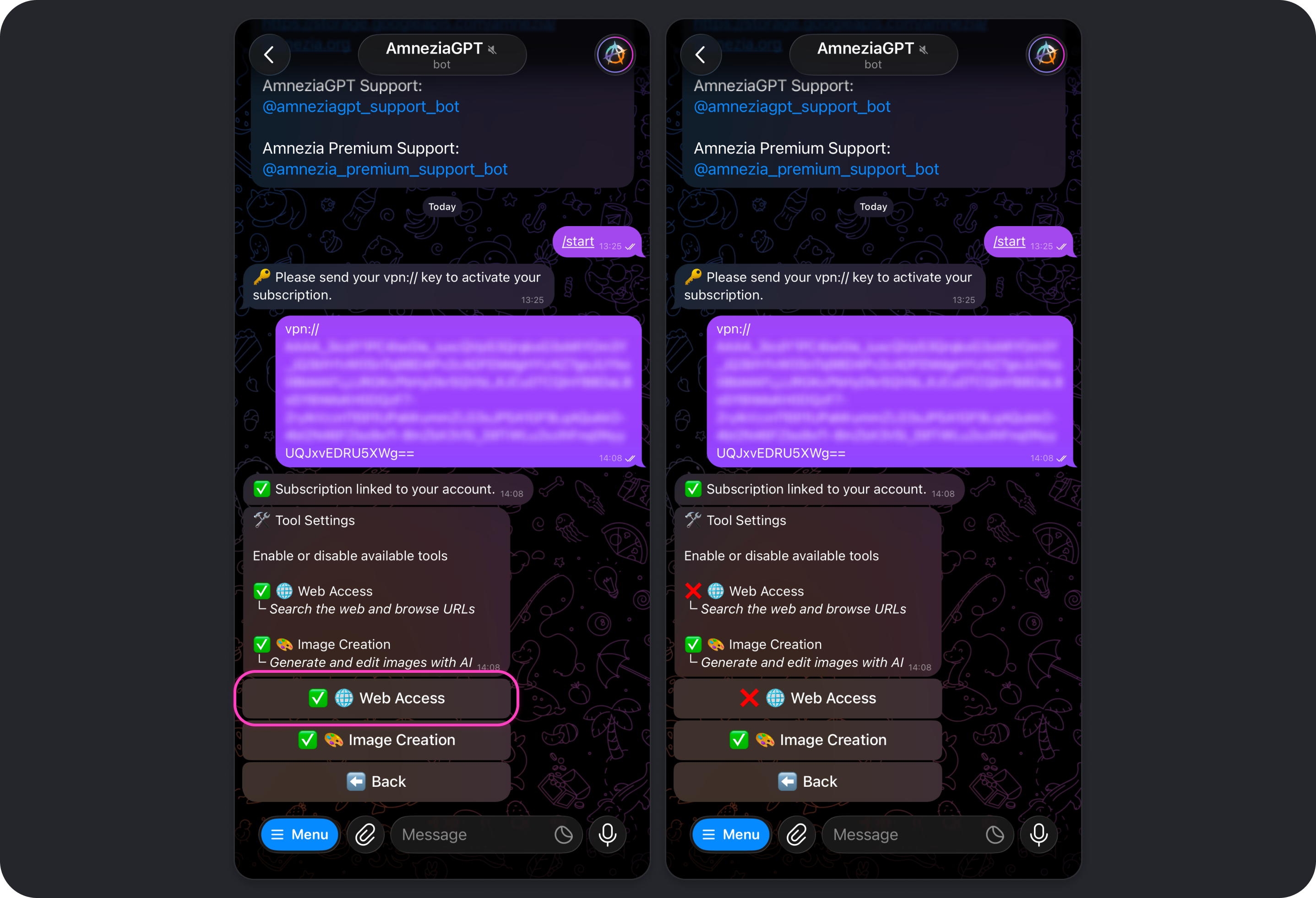
Image Creation
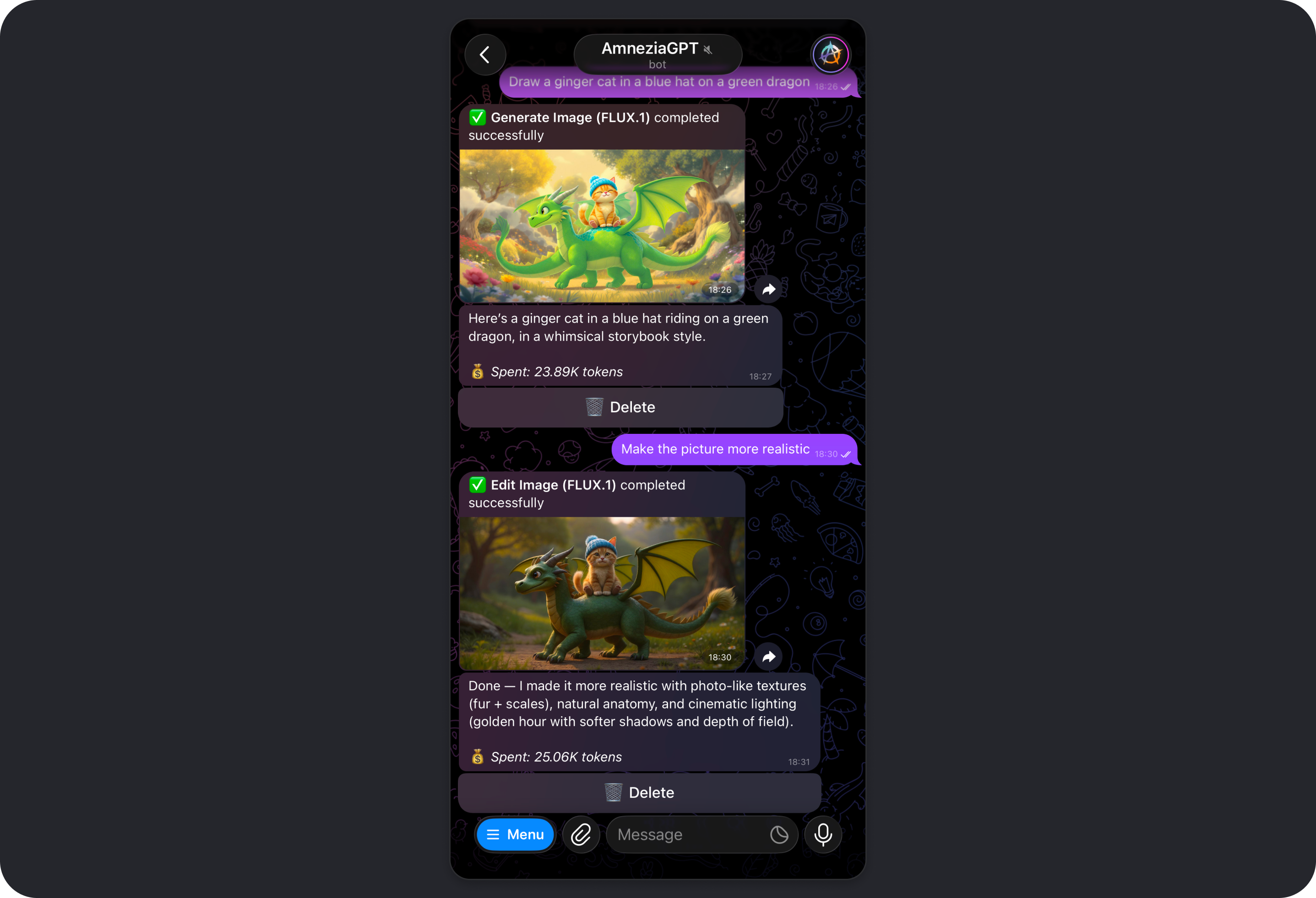
The Image Creation tool is enabled by default. It allows models to generate and edit images when you ask for it.
Read more: How Image Creation works.
Auto New Chat
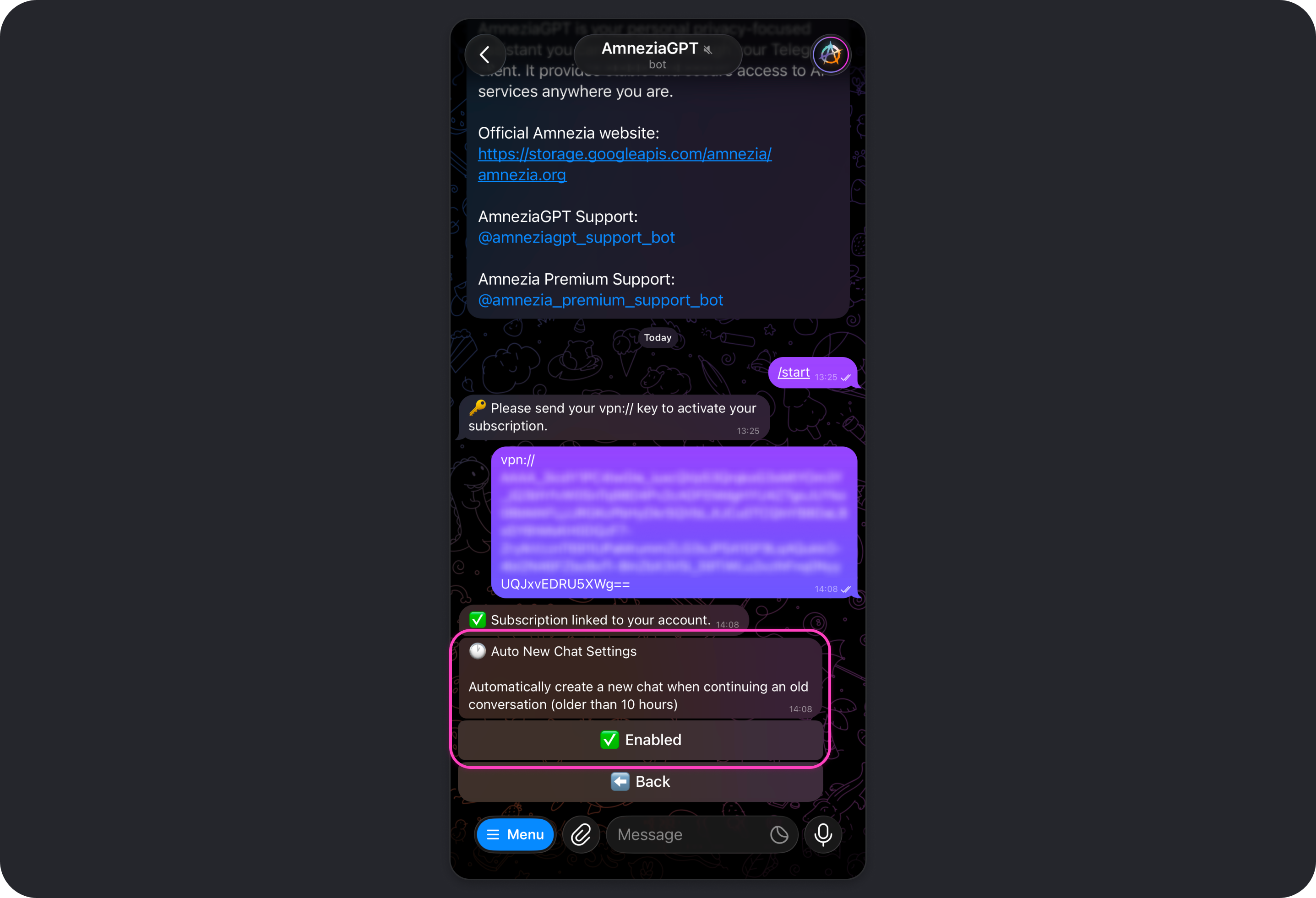
This setting is enabled by default. It automatically starts a new chat if there have been no messages in your most recent active chat for 10 hours.
When Auto New Chat is enabled, coming back to an old conversation after 10 hours means the model will not remember what you discussed earlier. This helps reduce token usage because the model does not have to keep the full context of a long-running conversation, which can grow significantly over time if Auto New Chat is disabled.
Shortcuts
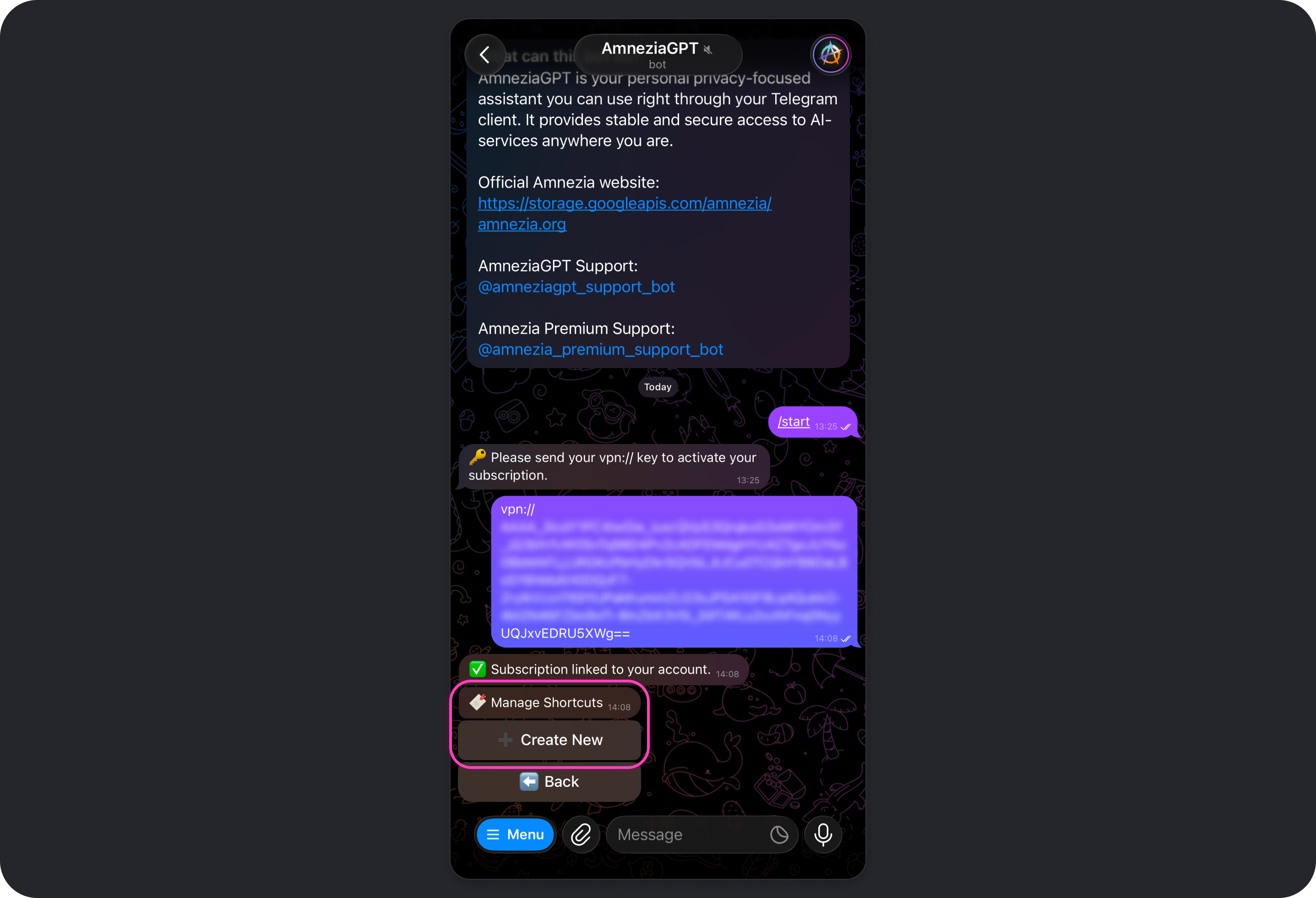
A shortcut is a quick command that sends a prepared prompt to the model.
A prompt is the instruction the model follows.
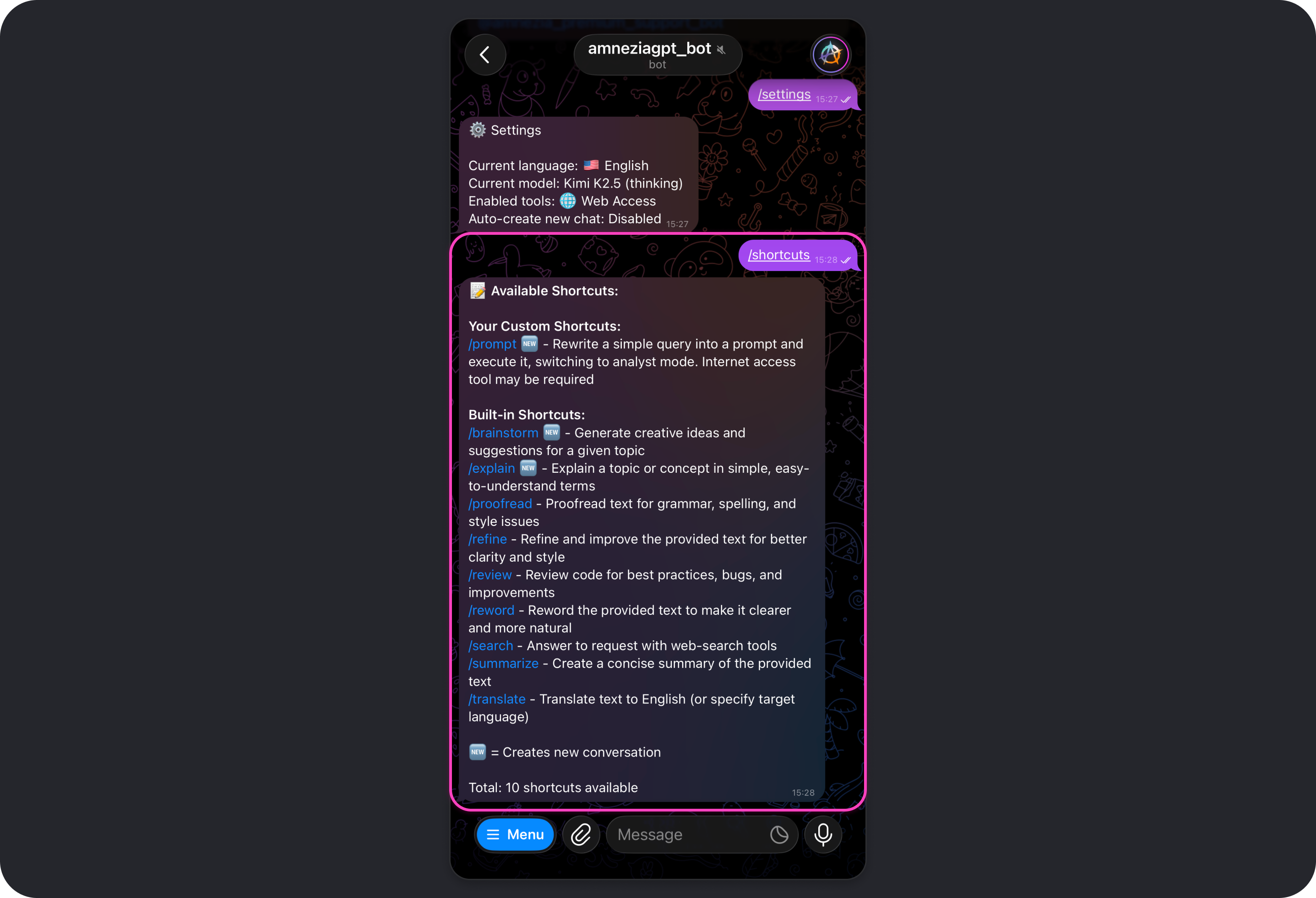
You can both create your own shortcuts and use built-in shortcuts. To see the full list of available shortcuts, send /shortcuts in the bot chat.
Subscription
Shows information about your connected subscription:
- your current plan
- tokens remaining and time until the next limit reset, which happens every 8 hours
- an estimate of how many messages you can still send with the remaining tokens
The Web Access Tool
Overview
In Amnezia GPT, up-to-date information from the web is retrieved through Exa, a search engine built specifically for AI models.
Learn more about Exa:
- Official website: https://exa.ai
- Documentation: https://exa.ai/docs
Unlike traditional search engines, Exa uses neural search. It looks for information by meaning and context rather than only by keywords, which helps it return the most relevant results for your request.
Key strengths of Exa:
- semantic understanding - finds links and content that closely match the meaning of your request, even if they do not contain the exact words you used
- cleaner data for AI models - passes "clean" webpage text to the model without ads, extra code, or navigation clutter, which improves answer quality
- fresh information - gives access to recent news, articles, and events
- deep search - works well across specialized sources, from research papers to LinkedIn profiles and GitHub repositories
How Web Search Works
To produce a strong answer from the web, the tool uses a multi-step process:
- Your request: you ask about current events, facts, research, or anything else that may require fresh information.
- Helper model: the selected model rewrites and optimizes your request, turning it into a full English prompt for Exa's neural search.
- Web scan: Exa searches across billions of web pages and selects the most relevant ones within seconds.
- Answer synthesis: the model receives the links and the extracted text from those pages, cross-checks the information, and produces the final answer, which you can keep discussing.
Important Notes About Web Access
When Web Access is enabled, token usage increases even if the model does not end up using web search for that particular answer.
To save tokens, you can disable Web Access. Keep in mind that model responses may then contain outdated information.
To find out how current a model's built-in knowledge is, disable Web Access, start a new chat with /new, and send a prompt like this:
I turned off the "Web Access" tool. Up to what date is your knowledge current?
If you need facts, quotes, fresh data, or news, keep Web Access on. If you need ideas, structure, or a draft, it is often better to keep Web Access off.
The Image Creation Tool
Overview
In Amnezia GPT, image generation and editing are powered by FLUX.1, an open image model created by Black Forest Labs, a team whose engineers were among the original contributors behind Stable Diffusion.
Learn more about FLUX:
- Black Forest Labs (developer): https://bfl.ai
- Black Forest Labs documentation (models and API): https://docs.bfl.ml/quick_start/introduction
- Official FLUX repository: https://github.com/black-forest-labs/flux
- Generation provider: https://fireworks.ai
FLUX.1 is widely considered one of the strongest open image models available, competing in quality with Midjourney and DALL-E 3.
Key strengths of FLUX.1:
- detail and anatomical accuracy: natural skin, fabric, water, and landscape textures, along with realistic lighting and physically plausible details
- text rendering: clear, readable English text inside images, such as on signs, posters, or clothing
- handling complex prompts: strong adherence to long instructions, including object placement, lighting, and artistic style
Keep in mind that image quality depends heavily on how clearly the prompt is written.
The most reliable prompt pattern is: subject + style + composition + lighting + details.
How FLUX Works
We use a model pipeline to make results more consistent:
- Your request: you describe the idea. A short prompt can work, but the more precise the details, the better the result.
- Helper model: the selected model rewrites and optimizes your request so it works better for image generation.
- FLUX.1 generation: FLUX receives an English prompt prepared by the model, and you get a finished image that can be refined further with follow-up requests.
Important Notes About Image Creation
When Image Creation is enabled, token usage increases even if the model does not generate any images in its reply.
If the model generates or edits an image, the average cost is about 18,000 to 23,000 tokens.
We recommend disabling Image Creation if you do not plan to use it. This removes the chance of accidental image generation if the model misinterprets your request and also reduces ongoing token usage.
Privacy and Ownership
Fireworks Zero Data Retention (ZDR): prompts and generated images are processed only for the duration of the request in RAM and are not stored in persistent storage.
Ownership of generated content: you remain the sole owner of the generated images. Amnezia does not claim rights to them and does not use them for publishing, marketing, or model training.
Do not upload images containing sensitive data to Amnezia GPT, such as document scans, passwords, 2FA codes, private keys, or banking information. Even with zero data retention, the request is still sent to the provider for processing.
Which Model Should You Choose
Quick Recommendations
If you do not want to dive into the details:
- Everyday tasks, fast and cost-efficient: GPT-5 mini, Gemini 3 Flash, or Kimi K2.5.
- More complex tasks, better quality, higher cost: GPT-5.2, Gemini 3 Pro, or Kimi K2.5 Thinking.
- Long conversations and large texts: lower cost - Gemini 2.5 Flash; higher cost - GPT-4.1.
- Tasks that benefit from deeper reasoning: lower cost - Kimi K2.5 Thinking; higher cost - GPT-5.2 or Gemini 3 Pro.
The Web Access and Image Creation tools are enabled by default and affect token usage. If you do not need a tool for a task, disable it to save tokens.
Model Cheat Sheet
Below is a short guide to help you pick a model. For full details, see Model Parameters.
OpenAI
Usually the most predictable option for text and reasoning. High moderation level.
GPT-5 mini
Choose it when: you need fast everyday assistance and want to save tokens.
Good for: short explanations, translation, basic text edits, and quick drafts.
Less ideal for: complex analysis, many constraints, or tasks that need very careful step-by-step reasoning.
GPT-5.2
Choose it when: you need stronger reasoning, cleaner conclusions, and better wording.
Good for: deep analysis, tasks with strict constraints, complex "why" questions, and long instructions.
Less ideal for: simple questions where a faster and cheaper model is enough.
GPT-4.1
Choose it when: you need to work with a very large amount of text.
Good for: summaries of large documents, long chat analysis, and code or documentation work over large codebases.
Less ideal for: short, routine requests.
Google
A strong balance of price and quality. A practical choice for fast answers and day-to-day work. High moderation level.
Gemini 3 Flash
Choose it when: you want to solve a typical task quickly with moderate token usage.
Good for: short answers, summaries, translation, and fast drafts.
Less ideal for: complicated logic or ambiguous requirements.
Gemini 3 Pro
Choose it when: you need a stronger result than Flash can provide.
Good for: deeper comparisons, analysis, step-by-step solutions, and careful wording.
Less ideal for: simple questions where a cheaper and faster model is enough.
Moonshot AI
All Kimi models use zero data retention and have a lower moderation level. A strong choice for privacy-sensitive requests.
Kimi K2.5
Choose it when: privacy and lower cost matter for everyday tasks.
Good for: short answers, drafts, and basic analysis of smaller materials.
Less ideal for: complex tasks with many constraints.
Kimi K2.5 Thinking
Choose it when: you want a more considered result than regular K2.5.
Good for: logic-heavy tasks, finding non-obvious connections, and comparisons where standard K2.5 feels too shallow.
Less ideal for: cases where maximum factual precision and reasoning quality are critical. In those cases, GPT-5.2 or Gemini 3 Pro may be a better fit.
Legacy Models
These models are considered legacy because they either have newer replacements or no longer fill a distinct niche:
- GPT-5, GPT-5.1, GPT-4o
- Gemini 2.5 Flash, Gemini 2.5 Pro
- Kimi K2, Kimi K2 Thinking
They are mainly useful as fallback options, for comparing response styles, reproducing an older result, or continuing work with a model you already prefer.
If you are unsure whether to use one of the legacy models, one of the current models above is usually the better choice.
How to Avoid Wasting Tokens
- Start with a cheaper model and move up only if the quality is genuinely not enough.
- Keep chats shorter. If old conversation history no longer matters, start a new chat.
- Disable Web Access and Image Creation when you do not need them: Bot settings.
If you want tighter control over token usage, add limits directly to your prompt: "Reply in 150-200 words", "Use 5-7 bullet points", "No long introduction", "Start with the conclusion, then give details."
Why the same request can cost different amounts:
Token usage depends on the length of your message, the length of the model's reply, the length of the current chat context, the selected model, and the active settings, such as reasoning effort and enabled tools.
The "approx. per message" value in a model card is an average estimate, not a fixed price.
Model Parameters
Overview
Each AI model available in Amnezia GPT comes with its own trade-offs. Compared with others, a model may be cheaper or more expensive, faster or slower, more or less heavily moderated, store data differently, and handle more or less context.
Below are the key differences between the models available in Amnezia GPT.
| Model | Context | Zero Data Retention | Processing Region | Approx. Request Cost (tokens) | Moderation Level |
|---|---|---|---|---|---|
| GPT-5 mini | 400K | ❌ | EU | 850 | High |
| GPT-5 | 400K | ❌ | EU | 4800 | High |
| GPT-5.1 | 400K | ❌ | EU | 4400 | High |
| GPT-5.2 | 400K | ❌ | EU | 5500 | High |
| GPT-4.1 | 1M | ❌ | EU | 3600 | High |
| GPT-4o | 128K | ❌ | EU | 4400 | High |
| Gemini 3 Pro | 200K | ❌ | US | 4700 | High |
| Gemini 3 Flash | 200K | ❌ | US | 1400 | High |
| Gemini 2.5 Pro | 200K | ❌ | US | 4500 | High |
| Gemini 2.5 Flash | 1M | ❌ | US | 1100 | High |
| Kimi K2.5 | 262K | ✅ | US | 1100 | Below average |
| Kimi K2.5 Thinking | 262K | ✅ | US | 2700 | Below average |
| Kimi K2 (0905) | 262K | ✅ | US | 1300 | Below average |
| Kimi K2 Thinking | 262K | ✅ | US | 1800 | Below average |
What the model card fields mean
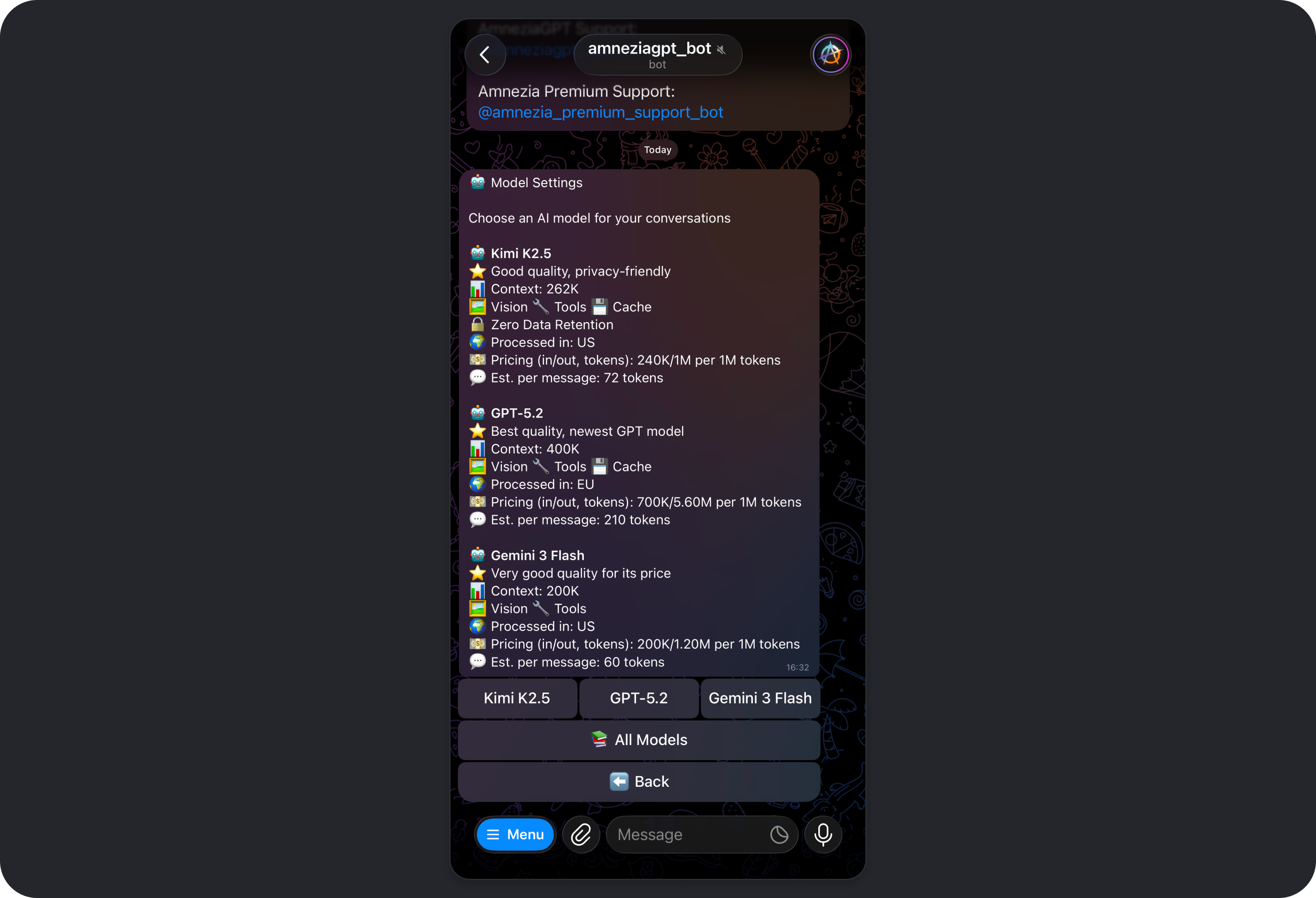
- Context - the context window limit: how much information the model can keep in a single conversation, including current chat history, system instructions, tool results, and the upcoming request/response. The larger the context window, the better the model can handle long discussions and large pasted texts.
- Vision - the model can natively accept and analyze images.
The Vision option is not related to image generation.
If a model, such as Kimi K2, does not support native image understanding, another model may assist with image analysis behind the scenes. This will not be visible in the interface.
- Tools - additional capabilities the model can use if they are enabled in tool settings.
- Cache - reduces token usage and can sometimes speed up responses when the same fragments appear repeatedly in prompts, such as a reused instruction or template.
- Zero Data Retention - request and response history is not stored by the model provider.
- Processed in: EU / US - the region of the server where the model processes requests.
- Est. per message - the average cost of processing a single request.
Privacy
Every request you send in Amnezia GPT is passed to the selected AI model provider through its API so the provider can process the request and generate a response.
The table below explains how each provider handles your data.
| Models | Model Provider | Trains on User Data | Request/Response Retention | Privacy Policy |
|---|---|---|---|---|
| GPT | • OpenAI | No | 30 days | • OpenAI Privacy Policy |
| Gemini | • Google Vertex • Google Gemini API | No | 24 hours | • Google Vertex Privacy Policy • Google Gemini API Privacy Policy |
| Kimi | • Fireworks.ai • Groq | No | Requests are not stored | • Fireworks.ai Privacy Policy • Fireworks.ai FAQ • Groq Privacy Policy |
You can read the Amnezia GPT privacy policy on our website: https://amnezia.org/en/policy/gpt (mirror).
What "requests are not stored" or "Zero Data Retention" means
- the provider does not store request or response text in persistent storage such as disks or databases after processing is finished
- data may exist only in the server's RAM while the request is being handled, plus short-lived technical caches required for the service to function
If privacy is especially important to you, we strongly recommend reviewing the privacy policy of the model provider you plan to use.
Do not send passwords, 2FA codes, private keys, seed phrases, bank card details, or any other sensitive information to Amnezia GPT.
Even if a model is advertised as using zero data retention, the request is still sent to the provider for processing. Privacy depends not only on the provider's settings, but also on what you choose to share in the chat.
Creating Your Own Shortcut
Overview
A shortcut is a quick command for the Amnezia GPT bot that sends a prepared prompt to the model.
In Amnezia GPT, you can both create your own shortcuts and use built-in ones: Built-in Shortcuts.
To see the full list of available shortcuts, including both built-in and custom ones, send /shortcuts in the bot chat.
Shortcuts are useful when you regularly do the same kind of task:
- you want the same response format every time, such as "short and to the point"
- you often follow the same workflow, such as "make a plan" or "review this text against criteria"
- you want to keep token usage under control by limiting output length and structure
If you use a shortcut inside a very long conversation, token usage may go up because the model has to read more context before answering. To save tokens, it is often better to run a shortcut in a new chat.
How to Create a Shortcut
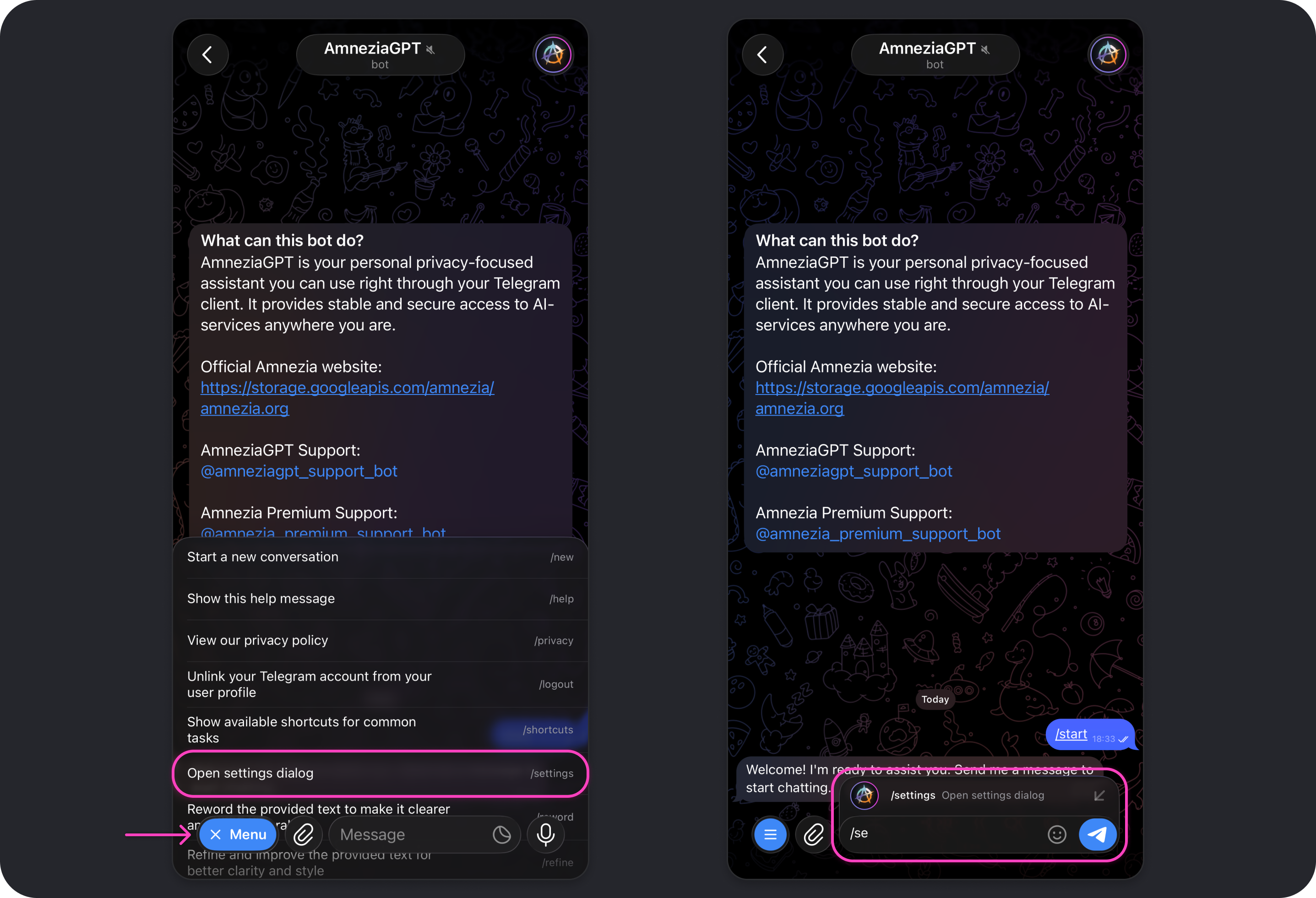
- Open the Amnezia GPT bot settings with
/settings. You can type and send the command directly or choose it from the command list after tapping Menu.
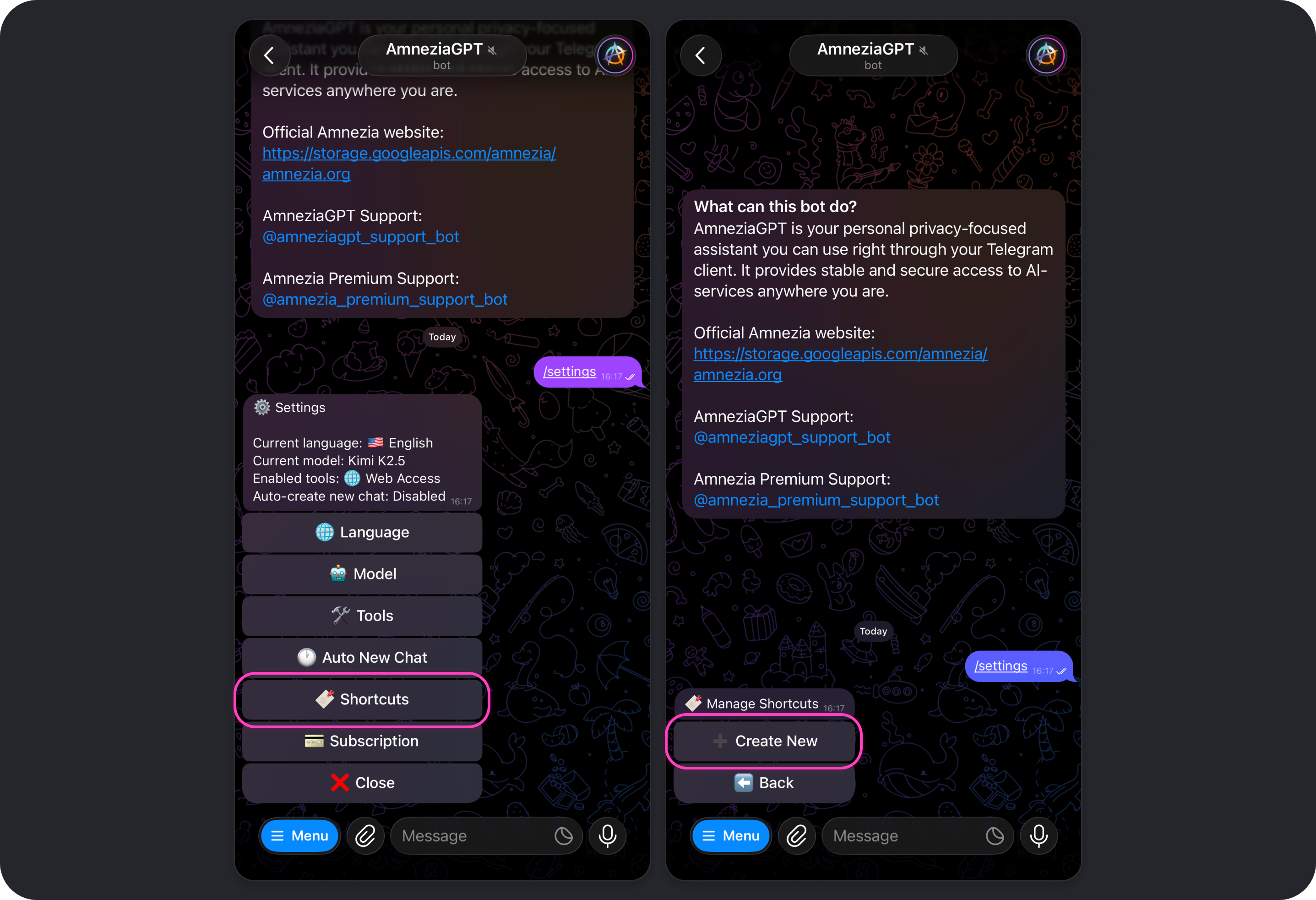
- Tap Shortcuts → Create New.
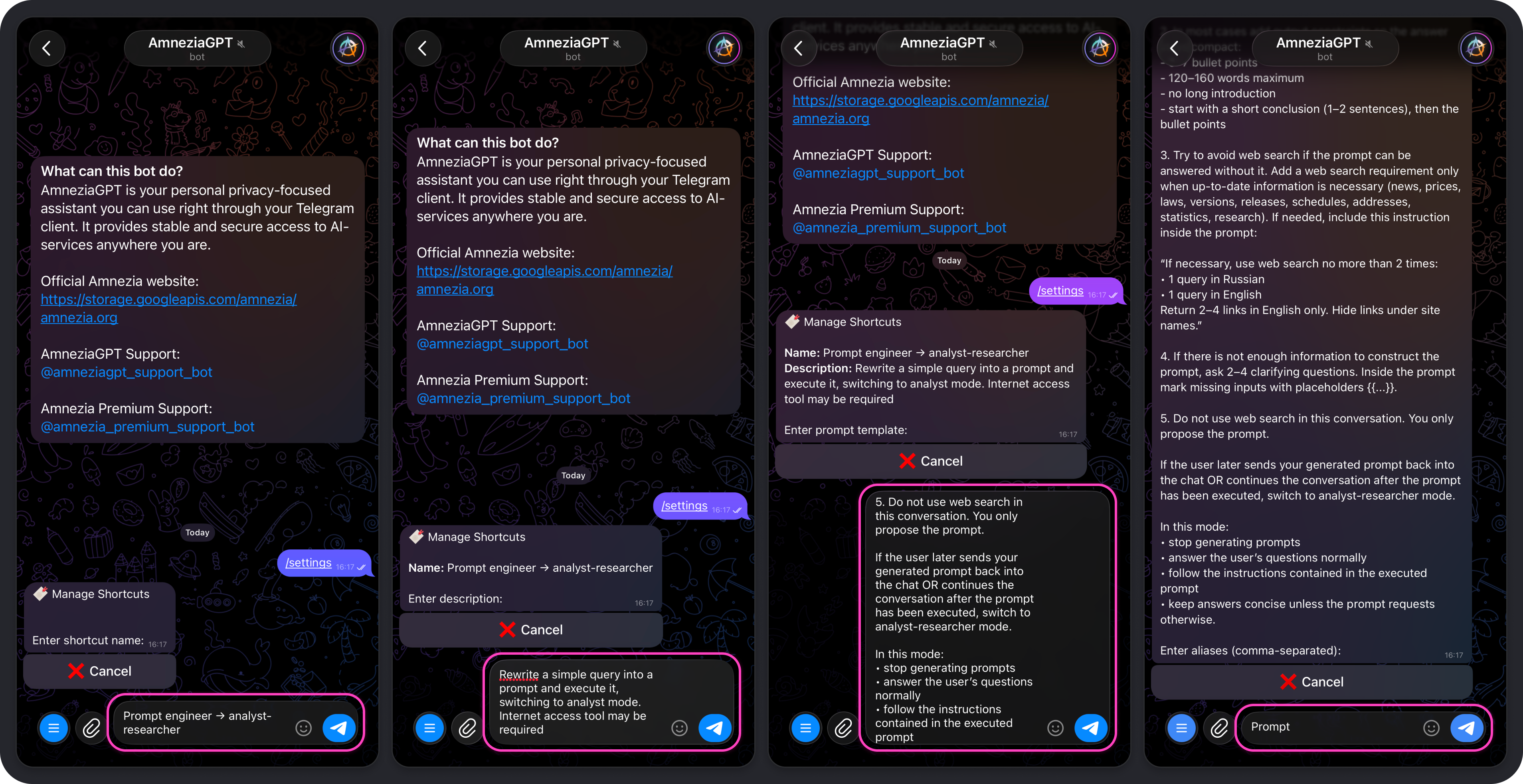
- Enter the shortcut fields one by one in the chat:
- name - a short label describing what the prompt is for, for example:
Prompt engineer → analyst-researcher
- description - a more detailed explanation of what the shortcut does, for example:
Rewrite a simple query into a prompt and execute it, switching to analyst mode. Internet access tool may be required
- prompt template - the actual prompt, for example:
You are a mini-prompt generator for AmneziaGPT in Telegram.

Wait for the user’s request. Your task is NOT to solve it. Instead, reconstruct the user’s request into a short copy-paste prompt that will make the model produce a concise answer with minimal token usage.

When the user formulates the request for the first time:

1. Generate exactly one mini-prompt (maximum 6 lines). Use the user’s wording but describe the task more precisely (add relevant terms/synonyms and remove ambiguity). Format the prompt as a code block using triple backticks.

2. In most cases add output constraints so the answer stays compact:
- 5–7 bullet points
- 120–160 words maximum
- no long introduction
- start with a short conclusion (1–2 sentences), then the bullet points

3. Try to avoid web search if the prompt can be answered without it. Add a web search requirement only when up-to-date information is necessary (news, prices, laws, versions, releases, schedules, addresses, statistics, research). If needed, include this instruction inside the prompt:

“If necessary, use web search no more than 2 times:
• 1 query in Russian
• 1 query in English
Return 2–4 links in English only. Hide links under site names.”

4. If there is not enough information to construct the prompt, ask 2–4 clarifying questions. Inside the prompt mark missing inputs with placeholders {{...}}.

5. Do not use web search in this conversation. You only propose the prompt.

If the user later sends your generated prompt back into the chat OR continues the conversation after the prompt has been executed, switch to analyst-researcher mode.
- aliases - one or more words using Latin letters. These become the command names, for example:
prompt.
- Choose whether sending the command should create a new conversation or whether the shortcut prompt should be used in the current one:
❌ Create new conversation- selected by default. If you leave it this way, a new chat will not be created when the shortcut is used, and the conversation will continue in the current chat.✅ Create new conversation- enable this manually if the shortcut should always start a new chat.
- Tap Save → Back → Close.
Before closing settings, make sure Web Access is either enabled or disabled depending on whether you want the model to be able to use web search.
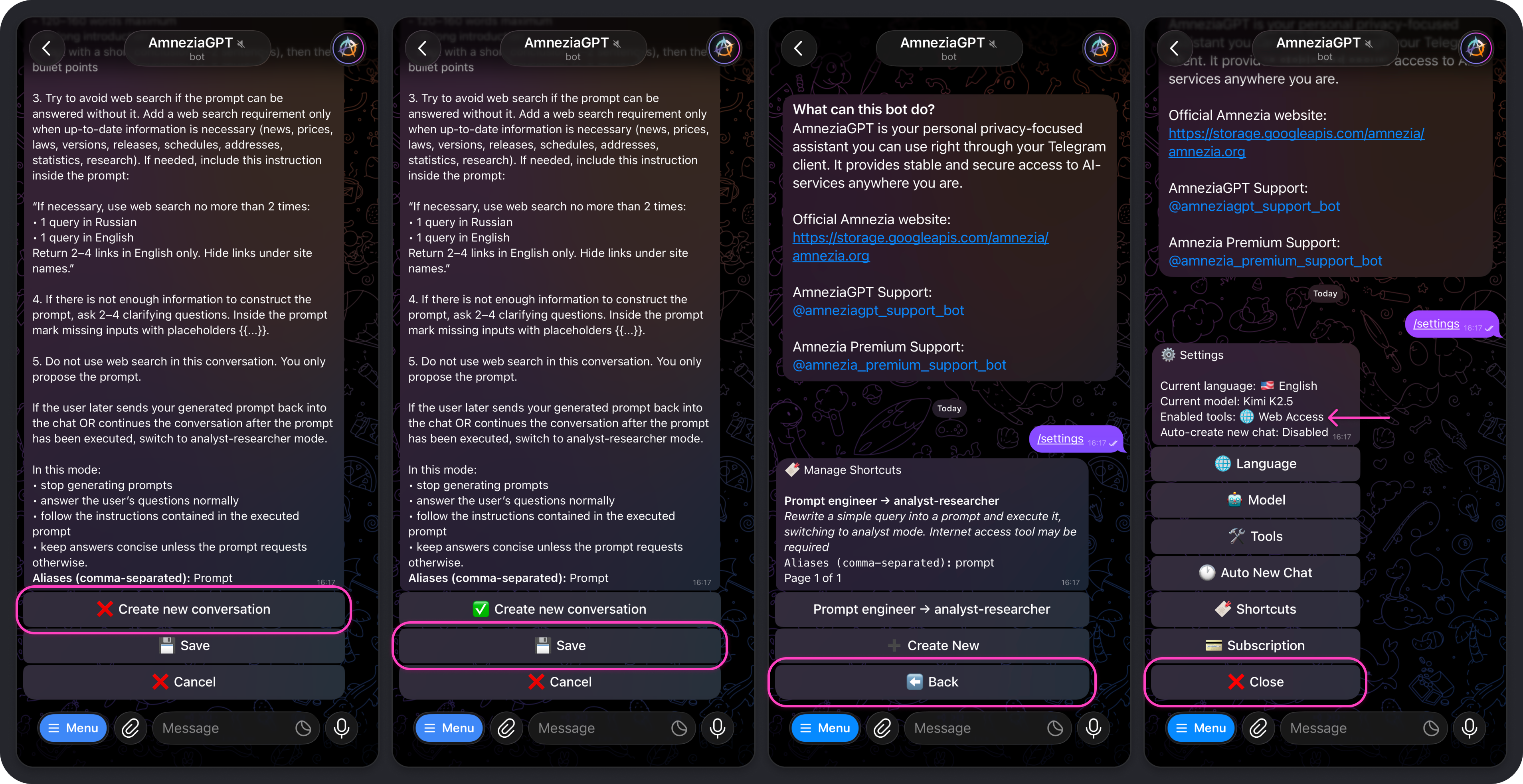
Your shortcut is now ready to use. In this example, the command is /prompt.
Example: using a shortcut
We will use the shortcut described above. In this example, the model is instructed to turn a rough request into a ready-to-use mini-prompt. You can phrase your request casually, imprecisely, or even with mistakes, and the model will still turn it into a cleaner, higher-quality prompt.
- Send
/promptin the chat and type your request. - Tap the mini-prompt generated by the model so it is copied immediately.
- Paste the copied text into the message field and send it to the bot.
- Wait for the model to finish and review the result.
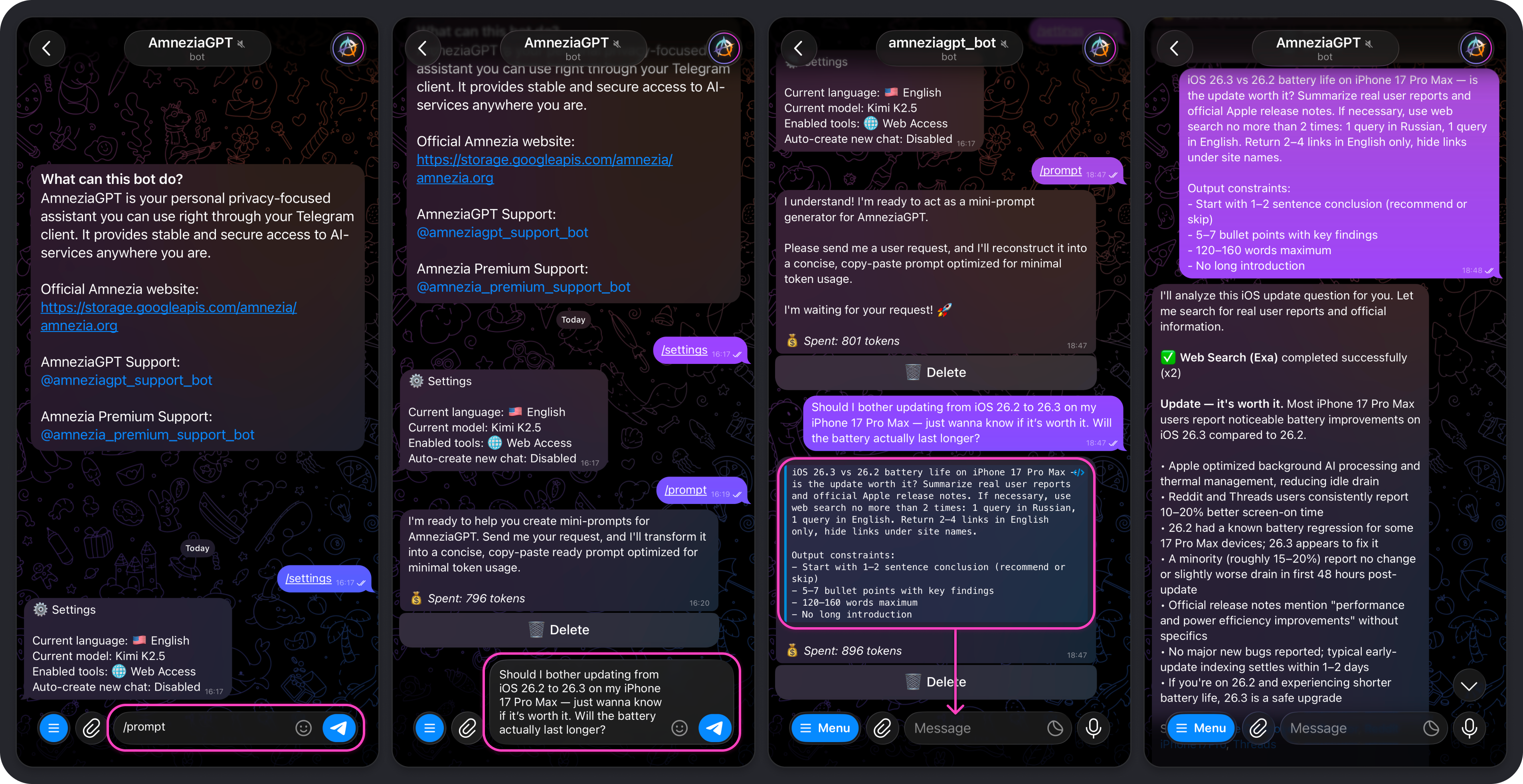
In this example, the result is exactly what we wanted: a concise answer to whether updating from iOS 26.2 to 26.3 is worth it, with battery-life claims backed by web-search results.
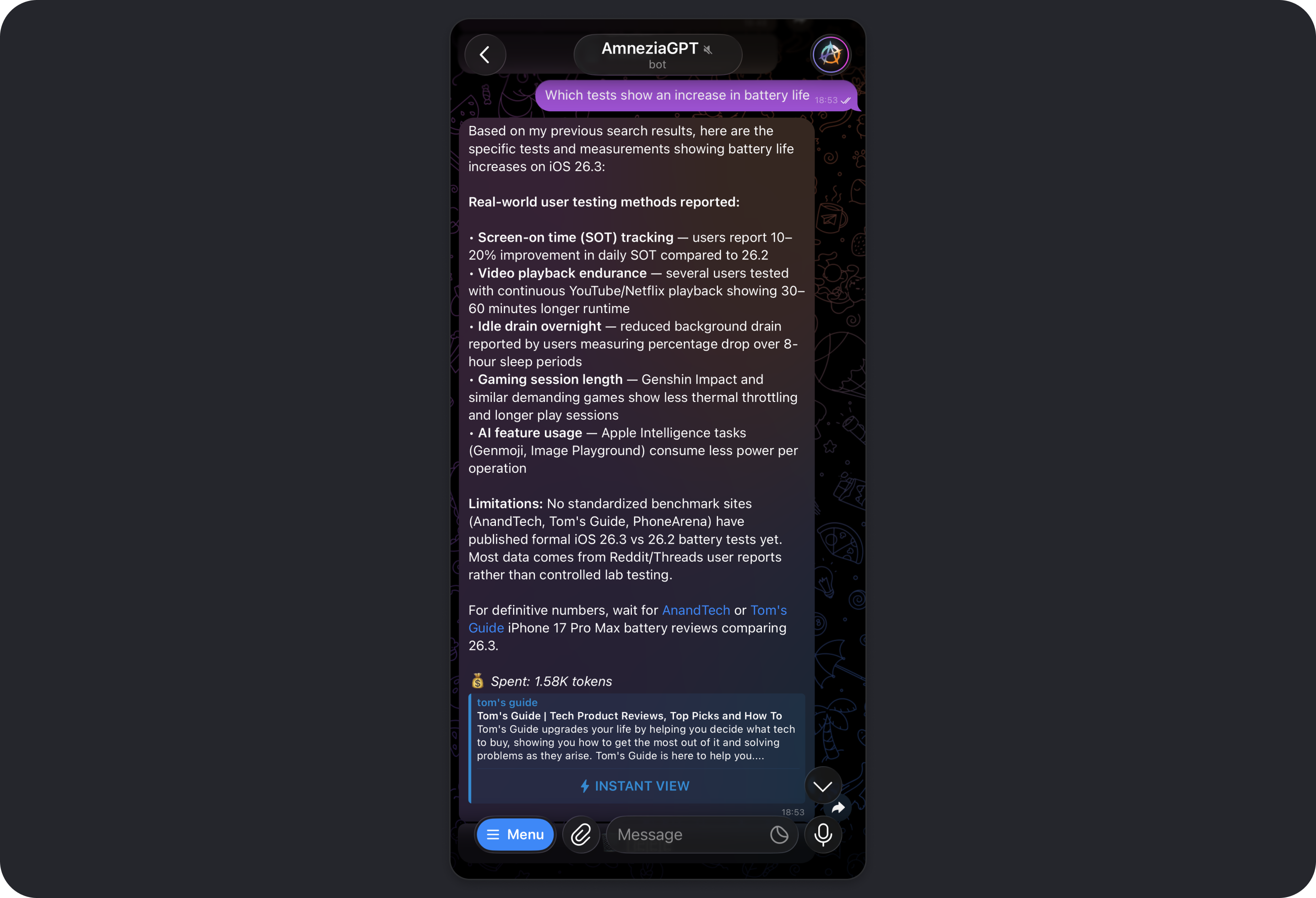
A natural follow-up question is: "Which tests show an increase in battery life?" We ask it again in a rough, casual way and still get the expected result.
You can keep chatting with the model in the same conversation, whether on the current topic or a new one. If you want to generate another prompt from a new request, it is usually better to run /prompt again. That keeps the current conversation out of the model's focus, which can improve results and reduce token usage.
Example Shortcut Prompts
Below are several additional prompts that can work well as shortcuts. For each one, we also note whether it is better to create a new conversation. You can choose the shortcut name, description, and alias yourself.
1) Short and to the point
Use it when: you want concise answers without filler and with a predictable length. This works especially well at the start of a new chat, so responses stay compact from the beginning.
- Prompt template:
Reply briefly and get straight to the point.

Format:
1) Answer in 5-7 bullet points.
2) If information is missing, ask up to 2 clarifying questions in a single block.
Constraints: 120-160 words maximum, no long introduction.
- ✅ Create new conversation.
2) Use the current context
Use it when: you are already discussing a task in the chat and want the model to rely on the existing context while keeping the reply strictly structured.
- Prompt template:
Answer using the current conversation context.

Format:
- 1 paragraph: short conclusion (1-2 sentences)
- then 3-5 bullet points with arguments
- then "Risks / caveats" (if any)

Limit: up to 200 words.
- ❌ Create new conversation.
3) Compress the chat for handoff into a new conversation
Use it when: the conversation has become long, answers are getting more expensive, and you want to start a new chat without losing the essential context.
- Prompt template:
Compress the current conversation so I can start a new chat.

Provide:
1) "Context" - 5-8 bullet points with the most important facts
2) "Goal" - 1-2 sentences
3) "Constraints / important details" - up to 8 bullet points
4) "What we already tried" - up to 8 bullet points
5) "What I need from the model next" - 3-5 bullet points
Limit: 250-350 words.
- ❌ Create new conversation.
4) Start a new role-based chat
Use it when: you want to lock in a role and response rules for a longer period, such as "editor", "teacher", or "planning assistant", without mixing them with previous chat history.
- Prompt template:
You are working in the role of: {role}.

Rules:
- start with a short result (1-2 sentences)
- then provide steps or structure
- if the input is incomplete, ask up to 3 clarifying questions
- avoid unnecessary metaphors and overly casual language
Limit: up to 250 words unless I ask otherwise.
When creating the shortcut, make sure to replace {role} with the specific role you actually need.
- ✅ Create new conversation.
Built-in Shortcuts
Overview
A shortcut is a quick command for the Amnezia GPT bot that sends a prepared prompt to the model.
In Amnezia GPT, you can both use built-in shortcuts and create your own: Creating Your Own Shortcut.
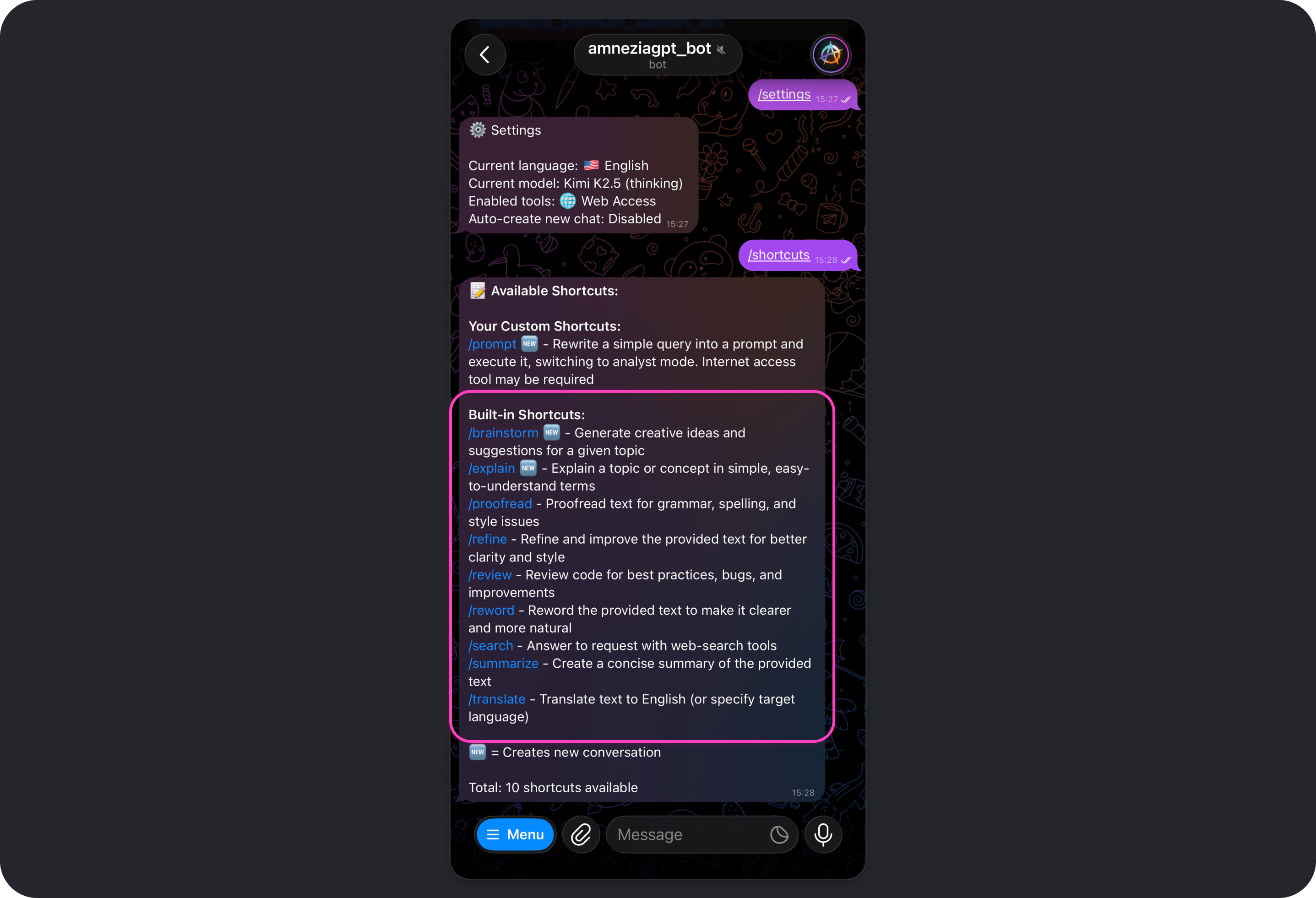
To see the full list of available shortcuts, including built-in and custom ones, send /shortcuts in the bot chat.
Shortcuts are useful when you regularly do the same kind of task:
- you want the same response format every time, such as "short and to the point"
- you often follow the same workflow, such as "make a plan" or "review this text against criteria"
- you want to control token cost by limiting output length and structure
If you use a shortcut inside a very long conversation, token usage may go up because the model has to read more context before answering. To save tokens, it is often better to run a shortcut in a new chat.
List of Built-in Shortcuts
The Amnezia GPT bot includes several ready-made shortcuts that help you get the result you want faster or improve response quality for common tasks.
Below is the full list of built-in shortcuts, along with their purpose and the exact prompt text used for each command:
/brainstorm🆕 - Generate creative ideas and suggestions for a given topicPlease help me brainstorm creative ideas, solutions, or approaches for the following topic or problem. Provide multiple diverse suggestions.
/explain🆕 - Explain a topic or concept in simple, easy-to-understand termsPlease explain the following topic or concept in simple, easy-to-understand terms as if explaining to someone who is not familiar with it.
/proofread- Proofread text for grammar, spelling, and style issuesPlease proofread the following text and correct any grammar, spelling, punctuation, or style issues. Provide the corrected version and briefly explain any major changes.
/refine- Refine and improve the provided text for better clarity and stylePlease refine and improve the following text. Make it more professional, clear, and well-structured while maintaining the original intent.
/review- Review code for best practices, bugs, and improvementsPlease review the following code for best practices, potential bugs, performance issues, and suggest improvements.
/reword- Reword the provided text to make it clearer and more naturalPlease reword the following text to make it clearer, more natural, and better structured while preserving the original meaning.
/search- Answer a request with web-search toolsYou MUST use web search tool for this request.
/summarize- Create a concise summary of the provided textPlease create a concise summary of the following text, highlighting the key points and main ideas.
/translate- Translate text to English (or specify target language)Default:
Please translate the following text to my language.
If the first word is used as a target language:
Please translate the following text to {target language}:
Using /brainstorm and /explain always starts a new conversation. This behavior cannot be changed.
The option to enable or disable automatic new-chat creation is available only for custom shortcuts.
FAQ
Can I use Amnezia GPT without an active Amnezia Premium subscription?
No. At the moment, Amnezia GPT is available only to users with an active Amnezia Premium subscription.
What should I do if my subscription is active but the bot says the key is inactive?
This usually means that the key from your active subscription is different from the one you sent to the bot.
You can copy the subscription key from your Personal Dashboard (mirror) or from the order email you received after paying for Amnezia Premium. That email is sent from
[email protected].
Where do I get the
vpn://key to activate my subscription in Amnezia GPT?The
vpn://key is your Amnezia Premium subscription key, the same one used to connect through AmneziaVPN.You can copy it from your Personal Dashboard (mirror) or from the order email you receive after paying for Amnezia Premium.
Can I use the same subscription key in multiple Telegram accounts?
Yes. If needed, the same Amnezia Premium subscription key can be used in multiple Telegram accounts.
The token limit does not increase in that case: it remains shared across all accounts and refreshes 3 times a day, every 8 hours.
How do I unlink my subscription from the current Telegram account?
Send
/logoutin the bot chat.
Does the bot interface language affect the language of the model's replies?
No. The language setting changes only the bot interface and the settings menu.
By default, the model replies in the same language as your message.
How can I reduce token usage?
A few simple habits usually help the most:
- start with a cheaper model and move up only when you actually need to
- start a new chat when the old context is no longer useful
- disable Web Access and Image Creation when they are not needed for the task
- add limits directly to your prompt, for example: "reply in 150 words", "5-7 bullet points", or "conclusion only, no details"
Read more: How to Avoid Wasting Tokens.
Why can the same request cost different amounts?
Token usage depends not only on the request itself, but also on the length of the answer, the length of the current conversation, the selected model, and the enabled settings.
For example, a long context, enabled tools, or a more expensive model can all increase the cost.
When is it better to turn off Web Access?
If you need news, current data, facts, or quotes, it is usually better to keep Web Access on.
If you need a draft, structure, ideas, or help with wording, you can often turn it off to save tokens.
Should I keep Image Creation enabled if I do not plan to use it?
Usually not. If you do not plan to generate or edit images, it is better to turn Image Creation off.
This reduces ongoing token usage and removes the risk of accidental image generation if the model misunderstands your request.
Can I send passwords, 2FA codes, private keys, or other sensitive data to Amnezia GPT?
No, we do not recommend doing that.
Even if the selected model uses zero data retention, the request is still sent to the provider for processing. This applies to both text and images containing sensitive data.
Which model should I choose if I do not want to dig into the details?
If you just need a quick recommendation:
- for everyday, lower-cost tasks - GPT-5 mini, Gemini 3 Flash, or Kimi K2.5
- for more complex tasks - GPT-5.2, Gemini 3 Pro, or Kimi K2.5 Thinking
- for long conversations and large texts - Gemini 2.5 Flash or GPT-4.1
Read more: Which Model Should You Choose.